Charcoal Player 사용 가이드
Charcoal Player Guide: slow down, loop and separate stems on your Mac
Charcoal Player는 어떤 앱인가
Charcoal Player는 Mac에서 쓰는 음악 연습용 플레이어입니다. 일반 음악 플레이어처럼 곡을 재생하지만, 악기나 노래를 연습하는 사람이 실제로 필요로 하는 기능에 초점을 맞췄습니다. 곡의 속도를 음정 변화 없이 늦추고, 어려운 마디만 정확하게 반복하고, 곡을 보컬·드럼·베이스 같은 파트로 나누어 듣고 싶은 파트만 켜거나 끌 수 있습니다. 어학 학습자가 받아쓰기나 강의 반복 청취에 쓰는 경우도 많습니다. 이 앱은 Mac 전용이며 Mac App Store에서 받을 수 있고, 최소 요구 사양은 macOS 15 이상입니다.
화면으로 미리 보기
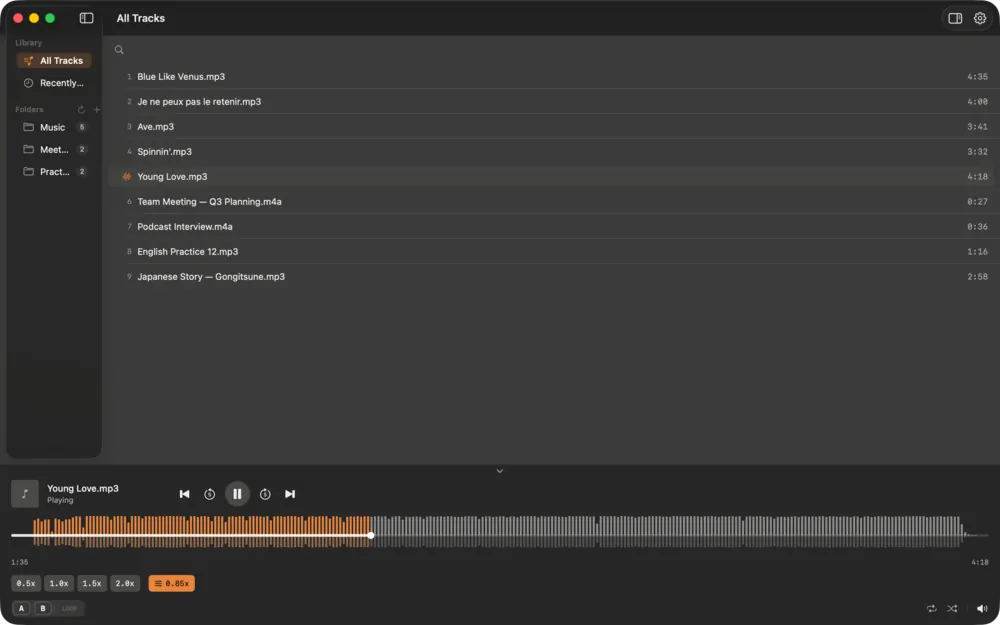
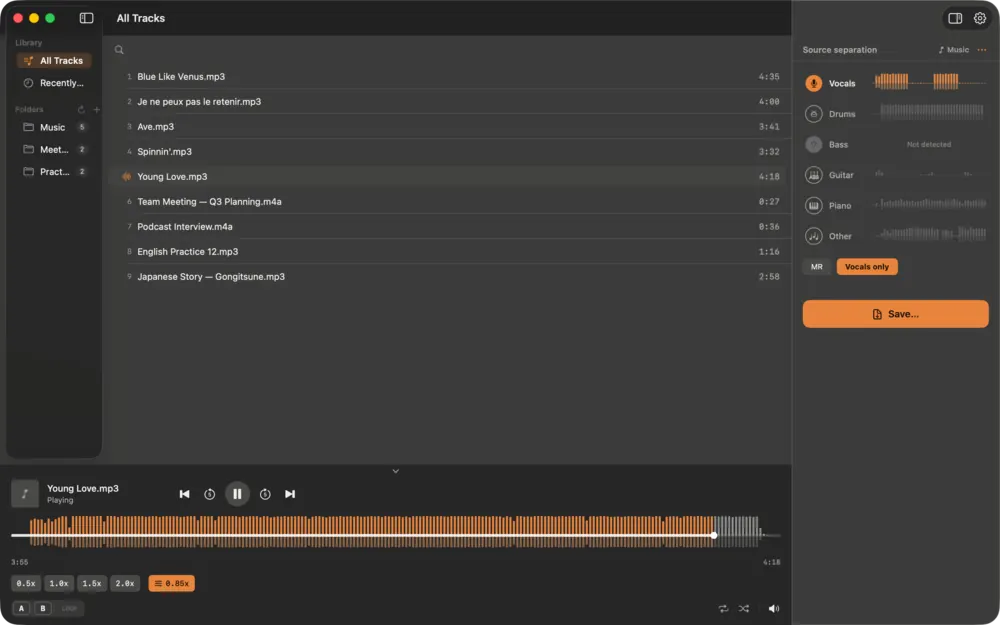
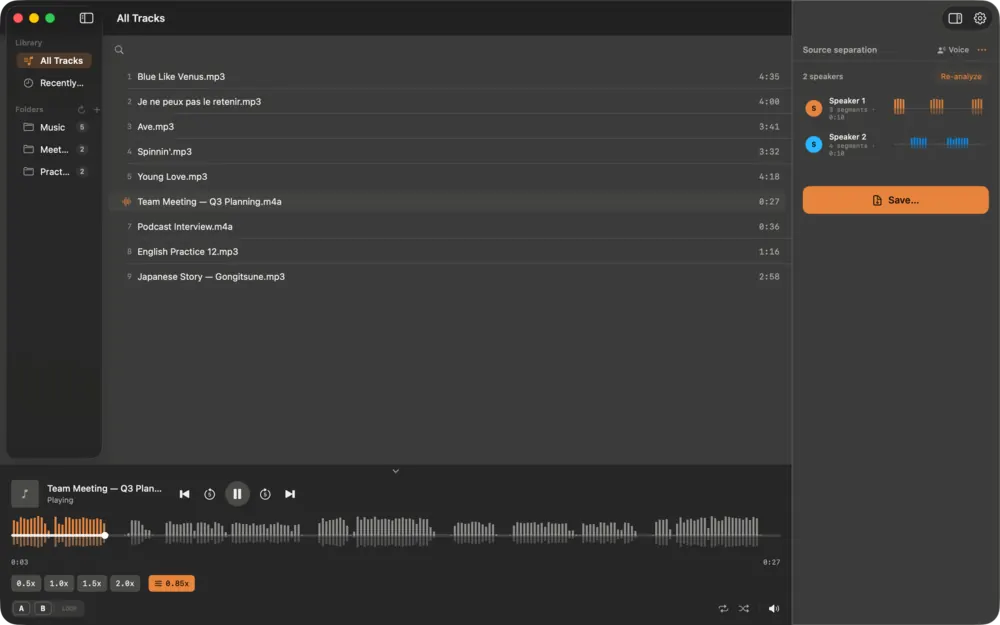
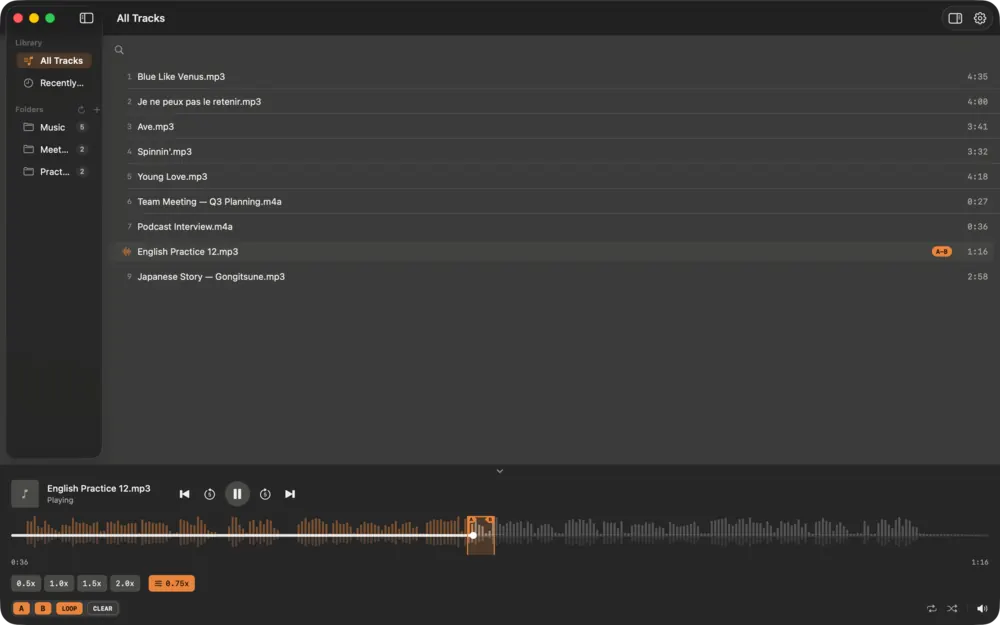
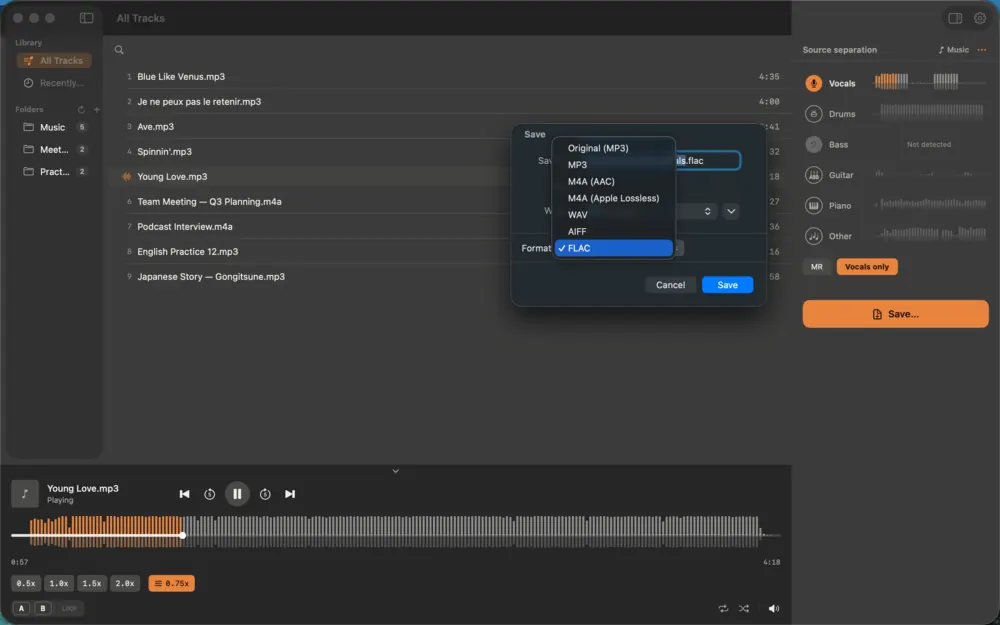
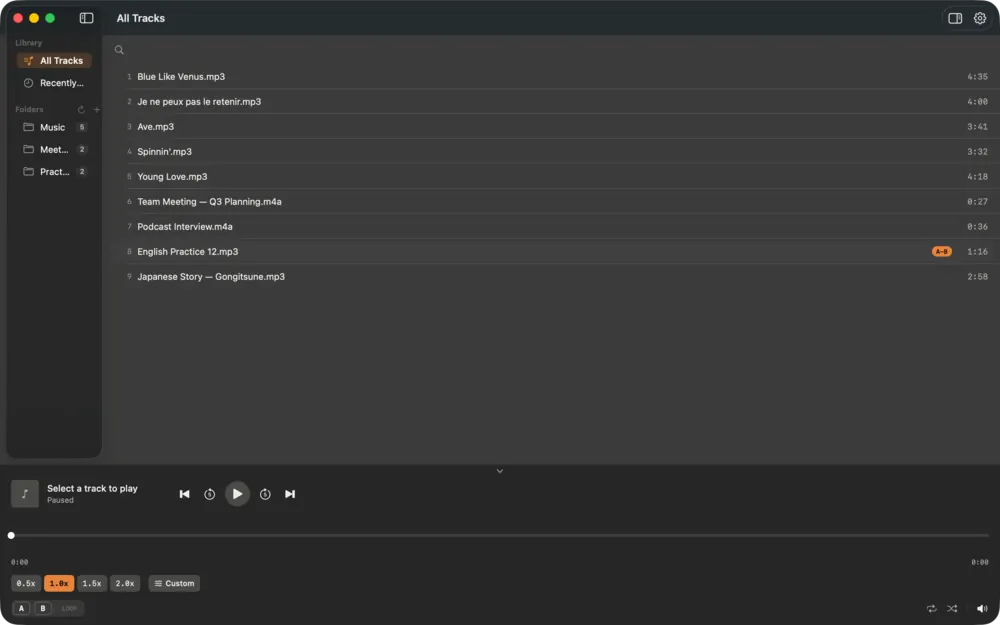
여섯 장의 화면이 이 글의 흐름과 같은 순서입니다. 라이브러리, 배속과 반복, 소리 분해, 화자 분리, 내보내기입니다.
주요 기능 한눈에 보기
- 음정 유지 배속 재생: 0.5배에서 3.0배까지 속도를 바꿔도 음높이가 그대로입니다. 빠른 패시지를 느리게 들으며 음을 따는 용도에 적합합니다.
- 샘플 단위 A-B 구간 반복: 시작점 A와 끝점 B를 지정하면 경계에서 밀리지 않고 반복됩니다. 단축키로 A 지정, B 지정, 반복 켜기와 끄기를 할 수 있습니다.
- 소리 분해(스템 분리): 기본 4개 파트(보컬·드럼·베이스·기타 악기류)로 나누고, 6개 모드를 고르면 기타와 피아노까지 따로 분리합니다. 기타와 피아노 스템은 실험적 기능으로 분류되어 있어 곡에 따라 품질 차이가 있습니다.
- 초 단위 탐색: 앞뒤로 건너뛰는 간격을 0.5초에서 30초 사이에서 직접 정할 수 있습니다.
- 라이브러리와 재생목록: 연습 폴더를 한 번 추가하면 앱을 다시 켜거나 업데이트해도 목록이 유지됩니다. Finder에서 파일을 열거나 창에 끌어다 놓아 재생할 수도 있습니다.
- 가사 표시: .lrc나 .txt 가사 파일, 또는 파일에 내장된 가사를 보여주고 오프셋을 조절할 수 있습니다.
광고가 없고, 계정을 만들 필요가 없고, 사용 데이터를 수집하지 않습니다. 재생, 배속, A-B 반복, 소리 분해는 무료로 쓸 수 있습니다. 다만 분리한 결과를 파일로 내보내는 기능은 24시간 동안 3회까지만 무료이고, 그 이상은 선택형 앱 내 구독(또는 평생 구매)으로 풀어야 합니다. 구체적인 가격은 변동될 수 있으니 스토어 페이지에서 확인하세요.
시작하기: 처음 5분
- Mac App Store에서 앱을 설치하고 실행합니다.
- 연습할 음악이 들어 있는 폴더를 앱에 추가합니다. 파일을 창에 끌어다 놓아도 바로 재생됩니다. 폴더를 추가하면 앱이 접근 권한을 기억하므로, 다음 실행에서도 목록이 그대로 남아 있습니다.
- 곡을 선택해 재생하고 배속 슬라이더로 속도를 조절합니다. 처음에는 0.7배에서 0.8배 정도로 시작해 익숙해지면 올리는 방식이 무난합니다.
- 연습할 구간의 시작에서 A, 끝에서 B를 지정한 뒤 반복을 켭니다.
소리 분해 사용법
소리 분해는 곡 전체를 신경망 모델에 통과시켜 파트별 음원을 만드는 작업입니다. 곡 화면에서 분리 시작 버튼을 눌러 진행할 수 있고, 분리 결과는 캐시에 저장되어 같은 곡을 다시 열면 기다릴 필요가 없습니다.
처음 한 번은 모델을 내려받습니다
분리 모델은 앱 안에 들어 있지 않고, 처음 쓸 때 동의를 받은 뒤 내려받습니다. 이때만 인터넷이 필요하고, 이후의 분리 작업은 Mac 안에서 처리됩니다. 음악 파일이 서버로 올라가지 않는다는 점이 이 방식의 핵심입니다.
파트 켜고 끄기
분리가 끝나면 파트별 레인이 표시됩니다. 레인마다 켜기와 끄기, 단독 듣기를 할 수 있어서 드러머라면 드럼을 끄고 연주하고, 보컬 연습생이라면 보컬만 켜서 음정과 발음을 따라 불러 볼 수 있습니다. 연습 방법은 악기 연습용 스템 분리 활용법에서 더 자세히 다룹니다.
효과적인 연습 팁
- 구간은 짧게: A-B 구간이 길면 실수한 부분을 찾기 어렵습니다. 한두 마디에서 네 마디 정도로 잡으세요.
- 속도는 단계적으로: 구간을 틀리지 않고 몇 번 연속으로 칠 수 있을 때만 속도를 올립니다. 한 번에 올리는 폭은 작을수록 좋습니다.
- 곡마다 설정이 다릅니다: 곡에 따라 적당한 배속과 음높이 설정이 다르므로 곡마다 다시 맞추는 것을 전제로 하세요.
- 이어카피에는 분리 후 단독 듣기: 베이스 라인을 따려면 베이스 파트를 단독으로 듣고, 필요하면 속도를 낮추세요.
자주 겪는 문제와 해결
- 분리 결과에 다른 악기 소리가 조금 섞입니다: AI 분리의 일반적인 한계입니다. 특히 잔향이 많은 보컬이나 여러 악기가 같은 음역에서 겹치는 곡에서 두드러집니다. 완벽한 분리를 기대하기보다 연습용 참고 음원으로 쓰세요.
- 폴더가 오프라인으로 표시됩니다: 외장 드라이브를 뺐거나 접근 권한을 다시 확인해야 할 때 생깁니다. 트랙은 삭제되지 않으니 드라이브를 연결하거나 폴더를 다시 선택하면 복구됩니다.
- 분리가 오래 걸립니다: 곡 길이와 Mac 사양에 따라 달라집니다. 한 번에 한 곡씩 처리되므로 긴 곡이라면 다른 작업을 하면서 기다리는 편이 좋습니다.
- 디스크 공간이 늘어납니다: 분리 결과는 캐시에 쌓입니다. 설정에서 캐시 정리 기능으로 사용하지 않는 결과를 지울 수 있습니다.
개인정보와 저작권
Charcoal Player는 광고와 계정이 없고 사용 데이터를 수집하지 않는다고 스토어에 밝히고 있습니다. 네트워크는 분리 모델 내려받기와 앱 내 구독·구매 처리에 한해 쓰입니다. 자세한 내용은 개인정보 처리방침을 확인하세요. 분리 기능은 본인이 구입했거나 사용 권한을 가진 음악을 개인 연습 목적으로 쓰는 것을 전제로 설계되었습니다. 분리한 음원을 공개하거나 배포하는 것은 별개의 문제이며, 해당 저작권자의 허락이 필요할 수 있습니다. 이 글은 일반적인 안내이며 법률 자문이 아닙니다.
한계와 알려진 이슈
- Mac 전용입니다. macOS 15 이상이 필요하고 Windows·iPhone 버전은 없습니다.
- 내보내기만 횟수 제한이 있습니다. 분리한 결과를 파일로 저장하는 기능은 무료로 24시간당 3회까지입니다. 그 이상은 선택형 앱 내 구독(또는 평생 구매)이 필요합니다. 재생, 배속, A-B 반복, 소리 분해 자체는 무료입니다.
- 첫 사용 때 모델을 내려받습니다. 분리 모델은 앱에 들어 있지 않고 동의 후 내려받으므로, 그때만 인터넷이 필요합니다. 이후에는 Mac 안에서 처리되어 음악 파일이 서버로 올라가지 않습니다.
- 분리는 완벽하지 않습니다. 잔향이 많거나 악기가 같은 음역에서 겹치는 곡은 다른 소리가 조금 섞입니다. 기타와 피아노 분리는 실험적 기능으로 분류되어 있고, 위 스크린샷처럼 곡에 따라 "Not detected"가 나오는 파트도 있습니다.
- 분리는 곡 길이와 Mac 사양에 따라 시간이 걸립니다. 한 번에 한 곡씩 처리되고 결과는 캐시에 쌓여 디스크 공간이 늘 수 있습니다. 설정에서 캐시를 정리할 수 있습니다.
- 저작권은 사용자 몫입니다. 구입했거나 사용 권한이 있는 음악을 개인 연습에 쓰는 것이 전제이며, 분리한 음원을 공개·배포하려면 권리자의 허락이 필요할 수 있습니다.
다른 방법과 비교
| 방법 | 강점 | 약점 |
|---|---|---|
| Charcoal Player | 한 앱에서 배속·구간 반복·소리 분해, 파일이 Mac 밖으로 나가지 않음 | Mac 전용, 내보내기 횟수 제한, 분리 품질은 곡에 따라 다름 |
| 기본 음악 플레이어 | 단순하고 익숙함 | 음정 유지 배속이나 정밀 구간 반복이 약하거나 없음 |
| DAW(음악 제작 프로그램) | 편집·믹싱 기능이 가장 넓음 | 배우는 시간이 길고 연습용으로는 과함 |
| 웹 기반 스템 분리 서비스 | 설치 없이 사용 | 파일을 업로드해야 하는 경우가 많고 서비스별 제한이 다름 |
연습 흐름 자체는 스템 분리 활용법에서 더 자세히 다룹니다.
자주 묻는 질문
Windows나 iPhone에서도 쓸 수 있나요?
아니요. 현재는 macOS 앱만 제공되며 macOS 15 이상이 필요합니다.
인터넷 없이도 쓸 수 있나요?
재생, 배속, 반복은 오프라인에서 됩니다. 소리 분해도 모델을 한 번 내려받은 뒤에는 Mac 안에서 처리됩니다.
정말 무료인가요?
재생, 배속, 구간 반복, 소리 분해는 무료입니다. 분리한 음원을 파일로 내보내는 기능만 일정 횟수를 넘으면 앱 내 구독(또는 평생 구매)이 필요합니다.
기타나 피아노만 따로 뽑을 수 있나요?
6개 스템 모드에서 가능하지만 실험적 기능이므로 결과가 곡마다 다를 수 있습니다.
문제가 생기면 어디에 문의하나요?
지원 페이지에서 안내를 받을 수 있습니다.
화자 분리도 되나요?
회의 녹음처럼 사람 목소리 중심의 파일은 음성 모드에서 화자별 구간을 나눠 보여 주고 선택해 저장할 수 있습니다. 결과 품질은 녹음 상태에 따라 달라질 수 있습니다.
어떤 형식으로 내보낼 수 있나요?
저장 화면에서 원본 형식, MP3, M4A(AAC), M4A(Apple Lossless), WAV, AIFF, FLAC을 고를 수 있습니다. 내보내기는 무료로 24시간당 3회까지입니다.
What Charcoal Player is
Charcoal Player is a practice-oriented music player for the Mac. It plays your audio files like any other player, but its feature set is aimed at people who are learning something by ear: musicians working out a part, singers rehearsing, and language learners who replay lectures or dictation passages. You can slow a track down without changing its pitch, loop one difficult phrase with precise boundaries, and split a song into separate parts so you can mute the one you want to play yourself. It is a macOS-only app distributed through the Mac App Store and requires macOS 15 or later.
Screens at a glance
The six screens follow the order of this guide: library, speed and loop, sound separation, speaker separation and export.
Main features
- Pitch-preserving speed control: play anywhere from 0.5x to 3.0x without the chipmunk or monster effect, which is what you want when transcribing fast passages.
- Sample-accurate A-B loop: set a start and end point and the loop repeats without drifting at the boundary. There are keyboard shortcuts for setting A, setting B, and toggling the loop.
- Sound separation (stems): the default mode splits a song into four parts (vocals, drums, bass, and other instruments). A six-stem mode additionally separates guitar and piano. The guitar and piano stems are labelled experimental, so quality varies from song to song.
- Custom skip interval: jump forward or back by an amount you choose, from half a second to thirty seconds.
- Library and playlists: add your practice folder once and the library persists across restarts and updates. You can also open files from Finder or drag them onto the window.
- Lyrics: show lyrics from .lrc or .txt files or from lyrics embedded in the file, with an adjustable offset.
The app has no ads, requires no account, and collects no usage data. Playback, speed control, A-B looping, and sound separation are free. Exporting separated audio to a file is free only a limited number of times per 24 hours; beyond that you unlock it with an optional in-app subscription (or a lifetime purchase). Prices can change, so check the store page for current details.
Getting started in five minutes
- Install the app from the Mac App Store and open it.
- Add the folder that holds your practice music, or simply drag a file onto the window to start playing. When you add a folder, the app remembers its access permission, so your list is still there next time.
- Choose a track, press play, and use the speed control. Starting at around 0.7x to 0.8x and working upward is a sensible default.
- Set A at the beginning of the phrase you are practicing and B at its end, then turn the loop on.
Using sound separation
Separation runs the whole song through a neural-network model and produces one audio track per part. You can start it from the track view with the separation button, and the result is cached so reopening the same song does not require another wait.
The model is downloaded once
The separation model is not bundled inside the app. The first time you use the feature, the app asks for your consent and then downloads it. That is the only time the feature needs the internet; afterwards the processing happens on your Mac, and your music files are not uploaded anywhere.
Turning parts on and off
When separation finishes you see one lane per part. Each lane can be muted or soloed. A drummer can mute the drums and play along, and a singer can solo the vocal line to study pitch and pronunciation. The workflows are described in more detail in How to practice an instrument with stem separation.
Practice tips
- Keep loops short: a long A-B region makes it hard to find the exact spot where you stumble. One to four bars works well.
- Raise speed in small steps: only speed up after you can play the loop cleanly several times in a row, and keep each increase modest.
- Expect to retune per song: the right speed and pitch setting differs between songs, so adjust again for each one.
- Solo a part to transcribe it: to learn a bass line, listen to the bass stem alone and slow it down if needed.
Common problems and fixes
- Traces of other instruments in a stem: this is a general limitation of AI separation, most noticeable with reverberant vocals or songs where several instruments share the same frequency range. Treat the result as a practice reference, not a studio-grade isolation.
- A folder shows as offline: this happens when an external drive is unplugged or a permission needs re-confirming. Tracks are not deleted; reconnect the drive or re-select the folder to restore them.
- Separation takes a long time: it depends on the song length and the Mac you use. Songs are processed one at a time, so for long tracks it is best to keep working on something else while you wait.
- Disk usage grows: separation results accumulate in a cache. Use the cache cleanup option in the settings to remove results you no longer need.
Privacy and copyright
The store listing states that Charcoal Player has no ads, no accounts, and no data collection. The network is used for downloading the separation model and for processing in-app subscriptions and purchases. See the privacy policy for details. The separation feature is meant for personal practice with music you own or are licensed to use. Sharing or distributing separated audio is a different matter and may require permission from the rights holder. This is general information, not legal advice.
Limits and known issues
- Mac only. It needs macOS 15 or later and there are no Windows or iPhone versions.
- Only export is rate-limited. Saving separated results as files is free up to 3 times per 24 hours; beyond that you need the optional in-app subscription (or lifetime purchase). Playback, speed change, A-B loop and the separation itself are free.
- A model is downloaded on first use. The separation model is not bundled; it is downloaded after you consent, and that is the only time internet is needed. Afterwards processing happens on your Mac and music files are not uploaded.
- Separation is not perfect. Tracks with heavy reverb or instruments in the same range bleed a little. Guitar and piano separation is classed as experimental, and as the screenshot shows some parts read "Not detected" depending on the track.
- Separation takes time depending on track length and Mac specs. One track is processed at a time, and results pile up in a cache that can grow disk use; you can clear it in settings.
- Copyright is your responsibility. It assumes personal practice with music you own or may use; publishing or distributing separated audio may need the rights holder's permission.
How it compares
| Option | Strength | Weakness |
|---|---|---|
| Charcoal Player | Speed, loop and separation in one app; files stay on the Mac | Mac only, limited exports, separation quality varies by track |
| A default music player | Simple and familiar | Weak or missing pitch-preserving speed and precise looping |
| A DAW (music production software) | Widest editing and mixing features | Long learning curve; overkill for practice |
| Web stem-separation services | No installation | Often require uploading the file; limits differ by service |
The practice workflow itself is covered in more detail in how to practice with stem separation.
Frequently asked questions
Is there a Windows or iPhone version?
No. The app is currently available only for macOS 15 or later.
Does it work offline?
Playback, speed control, and looping work offline. Separation also runs on your Mac once the model has been downloaded.
Is it really free?
Playback, speed, looping, and separation are free. Only exporting separated audio to files beyond a small allowance requires an in-app subscription (or a lifetime purchase).
Can I extract only guitar or piano?
Yes, in the six-stem mode, but it is an experimental feature and results differ from song to song.
Where do I get help?
Visit the support page.
Does it separate speakers too?
For voice-centered files such as meeting recordings, voice mode lays out segments per speaker and lets you pick which to save. Quality can vary with the recording.
Which formats can I export?
The save dialog offers the original format, MP3, M4A (AAC), M4A (Apple Lossless), WAV, AIFF and FLAC. Exports are free up to 3 times per 24 hours.