여러 Claude Code 세션을 동시에 관리하는 법
Managing multiple Claude Code sessions at once: worktrees, naming, permissions, hooks and a process monitor
Claude Code에 익숙해지면 터미널 창이 자연스럽게 늘어납니다. 한쪽에서는 테스트를 고치게 하고, 다른 쪽에서는 문서를 정리하게 하고, 세 번째 창에서는 리팩터링 계획을 짜게 합니다. 처리량은 늘지만 대가가 따릅니다. 어느 창이 무슨 일을 하는지 잊고, 끝난 줄 모르고 방치하고, 두 세션이 같은 파일을 동시에 고쳐 충돌하기도 합니다. 이 글은 병렬 세션을 굴릴 때 겪는 문제를 격리, 이름, 권한, 알림, 가시성, 컨텍스트의 여섯 축으로 나눠 공식 문서에 근거한 습관으로 정리한 것입니다. 마지막에는 프로세스 수준 모니터인 ClaudeMiner를 한계와 함께 소개합니다.
Claude Code는 빠르게 바뀌는 도구입니다. 아래 내용은 2026-10-07에 code.claude.com 공식 문서에서 확인한 것이며, 명령과 단축키는 버전에 따라 다를 수 있습니다. 문서에 "v2.1.xxx 이상"이라고 적힌 기능은 그렇게 표기했습니다. 막히면 공식 문서의 해당 쪽을 먼저 확인하세요.
병렬 실행 방식 먼저 고르기
"여러 개를 동시에"라고 해도 방식이 하나가 아닙니다. 공식 문서도 worktree, 서브에이전트, 백그라운드 세션(에이전트 뷰), 에이전트 팀을 서로 다른 도구로 설명합니다. 작업 성격에 맞는 쪽을 고르면 관리 부담이 크게 줄어듭니다.
| 방식 | 무엇을 나누나 | 잘 맞는 경우 | 주의 |
|---|---|---|---|
| 터미널 창 여러 개 + worktree | 작업 폴더와 브랜치(파일 편집 격리) | 같은 저장소에서 기능·버그를 따로 진행 | 의존성 설치와 .env는 worktree마다 따로 준비해야 함 |
| 서브에이전트 | 한 세션 안의 컨텍스트 | 조사·탐색을 맡기고 요약만 받기 | 세션 자체를 늘리는 것이 아님 |
| 백그라운드 세션(에이전트 뷰) | 터미널 없이 도는 세션 | 여러 세션을 한 화면에서 관리 | 연구 프리뷰, v2.1.257 이상, 화면·단축키가 바뀔 수 있음 |
| 에이전트 팀, 세션 간 메시징 | 세션끼리 협업 | 복잡한 분업 | 각각 별도 문서를 먼저 읽을 것 |
이 글은 개인 개발자가 가장 흔히 쓰는 첫 번째 방식, 즉 터미널 여러 개와 worktree를 중심에 두고 나머지는 보조 수단으로 다룹니다.
세션 하나에 작업 하나
가장 효과가 큰 규칙은 한 세션에 한 가지 목적만 주는 것입니다. 버그 수정과 기능 추가와 코드 리뷰를 섞으면 대화가 길어지고 앞의 맥락이 뒤 작업에 간섭합니다. 작업이 끝나면 세션을 정리하고 다음 일은 새 세션에서 시작하세요. 첫 프롬프트에 목표와 완료 기준을 한 줄로 적어 두면 한참 뒤 화면을 봐도 맥락을 복원하기 쉽습니다.
이름 붙이기
Claude Code는 세션에 이름을 붙이는 방법을 직접 제공합니다. 시작할 때 claude -n auth-refactor, 진행 중에는 /rename auth-refactor를 쓰고, 세션 선택 화면에서는 강조한 항목에서 Ctrl+R로 바꿀 수 있습니다. 이름을 붙이면 claude --resume auth-refactor나 /resume auth-refactor로 바로 돌아갑니다. 같은 이름을 쓰는 세션이 이미 살아 있으면 새 세션 이름 뒤에 두 단어짜리 접미사가 붙고 알려 주므로 이름이 겹치는 상황도 어느 정도 방지됩니다. 이름을 안 붙인 세션은 첫 프롬프트 요약으로 만든 제목이 생기지만 "작업 폴더 이름+두 글자" 같은 기본 표시명은 재개용 이름으로 쓸 수 없다고 문서가 설명합니다.
돌아오기
claude --continue: 현재 폴더의 가장 최근 대화를 이어 갑니다.claude --resume또는 세션 안에서/resume: 목록에서 고릅니다. 선택 화면에서Ctrl+W는 저장소의 모든 worktree,Ctrl+A는 이 기기의 모든 프로젝트,Ctrl+B는 현재 git 브랜치로 목록 범위를 바꿉니다.- 대화를 갈라 다른 접근을 시험하려면
/branch 이름(또는claude --continue --fork-session)을 씁니다. 원본은 그대로 남습니다. - 같은 세션을 두 터미널에서 포크 없이 재개하면 두 쪽의 메시지가 한 기록에 섞입니다. 병렬이 목적이라면 포크하세요.
worktree로 파일 충돌 막기
여러 세션이 같은 저장소의 같은 폴더에서 일하면 서로의 수정을 덮어쓰거나 반쯤 끝난 변경을 읽게 됩니다. git worktree는 하나의 저장소에서 브랜치마다 별도 작업 폴더를 만들어 이 문제를 정면으로 푸는 기능이고, Claude Code는 이를 플래그 하나로 지원합니다.
claude --worktree feature-auth # 또는 -w feature-auth기본 동작은 이렇습니다. 저장소 루트의 .claude/worktrees/feature-auth/에 새 체크아웃을 만들고 worktree-feature-auth 브랜치를 새로 만듭니다. 이름을 생략하면 bright-running-fox 같은 이름을 자동으로 붙입니다. 다른 터미널에서 다른 이름으로 같은 명령을 실행하면 두 번째 격리 세션이 됩니다. 알아 둘 점이 몇 가지 있습니다.
- 커밋이 하나는 있어야 합니다. worktree는 기존 커밋에서 만들어지므로 커밋이 없는 저장소에서는
Failed to resolve base branch "HEAD"오류가 납니다. - 기본 기준 브랜치는 원격의 기본 브랜치입니다. 문서의 기본값
worktree.baseRef: "fresh"는 보통main에서 새로 갈라지므로, 아직 푸시하지 않은 로컬 커밋이나 진행 중인 기능 브랜치 상태는 새 worktree에 들어 있지 않습니다. 현재 작업 상태에서 갈라지게 하려면 설정을"head"로 바꿉니다. 이 함정은 "내가 방금 만든 코드가 worktree에 왜 없지?"라는 혼란의 흔한 원인입니다. - 새 체크아웃이라 환경이 비어 있습니다. 의존성을 다시 설치해야 하고, gitignore된
.env는 따라오지 않습니다. 프로젝트 루트에.worktreeinclude파일을 두고 복사할 파일을 적어 두면(.gitignore 문법, 둘 다 ignore된 파일만 복사) 새 worktree에 자동으로 복사됩니다. .claude/worktrees/를.gitignore에 넣으세요. 문서의 권장 사항입니다.- 종료할 때의 정리: 변경이 없는 이름 없는 세션은 worktree와 브랜치를 자동 삭제하고, 이름을 붙인 세션은 먼저 묻습니다. 작업이 남아 있으면 유지할지 삭제할지 묻고, 유지하면 종료 시 안내되는
claude --worktree <name> --resume으로 돌아올 수 있습니다. - 격리의 범위: 편집 도구와 명령의 작업 디렉터리, git 리디렉션은 막지만
cp나 셸 리디렉션이 메인 체크아웃에 쓰는 것까지 추적하지는 않는다고 문서가 명시합니다. 격리가 만능은 아닙니다.
git을 직접 쓰고 싶다면 git worktree add ../project-feature-a -b feature-a로 만든 폴더에서 평소처럼 claude를 실행해도 됩니다. 목록은 git worktree list, 정리는 git worktree remove입니다. 같은 파일을 반드시 고쳐야 하는 작업이라면 worktree로 나누는 대신 순서를 정해 한 세션씩 진행하는 편이 합칠 때 덜 아픕니다.
권한 모드: 세션마다 신뢰 수준 다르게
세션이 여러 개일 때는 모든 세션이 같은 권한 모드일 필요가 없습니다. 공식 문서가 정리한 모드는 아래와 같습니다. 설정 파일의 값은 영문 이름이고, 질문마다 확인하는 모드는 화면에서 "Manual"로 불리지만 값은 default입니다.
| 모드 | 묻지 않고 하는 일 | 병렬 작업에서의 쓰임새 |
|---|---|---|
default (Manual) | 읽기만 | 민감한 작업, 처음 보는 저장소 |
acceptEdits | 읽기, 파일 편집, mkdir·mv 같은 기본 파일 명령 | worktree 안에서 코드를 반복 수정하며 diff를 직접 검토할 때 |
plan | 읽기(계획 제안만, 승인 전 편집 없음) | 조사·설계 세션 |
auto | 전부 실행하되 분류 모델이 백그라운드에서 안전 검사 | 오래 걸리는 작업에서 확인 피로를 줄일 때 |
dontAsk | 읽기와 사전 승인 도구만(나머지는 거부) | CI, 스크립트 |
bypassPermissions | 전부 | 격리된 컨테이너·VM에서만 |
세션 안에서는 Shift+Tab으로 모드를 순환합니다. 문서 기준으로 auto에서 한 번 누르면 default, 이어서 acceptEdits, plan 순이며 상태 표시줄에 현재 모드가 나옵니다. 시작할 때는 claude --permission-mode plan처럼 지정합니다. 문서의 설명에 따르면 deny 규칙은 bypassPermissions에서도 적용되고, 보호 경로에 대한 쓰기는 이 모드가 아니면 자동 승인되지 않습니다. 또 재개할 때 터미널에서 --continue나 --resume을 쓰면 세션이 끝날 때의 모드가 대체로 복원되지만 bypassPermissions는 복원되지 않으니, 모드는 재개 후 상태 표시줄로 확인하는 습관이 안전합니다.
제 권장은 이렇습니다(공식 규칙이 아니라 경험에서 나온 의견입니다). 조사·설계 세션은 plan, 별도 worktree에서 도는 구현 세션은 acceptEdits나 auto, 운영 설정이나 삭제가 걸린 세션은 default로 둡니다. --dangerously-skip-permissions류의 전면 우회는 일회용 컨테이너 밖에서는 쓰지 마세요.
끝났다는 신호를 놓치지 않기: 훅 알림
병렬 작업의 이점은 기다리는 동안 다른 일을 하는 것인데, 끝났는지 보려고 창을 계속 오가면 그 이점이 사라집니다. 가장 확실한 방법은 Claude Code 자체의 훅(hooks)입니다. 훅은 수명주기의 특정 시점에 실행되는 사용자 정의 셸 명령입니다. 문서가 소개하는 시작 예시는 ~/.claude/settings.json에 Notification 훅을 넣는 것입니다. 이 이벤트는 Claude가 입력이나 권한을 기다릴 때 발생합니다. macOS에서는 다음과 같이 씁니다.
{
  "hooks": {
    "Notification": [
      {
        "matcher": "",
        "hooks": [
          {
            "type": "command",
            "command": "osascript -e 'display notification \"Claude Code needs your attention\" with title \"Claude Code\"'"
          }
        ]
      }
    ]
  }
}
설정한 뒤 프롬프트에서 /hooks를 입력하면 등록된 훅 목록에서 확인할 수 있습니다. 시험은 Shift+Tab으로 Manual 모드로 바꾸고 권한이 필요한 일을 시킨 다음 다른 앱으로 전환해 알림이 오는지 보면 됩니다. 문서가 주의를 주는 점이 하나 있습니다. osascript는 스크립트 편집기를 통해 알림을 보내는데 이 앱에 알림 권한이 없으면 명령이 조용히 실패하고 macOS도 권한을 묻지 않습니다. 알림이 안 뜨면 터미널에서 osascript -e 'display notification "test"'로 먼저 점검하세요.
"응답이 끝났을 때"도 알고 싶다면 Stop 이벤트(Claude가 응답을 마칠 때 실행)를 씁니다. 같은 hooks 객체 안에 형제 키로 넣어야 하며 기존 hooks 키를 통째로 덮어쓰지 않도록 주의하세요.
{
  "hooks": {
    "Stop": [
      {
        "hooks": [
          {
            "type": "command",
            "command": "osascript -e 'display notification \"Claude finished responding\" with title \"Claude Code\"'"
          }
        ]
      }
    ]
  }
}
다만 두 알림이 모두 켜져 있으면 세션이 많을 때 알림이 쏟아져 오히려 둔감해집니다. 저는 사람의 입력이 필요한 시점(Notification)만 켜 두고, 완료 알림은 오래 걸리는 세션에만 쓰는 것을 권합니다. 터미널 앱이 제공하는 벨·알림 기능을 켜는 방법도 있습니다.
한 화면에서 보기: 에이전트 뷰와 외부 모니터
에이전트 뷰(claude agents)
공식 기능으로 claude agents 명령이 있습니다. 문서는 이를 연구 프리뷰이며 v2.1.257 이상에서 쓸 수 있고 인터페이스와 단축키가 바뀔 수 있다고 설명합니다. 터미널을 붙들지 않는 백그라운드 세션들을 한 화면의 표로 보여 주고, 각 줄에 세션 이름, 현재 활동 한 줄 요약, 경과 시간, 상태가 나옵니다. 상태는 작업 중, 입력 필요, 유휴, 완료, 실패, 중지로 구분됩니다. 백그라운드 세션은 claude --bg "프롬프트"나 세션 안의 /bg로 시작합니다. Claude Code 내부 상태를 읽어 "입력이 필요함"을 알려 준다는 점이 외부 도구와 가장 큰 차이입니다.
프로세스 수준의 외부 모니터
평소처럼 여러 터미널 창에서 세션을 돌리는 경우에는 에이전트 뷰가 보여 주지 못하는 영역이 있습니다. 이때 운영체제의 프로세스 정보로 한눈에 보려는 도구가 아래에서 소개할 ClaudeMiner입니다. 도구 없이도 터미널에서 ps -axo pid,tty,%cpu,command | grep '[c]laude' 같은 명령으로 Claude Code 프로세스와 연결된 터미널(TTY) 열을 볼 수 있습니다. macOS에서 TTY가 ??로 나오면 터미널이 없는 프로세스일 가능성이 큽니다.
멈춘 세션과 좀비 프로세스
세션이 오래 반응하지 않을 때는 먼저 정말 멈췄는지 확인합니다. 큰 작업이나 느린 명령을 실행 중일 수 있습니다. 출력이 더 나오지 않고 CPU도 계속 바닥이면 입력 대기이거나 멈춘 것일 수 있습니다. 한편 터미널 창을 닫았는데 프로세스가 남는 경우가 있습니다. 연결된 터미널이 없는 프로세스는 아무도 볼 수 없어 자원만 쓰는 고아가 되기 쉽습니다. 종료하기 전에 그 프로세스가 진행 중인 작업이 없는지 반드시 확인하세요. 프로세스 종료는 되돌릴 수 없고, 아직 저장되지 않은 대화 상태가 사라질 수 있습니다.
컨텍스트를 작게 유지하기
대화가 길어질수록 응답 품질과 속도에 부담이 갑니다. 세션 안에서 쓸 수 있는 문서화된 도구는 다음과 같습니다.
/clear: 빈 컨텍스트로 새로 시작합니다. 이전 대화는 저장되어/resume으로 돌아갈 수 있습니다./compact [지침]: 기록을 요약으로 바꿉니다. 무엇에 집중해 요약할지 지침을 줄 수 있습니다./context: 지금 컨텍스트를 무엇이 차지하는지 보여 줍니다.- 서브에이전트: 파일을 많이 읽는 조사를 맡기면 별도 컨텍스트에서 읽고 요약만 돌려줍니다.
- CLAUDE.md: 빌드 명령이나 규칙처럼 반복해서 알려 줘야 하는 내용을 적어 두면 새 세션에서도 다시 설명하지 않아도 됩니다. 짧게 유지해야 중요한 규칙이 묻히지 않습니다.
Pro·Max 요금제에서 한 시간 넘게 쉰 100,000토큰 이상의 세션을 재개하면 요약 후 재개할지, 그대로 재개할지 묻는 창이 열릴 수 있다고 문서가 설명합니다. 이 시점에는 프롬프트 캐시가 이미 만료되어 첫 요청에 전체 기록을 다시 처리하므로, 오래 쉰 세션은 이어 가기보다 요약하거나 새로 시작하는 쪽이 대체로 저렴합니다.
ClaudeMiner: 프로세스 수준 모니터
ClaudeMiner는 컴퓨터에서 돌아가는 Claude Code 프로세스를 캐릭터로 보여 주는 오픈소스(MIT) 모니터입니다. SETLOG가 만든 앱이며, Claude Code의 제작사와는 무관한 독립 프로젝트입니다. 자세한 사용법은 ClaudeMiner 사용 가이드에 있고 여기서는 이 글의 맥락에서 필요한 부분만 정리합니다.
무엇을 보여 주나
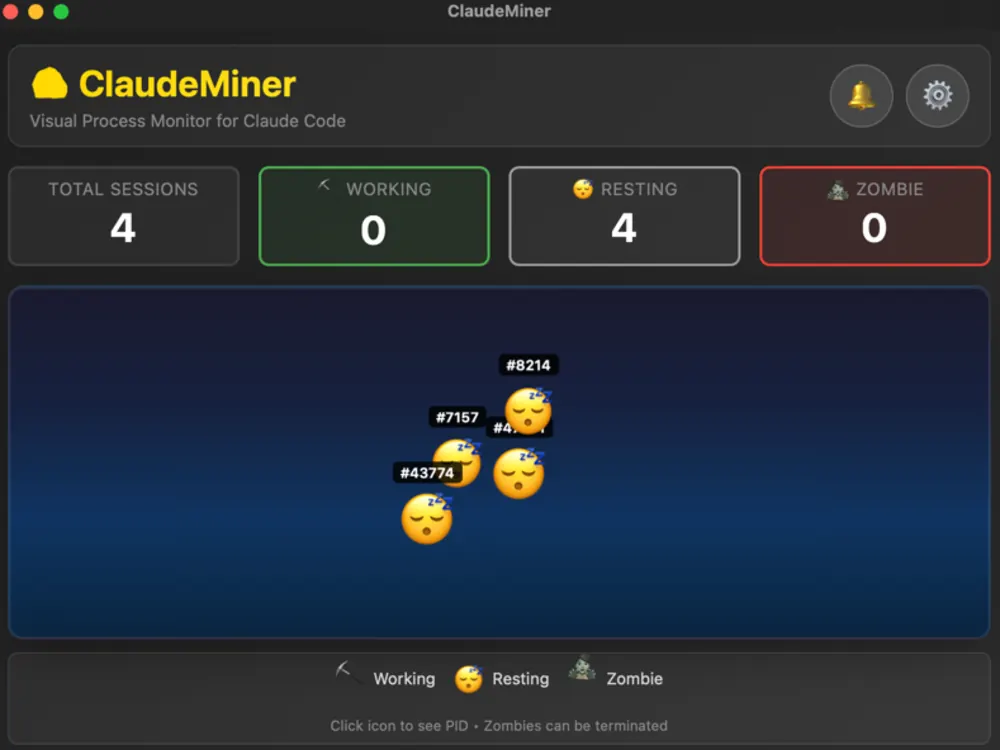
- 감지한 Claude Code 프로세스마다 아이콘 하나와 PID를 보여 주고, 위쪽에 전체·작업 중·휴식·좀비 개수를 요약합니다.
- 상태 판정은 프로젝트 README 기준으로 CPU 사용률이 10%를 넘으면 작업 중, 10% 미만이면 휴식, 연결된 터미널(TTY)이 없으면 좀비입니다.
- 설정한 주기(기본 2초, 1·2·5·10초 중 선택)로 프로세스 목록을 읽고, macOS에서는 작업 완료·새 세션 시작·좀비 발견 알림을 줄 수 있다고 문서에 적혀 있습니다. PID를 누르면 복사되고 좀비는 앱에서 종료할 수 있습니다.
정직한 한계
- CPU 사용률은 간접 지표입니다. Claude Code가 네트워크 응답을 기다리는 동안에는 CPU가 낮아 "휴식"으로 보일 수 있습니다. "휴식"은 "끝났다"가 아니라 "지금 CPU를 거의 안 쓴다"는 뜻입니다.
- 어떤 세션인지는 알려 주지 않습니다. 앱은 프로세스 ID와 CPU·메모리 수치만 읽고 대화나 코드는 읽지 않으므로 세션 이름, 브랜치, 작업 내용은 표시되지 않습니다. 구분 수단은 PID뿐이라 앞의 이름 붙이기·worktree 습관이 여전히 필요합니다. 스크린샷처럼 아이콘이 가까우면 라벨이 겹쳐 읽기 어렵기도 합니다.
- "입력 필요"를 알 수 없습니다. 에이전트 뷰나
Notification훅처럼 Claude Code가 직접 알려 주는 신호가 아닙니다. 사람의 응답을 기다리는지, 작업이 끝나 쉬는지 구분하지 못합니다. - 플랫폼 범위가 좁습니다. README의 다운로드는 Apple Silicon용 macOS 빌드(.dmg)입니다. Windows 10 이상도 요구 사항에 적혀 있지만, 프로젝트 내부 문서에는 Windows에서 TTY 감지가 꺼져 있다고 되어 있어 좀비 판정은 macOS에서 가장 정확합니다. Intel Mac용 빌드는 README에서 확인하지 못했습니다.
- 관찰 도구일 뿐입니다. Claude Code를 제어하지 않습니다. 좀비 종료 기능만 예외이고, 종료한 프로세스는 되돌릴 수 없습니다.
잘 맞는 경우
- 터미널을 여러 개 열어 두고 "지금 누가 CPU를 쓰는지" 한눈에 보고 싶은 사람
- 터미널을 닫은 뒤 남는 프로세스가 신경 쓰이는 사람
굳이 필요 없는 경우
- 세션이 한두 개뿐인 사람
- 훅 알림이나 에이전트 뷰만으로 충분한 사람
- Windows·Linux에서 좀비 판정까지 기대하는 사람
시작용 체크리스트
- 오늘 할 작업을 세 개 이하로 적고, 작업마다 브랜치와 worktree(
claude -w 이름)를 만든다. - 세션 이름(
-n또는/rename)을 작업 이름과 맞춘다. - 조사 세션은
plan, 구현 세션은 worktree 안에서acceptEdits이상으로 시작한다. Notification훅을 설정하고/hooks로 확인한다.- 푸시하지 않은 커밋이 필요한 작업은
worktree.baseRef를 먼저 확인한다. - 작업이 끝나면 병합하고 worktree를 정리하며 세션은
/clear하거나 닫는다. - 하루가 끝나면 남은 세션과 TTY 없는 낯선 프로세스를 점검한다.
출처 및 더 읽을거리
- Claude Code Docs: Run parallel sessions with worktrees
- Claude Code Docs: Manage sessions (naming, resume, branch, context commands)
- Claude Code Docs: Automate actions with hooks
- Claude Code Docs: Choose a permission mode
- Claude Code Docs: Agent view (background sessions)
- Claude Code Docs: Common workflows
- Claude Code Docs: Best practices
- ClaudeMiner GitHub repository (README, MIT license)
자주 묻는 질문
동시에 몇 개까지 돌리는 게 좋은가요?
정해진 숫자는 없습니다. 각 결과를 제때 검토할 수 있는 개수가 한계이고, 검토 대기가 쌓이기 시작하면 이미 많은 것입니다. 보통 두세 개로 시작해 보세요.
worktree는 꼭 필요한가요?
같은 저장소에서 동시에 코드를 고치는 경우에만 필요합니다. 읽기 위주의 조사 세션은 별도 폴더 없이도 됩니다. claude --worktree 이름 으로 만들 수 있습니다.
새 worktree에 방금 만든 커밋이 없습니다.
기본 설정(worktree.baseRef: fresh)은 원격의 기본 브랜치에서 새로 갈라지므로 푸시하지 않은 로컬 커밋은 포함되지 않습니다. 설정을 head로 바꾸거나 git으로 원하는 브랜치에서 직접 worktree를 만드세요.
작업이 끝나면 알림을 받으려면 어떻게 하나요?
~/.claude/settings.json에 Notification 훅(입력·권한 대기 시)이나 Stop 훅(응답 종료 시)을 추가하고 /hooks로 확인합니다. macOS에서 osascript 알림이 안 뜨면 스크립트 편집기의 알림 권한을 확인하세요.
한 세션에서 오래 이어가는 것은 나쁜가요?
같은 목적이 이어진다면 괜찮지만 대화가 길수록 앞의 맥락이 간섭하고 비용이 늘 수 있습니다. 목적이 바뀌면 /clear나 새 세션을 권합니다.
ClaudeMiner가 꼭 필요한가요?
아닙니다. 훅 알림이나 에이전트 뷰만으로 충분할 수 있습니다. 여러 터미널의 프로세스 상태(CPU 기준)를 한 화면에서 보고 싶을 때 고려할 선택지이며, 세션 이름이나 입력 대기 여부는 알려 주지 못합니다.
Once you get used to Claude Code, terminal windows multiply. One fixes tests, another tidies documentation, a third drafts a refactoring plan. Throughput rises, but so does the cost: you forget which window is doing what, leave finished work unattended, and sometimes two sessions edit the same file and collide. This article breaks the problem into six axes (isolation, names, permissions, notifications, visibility and context) and gives habits grounded in the official documentation. It ends with ClaudeMiner, a process-level monitor, and its honest limits.
Claude Code changes quickly. Everything below was checked against the official code.claude.com documentation on 2026-10-07, and commands and shortcuts may differ by version. Where the docs state a minimum version, it is noted. If something does not work, read the relevant docs page first.
Choose the way you run in parallel
"Several at once" is not a single technique. The official docs describe worktrees, subagents, background sessions (agent view) and agent teams as different tools, and choosing the right one reduces management effort a lot.
| Approach | What it separates | Good for | Watch out |
|---|---|---|---|
| Several terminals + worktrees | Working directory and branch (file-edit isolation) | A feature and a bug fix in the same repo | Dependencies and .env must be prepared per worktree |
| Subagents | Context inside one session | Delegating research and getting a summary back | Does not add sessions |
| Background sessions (agent view) | Sessions that run without a terminal | Managing many sessions on one screen | Research preview, v2.1.257 or later, UI may change |
| Agent teams, cross-session messaging | Collaboration between sessions | Complex division of labor | Read their own docs first |
This article centers on the approach most solo developers start with, several terminals plus worktrees, and treats the others as supporting tools.
One session, one task
The most effective rule is to give a session a single purpose. Mixing a bug fix, a new feature and a code review makes the conversation long and earlier context interferes with later work. When a task ends, wrap up the session and start the next one fresh. A one-line goal and a definition of done in the first prompt makes it easy to recover the context when you look at the window later.
Naming
Claude Code gives you several ways to name a session. At startup use claude -n auth-refactor; during a session use /rename auth-refactor; in the session picker highlight an entry and press Ctrl+R. A named session can be resumed with claude --resume auth-refactor or /resume auth-refactor. If another live session already uses the name, Claude Code keeps it with that session, gives yours a two-word suffix and tells you. Sessions you do not name get a generated title from your first prompt, but the docs say the default display name (working directory plus two characters) cannot be used to resume.
Coming back
claude --continuereopens the most recent conversation in the current directory.claude --resume, or/resumeinside a session, opens a picker. In it,Ctrl+Wwidens to all worktrees of the repository,Ctrl+Ato every project on the machine, andCtrl+Bfilters to the current git branch.- To try another approach without losing the current path, use
/branch name(orclaude --continue --fork-session). The original stays intact. - If you resume the same session in two terminals without forking, messages from both interleave in one transcript. If you want parallel work, fork.
Prevent file collisions with worktrees
When several sessions work in the same folder of the same repository, they overwrite each other's edits or read half-finished changes. A git worktree gives each branch its own working directory, which solves that directly, and Claude Code supports it with one flag.
claude --worktree feature-auth # or -w feature-authBy default Claude Code creates a new checkout at .claude/worktrees/feature-auth/ under the repository root on a new branch named worktree-feature-auth. If you omit the name, it generates one such as bright-running-fox. Running the same command with another name in a second terminal starts a second isolated session. A few things to know:
- You need at least one commit. A worktree is created from an existing commit, so in a repository with no commits you get
Failed to resolve base branch "HEAD". - The default base is the remote default branch. The documented default
worktree.baseRef: "fresh"branches from the remote's default branch, usuallymain, so unpushed local commits and your in-progress feature branch state are not in the new worktree. Set it to"head"to branch from your current work. This trap is a common cause of "why is the code I just wrote missing in the worktree?" - A new checkout means an empty environment. Reinstall dependencies; a gitignored
.envdoes not come along. Put a.worktreeincludefile in the project root (gitignore syntax; only files that match and are also gitignored are copied) and they are copied into each new worktree. - Add
.claude/worktrees/to.gitignore, as the docs recommend. - Cleanup on exit: an unnamed session with no changes removes its worktree and branch automatically, a named session asks first, and if work remains you choose to keep or remove it. If you keep it, the
claude --worktree <name> --resumecommand printed on exit brings you back. - Limits of isolation: the checks cover edit tools, a command's working directory and git redirects, but the docs state they do not track files that
cpor a shell redirect writes into the main checkout. Isolation is not absolute.
If you prefer plain git, create a folder with git worktree add ../project-feature-a -b feature-a and run claude there as usual. git worktree list shows them and git worktree remove cleans up. If two tasks must edit the same file, serializing them one session at a time hurts less at merge time than splitting them across worktrees.
Permission modes: different trust per session
With several sessions, they need not all share one permission mode. The official modes are below. Config values are English names, and the mode that asks about every action is displayed as "Manual" but its value is default.
| Mode | Runs without asking | Use in parallel work |
|---|---|---|
default (Manual) | Reads only | Sensitive work, unfamiliar repositories |
acceptEdits | Reads, file edits and basic filesystem commands such as mkdir and mv | Iterating on code inside a worktree while you review the diff |
plan | Reads (proposes a plan, no edits before approval) | Research and design sessions |
auto | Everything, with background safety checks by a classifier | Long tasks, reducing prompt fatigue |
dontAsk | Reads and pre-approved tools only (the rest is denied) | CI and scripts |
bypassPermissions | Everything | Isolated containers and VMs only |
Inside a session, Shift+Tab cycles modes. Per the docs, from auto the first press goes to default, then acceptEdits, then plan, and the status bar shows the current mode. At launch, pass for example claude --permission-mode plan. The docs also explain that deny rules apply even in bypassPermissions, and that writes to protected paths are not auto-approved except in that mode. When you resume from a terminal with --continue or --resume, the mode the session ended in is generally restored, but bypassPermissions is not, so it is safest to glance at the status bar after resuming.
My suggestion (an opinion from experience, not an official rule): run research and design sessions in plan, implementation sessions in their own worktrees in acceptEdits or auto, and anything touching production settings or deletions in default. Do not use blanket bypass flags such as --dangerously-skip-permissions outside a disposable container.
Do not miss "finished": hook notifications
The point of parallel work is doing something else while you wait, and walking between windows to check on progress throws that away. The most dependable option is Claude Code's own hooks, user-defined shell commands that run at specific points in its lifecycle. The docs' starter example adds a Notification hook to ~/.claude/settings.json; that event fires when Claude is waiting for input or permission. On macOS it looks like this.
{
  "hooks": {
    "Notification": [
      {
        "matcher": "",
        "hooks": [
          {
            "type": "command",
            "command": "osascript -e 'display notification \"Claude Code needs your attention\" with title \"Claude Code\"'"
          }
        ]
      }
    ]
  }
}
After saving, type /hooks at the prompt to see the registered hooks. To test, press Shift+Tab until Manual mode, ask for something that needs permission, and switch to another app to see whether a notification arrives. The docs warn about one pitfall: osascript routes notifications through Script Editor, and if that app lacks notification permission the command fails silently and macOS does not prompt you. If nothing appears, test with osascript -e 'display notification "test"' in a terminal first.
If you also want to know when a response finishes, use the Stop event (runs when Claude finishes responding). Add it as a sibling key in the same hooks object, taking care not to overwrite an existing hooks key.
{
  "hooks": {
    "Stop": [
      {
        "hooks": [
          {
            "type": "command",
            "command": "osascript -e 'display notification \"Claude finished responding\" with title \"Claude Code\"'"
          }
        ]
      }
    ]
  }
}
With many sessions, having both alerts on can flood you and make you numb to them. I suggest keeping only the moment a person is needed (Notification) and using the completion alert only for long-running sessions. Turning on your terminal app's own bell or notification feature is another option.
One screen: agent view and external monitors
Agent view (claude agents)
The official claude agents command is described in the docs as a research preview, available in v2.1.257 or later, with an interface and shortcuts that may change. It shows background sessions, which run without holding a terminal, in a single table with the session name, a one-line summary of current activity, age and state. States are working, needs input, idle, completed, failed and stopped. You start a background session with claude --bg "prompt" or /bg inside a session. The key difference from external tools is that it reads Claude Code's own state and can tell you "needs input".
A process-level external monitor
If you run sessions the usual way in several terminal windows, there is a region agent view does not cover. A tool that tries to give a glance from operating-system process data is ClaudeMiner, introduced below. Even without a tool you can run something like ps -axo pid,tty,%cpu,command | grep '[c]laude' to see Claude Code processes and their terminal (TTY) column. On macOS a TTY of ?? suggests a process without a terminal.
Stuck sessions and zombie processes
When a session does not respond for a long time, first check whether it is really stuck; it may be running a big task or a slow command. If output stops and CPU stays at the floor, it may be waiting for input or hung. Separately, a process can remain after you close its terminal window. A process with no controlling terminal cannot be seen by anyone and easily becomes an orphan that only uses resources. Before terminating one, make sure it has no work in progress. Killing a process cannot be undone and unsaved conversation state may be lost.
Keep context small
As a conversation grows, both response quality and speed suffer. The documented tools inside a session are:
/clearstarts with an empty context. The previous conversation is saved and you can return with/resume./compact [instructions]replaces history with a summary, optionally focused on what you specify./contextshows what is currently consuming context.- Subagents: delegate research that reads many files; they read in their own context and return a summary.
- CLAUDE.md: write down build commands and rules you would otherwise repeat, so new sessions do not need them re-explained. Keep it short so important rules do not drown.
On Pro and Max plans, resuming a session that has been inactive for more than about an hour and is over 100,000 tokens can open a dialog asking whether to resume from a summary or as is, according to the docs. By then the prompt cache has expired and the first request reprocesses the full history, so for a long-idle session a summary or a fresh start is usually cheaper than continuing.
ClaudeMiner: a process-level monitor
ClaudeMiner is an open-source (MIT) monitor that shows each Claude Code process on your computer as a small character. It is made by SETLOG and is an independent project unaffiliated with the makers of Claude Code. The ClaudeMiner guide has the full walkthrough; here is only what matters in this article's context.
What it shows
- One icon and a PID for each detected Claude Code process, with counts for total, working, resting and zombie at the top.
- Per the project README, a process above 10% CPU is working, below 10% is resting, and one with no controlling terminal (TTY) is a zombie.
- It reads the process list at a configurable interval (2 seconds by default; 1, 2, 5 or 10 seconds), and on macOS can notify you when work finishes, a new session starts or a zombie appears, according to its docs. Clicking a PID copies it and zombies can be terminated from the app.
Honest limits
- CPU is an indirect signal. While Claude Code waits for a network response CPU is low and the miner may look like it is resting. Read "resting" as "currently using little CPU", not "finished".
- It cannot tell you which session is which. The app reads only process IDs and CPU and memory figures, not conversations or code, so session names, branches and task content are not shown. The PID is the only handle, so the naming and worktree habits above are still needed. As in the screenshot, labels can overlap when icons are close together.
- It cannot know "needs input". It is not a signal Claude Code gives itself, like agent view or a
Notificationhook. It cannot tell waiting for a human from resting after finishing. - Platform coverage is narrow. The README download is a macOS build for Apple Silicon (.dmg). Windows 10 or later is listed in the requirements, but the project's internal docs say TTY detection is off on Windows, so zombie detection is most accurate on macOS. I could not confirm an Intel Mac build in the README.
- It is an observer only. It does not control Claude Code. The one exception is terminating zombies, which cannot be undone.
A good fit
- You keep many terminals open and want to see who is using CPU at a glance
- You worry about processes lingering after a terminal is closed
You may not need it
- You run only one or two sessions
- Hook notifications or agent view are enough
- You expect zombie detection on Windows or Linux
Starter checklist
- Write down three tasks or fewer for the day and create a branch and worktree (
claude -w name) per task. - Match session names (
-nor/rename) to task names. - Start research sessions in
plan, and implementation sessions inside worktrees inacceptEditsor higher. - Set a
Notificationhook and confirm it with/hooks. - For work that needs unpushed commits, check
worktree.baseReffirst. - When a task ends, merge, clean up the worktree, and
/clearor close the session. - At the end of the day, review leftover sessions and unfamiliar processes with no TTY.
Sources and further reading
- Claude Code Docs: Run parallel sessions with worktrees
- Claude Code Docs: Manage sessions (naming, resume, branch, context commands)
- Claude Code Docs: Automate actions with hooks
- Claude Code Docs: Choose a permission mode
- Claude Code Docs: Agent view (background sessions)
- Claude Code Docs: Common workflows
- Claude Code Docs: Best practices
- ClaudeMiner GitHub repository (README, MIT license)
FAQ
How many sessions should I run at once?
There is no fixed number. The limit is how many results you can review on time; once review backlog starts to pile up you already have too many. Start with two or three.
Do I really need worktrees?
Only when several sessions edit code in the same repository at once. Read-mostly research sessions do not need a separate folder. Create one with claude --worktree name.
My new worktree is missing the commit I just made.
By default (worktree.baseRef: fresh) a worktree branches from the remote default branch, so unpushed local commits are not included. Set it to head, or create the worktree yourself from the branch you want with git.
How do I get notified when work finishes?
Add a Notification hook (waiting for input or permission) or a Stop hook (response finished) to ~/.claude/settings.json and verify with /hooks. If a macOS osascript notification does not appear, check Script Editor's notification permission.
Is a long-running session a bad idea?
Fine if the purpose stays the same, but the longer the conversation, the more earlier context interferes and the more it can cost. When the purpose changes, use /clear or start a new session.
Do I need ClaudeMiner?
No. Hook notifications or agent view may be enough. It is an option when you want CPU-based process states for many terminals on one screen; it cannot tell you session names or whether a session is waiting for input.