아이폰 ↔ 안드로이드 ↔ PC 파일 빠르게 옮기는 법
How to move files between iPhone, Android and PC quickly
왜 기기끼리 파일 옮기기가 번거로운가
같은 회사 제품끼리는 쉽습니다. 아이폰과 맥은 AirDrop으로, 안드로이드끼리는 Quick Share로 옮기면 됩니다. 문제는 한 사람의 생활 안에 아이폰, 안드로이드 폰, 윈도우 PC가 섞여 있을 때입니다. 업무용 PC는 윈도우, 개인 폰은 아이폰, 부모님이나 아이의 폰은 안드로이드인 집이 흔합니다. 이때 중요한 것은 가장 빠른 방법이 아니라 모든 기기에서 추가 설정 없이 되는 방법입니다.
방법을 고를 때 실제로 갈리는 기준은 다섯 가지입니다. 파일 하나의 크기 한도, 상대 기기에서 열리는지(호환성), 속도, 중간에 누가 파일을 볼 수 있는가(프라이버시), 그리고 비용입니다. 아래 비교표는 이 다섯 축으로 정리했고, 수치 한도는 모두 서비스 공식 문서에서 확인한 것만 적었습니다. 확인하지 못한 수치는 숫자를 쓰지 않고 "공식 안내 확인"으로 표시했습니다.
방법별 비교표
| 방법 | 파일 크기 한도 | 크로스플랫폼 | 속도 특성 | 프라이버시 | 비용 |
|---|---|---|---|---|---|
| AirDrop | 공식 문서에 별도 수치 없음(확인 못 함) | iPhone·iPad·Mac. Wi-Fi·Bluetooth 필요 [10]. 일부 최신 Android(Pixel 10부터)와는 상호 연동 [9] | 근거리 직접 연결이라 인터넷 속도와 무관 | 기기 간 직접 전송 | 무료 |
| Quick Share (Android·Windows) | 공식 문서에 별도 수치 없음(확인 못 함) | Android, 일부 Windows PC용 앱 [8]. 최신 기종은 AirDrop과 연동 [9] | 근거리 직접 연결 | 직접 전송. 연동 구간은 Rust로 구현해 외부 침투 테스트를 받았다고 Google이 밝힘 [11] | 무료 |
| Google Drive | 파일당 최대 5TB(구글 문서류 제외) [2] | 모든 OS(웹·앱) | 업로드+다운로드 시간이 모두 듦 | 내 계정 저장소에 남음, 링크 공유 설정 주의 | 계정당 15GB 무료, Drive·Gmail·사진이 공유 [3] |
| OneDrive | 파일당 최대 250GB [4] | 모든 OS(웹·앱) | 업로드+다운로드 | 계정 저장소에 남음 | 무료 용량은 공식 안내 확인 |
| iCloud | 파일 한도는 공식 안내 확인 | Apple 기기 중심, 웹(iCloud.com)으로 다른 OS에서도 접근 | 업로드+다운로드 | 계정 저장소에 남음 | Apple 계정당 5GB 무료 [5] |
| USB 케이블 | 케이블 자체 한도 없음. 저장 장치·파일 시스템 한도는 별도 | 폰↔PC. 아이폰은 Windows에서 Apple 앱·사진 가져오기, 안드로이드는 파일 전송 모드 | 인터넷 불필요, 대량 전송에 안정적 | 제3자 서버 없음 | 케이블만 있으면 무료 |
| Telegram | 파일당 2GB, Premium 4GB [7] | 모든 OS | 서버 경유 업로드·다운로드 | 일반 채팅은 서버 저장(비밀 채팅 별도) | 무료(Premium 선택) |
| WhatsApp 등 메신저 | 사진·영상 전송과 문서 전송의 한도가 다르고 서비스마다 다름. 공식 안내 확인 | 대부분 모든 OS | 서버 경유 | 서비스별 정책 | 무료 |
| Gmail 첨부 | 개인 계정 25MB, 초과 시 Drive 링크로 변환 [1] | 모든 OS | 작은 파일에 적합 | 받은편지함에 기록이 남음 | 무료 |
| Outlook 첨부 | Outlook 데스크톱 기본값: 인터넷 이메일 계정 합계 20MB, Exchange 계정 10MB [6] | 모든 OS | 작은 파일에 적합 | 메일 기록이 남음 | 무료 |
| OneSync (웹 도구) | 파일당 약 1GB, 세션 기본 15분, 최대 10대(서비스 자체 한도) | iOS·Android 앱 + 브라우저(PC) | 세션 방식, 업로드 후 다운로드 | 종단간 암호화 없음, 임시 클라우드 저장소 경유 | 계정 불필요, 요금은 스토어 안내 확인 |
표의 수치 중 클라우드 드라이브의 5TB와 250GB는 사실상 "파일 하나가 한도에 걸릴 일은 거의 없다"는 뜻입니다. 현실의 병목은 한도가 아니라 내 계정의 남은 용량과 업로드 속도입니다. 반대로 이메일의 20~25MB는 요즘 폰으로 찍은 영상 하나가 넘기 쉬운 수준이라 이메일은 문서나 사진 몇 장에서 끝내는 편이 좋습니다.
방법별 장단점과 함정
근거리 공유: AirDrop과 Quick Share
같은 방에 있을 때 가장 빠르고 매끄럽습니다. 이 기능들은 오랫동안 각 생태계 안에서만 동작했습니다. 상황이 바뀐 것은 2025년 11월 Google이 Pixel 10부터 Quick Share와 AirDrop의 상호 연동을 시작하겠다고 밝히면서입니다 [9]. 다만 지금도 모든 기종 조합에서 되는 것은 아닙니다. 연동에는 기기 모델·소프트웨어 버전 조건이 붙고, 외신 보도에 따르면 아이폰 쪽이 "10분간 모든 사람" 수신 모드일 때 보이는 방식입니다. Apple의 공식 설명도 이 모드가 10분 뒤 원래 설정으로 돌아간다고 안내합니다 [10]. 즉 "되긴 하지만 매번 설정을 만져야 하는 길"이라, 가끔 한 번 쓰는 용도로는 괜찮아도 가족 단체 공유처럼 반복되는 일에는 번거롭습니다. 쓰려는 기기 조합에서 한 번 시험해 보고, 안 되면 다른 방법으로 넘어가세요.
USB 케이블
인터넷이 필요 없고, 큰 파일도 안정적이며, 제3자 서버를 거치지 않는 방식입니다. 안드로이드 폰은 PC에 연결한 뒤 USB 모드를 "파일 전송"으로 바꾸면 폴더처럼 보입니다. 아이폰은 윈도우에서 사진 가져오기나 Apple 전용 앱을 통해 접근하고, 폰 화면에서 "이 컴퓨터를 신뢰하시겠습니까"를 허용해야 합니다. 단점은 케이블 규격(USB-C, 라이트닝)을 맞춰야 하고 폰과 폰 사이에는 쓰기 어렵다는 점입니다. 사진 수백 장을 원본 그대로 옮기는 상황에서는 여전히 가장 믿을 만합니다.
클라우드 드라이브
한 번 올리면 같은 계정으로 모든 기기에서 볼 수 있고, 보관과 공유 링크가 함께 해결됩니다. 함정은 세 가지입니다. 첫째, 계정 로그인이 필요해서 남의 PC에서는 로그아웃을 잊으면 계정이 노출됩니다. 둘째, 무료 용량은 Google의 경우 Drive·Gmail·사진이 15GB를 나눠 쓰므로 [3] 사진 백업이 이미 차 있으면 큰 영상이 올라가지 않을 수 있습니다. 셋째, 임시로 넘긴 파일이 계속 남으니 직접 지워야 합니다. 링크 공유는 "링크를 아는 모든 사용자"로 열어 두면 링크가 새는 순간 누구나 받을 수 있다는 점도 기억하세요.
메신저 나에게 보내기
이미 설치돼 있고 PC 버전도 대부분 있어서 진입 장벽이 가장 낮습니다. Telegram은 파일당 2GB까지(Premium 4GB) 공식 문서에 명시돼 있지만 [7], 서비스마다 한도와 보관 기간이 다릅니다. 더 큰 함정은 화질입니다. 많은 메신저가 갤러리에서 고른 사진·영상을 자동 압축합니다. 원본이 필요하면 "파일/문서로 보내기" 옵션이 있는지 확인하고, 있더라도 받은 파일의 크기를 원본과 비교해 보세요. 업무 대화와 개인 대화가 한 곳에 섞인다는 점도 단점입니다.
이메일 첨부
누구에게나 보낼 수 있는 범용성이 장점입니다. 한도는 Gmail 개인 계정 25MB, 초과하면 첨부가 Drive 링크로 바뀝니다 [1]. Outlook 데스크톱은 인터넷 이메일 계정에서 첨부 합계 20MB가 기본값이고 Exchange 계정은 10MB가 기본값입니다 [6]. 업무용 계정은 관리자가 따로 정하므로 숫자가 다를 수 있습니다. 받은편지함에 기록이 영구히 남는 것은 장점이자 단점입니다.
세션 코드형 웹 도구
짧은 코드나 QR로 기기를 임시로 묶고 파일을 주고받는 방식입니다. 계정이 필요 없고 PC에서는 브라우저만 있으면 되는 점이 강점입니다. 대신 인터넷이 필요하고 파일이 서비스의 임시 저장소를 거치며, 세션이 짧게 열렸다 닫힙니다. 다음 섹션에서 OneSync로 구체적인 순서를 보겠습니다.
상황별 선택 기준과 선택 도우미
- 사진 수백 장을 원본 그대로 PC로: USB 케이블이 가장 안정적입니다.
- 내일도 다른 기기에서 계속 써야 하는 문서: 클라우드 드라이브.
- 링크 한 줄, 짧은 메모: 메신저 나에게 보내기, 또는 세션 도구의 텍스트 공유.
- 아이폰과 안드로이드 사이 사진 몇 장, 로그인 없이: 세션 코드형 웹 도구.
- 공용·남의 PC에서 파일 하나: 브라우저 기반 세션 도구, 또는 USB.
- 민감한 문서(신분증 사본, 계약서): 케이블 직접 연결이나 본인이 통제하는 암호화 수단.
아래 도우미에 기기 조합, 파일 크기, 보안 요구, 인터넷 사용 가능 여부, 보관 필요 여부를 고르면 위 규칙에 따라 후보 세 가지를 보여 줍니다. 수치 없이 정성 규칙만 쓰는 도구이므로 위 표와 함께 보세요.
웹 도구로 옮기기: OneSync 사용 순서와 한계
아래는 필자가 직접 만들어 운영하는 앱 OneSync로 아이폰 사진을 윈도우 PC로 보내는 순서입니다. 이 글에서 앱을 소개하는 부분은 이 섹션뿐이며, 다른 서비스도 위 표에서 같은 기준으로 비교했습니다.
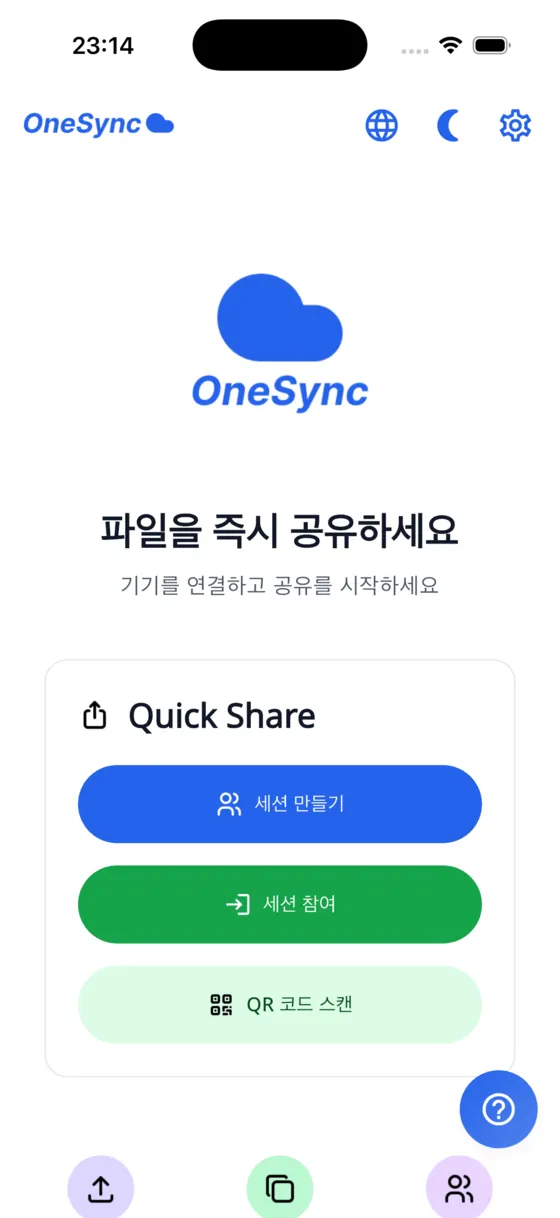
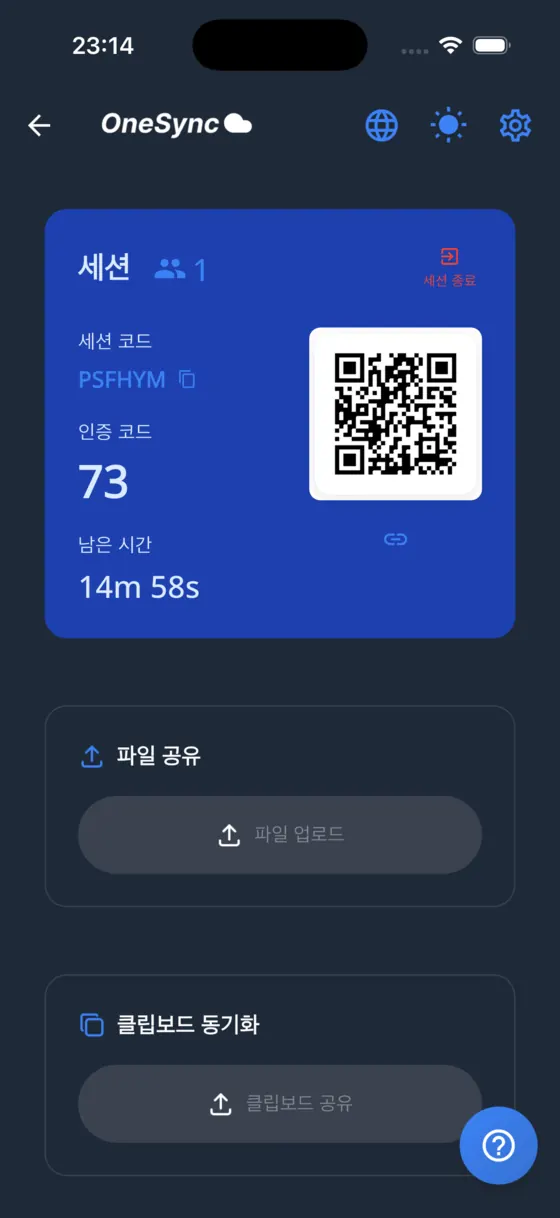
- PC 브라우저에서 OneSync 웹 클라이언트(onesync-web-cf.setlog.net)를 엽니다.
- 세션을 만들면 6자리 세션 코드, 2자리 확인 코드, QR 코드가 표시됩니다. 기본 세션 시간은 15분입니다.
- 아이폰에서 OneSync 앱을 열고 "QR 코드 스캔"으로 PC 화면의 QR을 읽습니다. 처음이면 카메라 권한을 허용합니다. QR이 안 되면 "세션 참여"에서 코드를 직접 입력합니다.
- 세션 화면에서 "파일 업로드"를 눌러 앨범에서 사진을 고릅니다. 큰 파일은 조각으로 나뉘어 올라가며 중간에 끊기면 이어 올릴지 묻습니다.
- PC 화면의 공유된 파일 목록에 사진이 나타나면 내려받아 저장합니다.
- 모두 받았다면 "세션 종료"로 닫습니다.
반대 방향(PC에서 폰으로)도 같고, URL 같은 텍스트는 "클립보드 공유"로 바로 넘길 수 있습니다.
누구에게 맞고 누구에게 맞지 않는가
잘 맞는 경우
- 아이폰과 안드로이드가 섞인 가족·팀
- 남의 PC에서 로그인 없이 파일 한두 개
- 링크·주소 같은 텍스트를 바로 붙여넣기
맞지 않는 경우
- 민감한 문서: 종단간 암호화가 없습니다
- 1GB 넘는 파일, 수천 장의 사진 백업
- 몇 달씩 보관해야 하는 자료: 세션이 끝나면 정리 대상입니다
한계와 알려진 사실
- 세션 기본 15분, 최대 10대, 파일당 약 1GB는 서비스 자체의 한도입니다.
- 종단간 암호화(E2E)가 없습니다. 세션 코드와 확인 코드를 아는 사람은 같은 세션에 들어올 수 있습니다.
- 인터넷 연결이 필요하고, 두 기기가 같은 Wi-Fi일 필요는 없습니다.
- 처음 설치한 기기에서는 QR 스캔에 카메라 권한이 필요합니다.
더 자세한 사용법은 OneSync 가이드에 있습니다. 같은 방에 있는 아이폰과 맥이라면 AirDrop이, 큰 폴더라면 케이블이 더 낫다는 점을 솔직히 말씀드립니다.
안전하게 옮기는 수칙
- 남의 PC를 썼다면 다운로드한 파일, 브라우저 기록, 로그인한 계정을 정리하세요.
- 공유 링크나 세션 코드를 단체방·SNS 같은 공개된 곳에 올리지 마세요.
- 받은 파일은 열기 전에 출처를 확인하고, 실행 파일(.exe, .apk 등)은 특히 주의하세요.
- 옮긴 뒤 원본과 파일 개수·크기가 같은지 확인하고 나서 원본을 지우세요.
- 중요 문서는 압축하면서 AES 암호를 걸고, 암호는 다른 경로로 전달하세요. 압축 암호의 종류는 압축 포맷 가이드에서 설명합니다.
출처 및 더 읽을거리
- Gmail 도움말, 첨부 파일 크기 한도: support.google.com/mail/answer/6584
- Google Drive 도움말, 파일 크기 한도: support.google.com/drive/answer/37603
- Google 계정 저장용량 안내: support.google.com/drive/answer/2375123
- Microsoft, OneDrive 제한 사항: support.microsoft.com (Restrictions and limitations in OneDrive)
- Apple, iCloud 저장 공간: support.apple.com/108047
- Microsoft Learn, Outlook 첨부 파일 크기 한도 오류: learn.microsoft.com
- Telegram FAQ: telegram.org/faq
- Google Pixel 도움말, Quick Share: support.google.com/pixelphone/answer/9286773
- Google 블로그, Pixel 10의 Quick Share-AirDrop 연동: blog.google
- Apple 지원, AirDrop 사용: support.apple.com/119857
- Google Online Security Blog, Quick Share의 AirDrop 지원 보안 접근: security.googleblog.com
검증하지 못해 수치를 쓰지 않은 항목: AirDrop·Quick Share의 파일 크기 한도, WhatsApp 한도, OneDrive 무료 용량, iCloud 파일당 한도. 해당 서비스의 공식 안내를 확인하세요.
자주 묻는 질문
가장 빠른 방법은 무엇인가요?
같은 생태계 안이라면 AirDrop이나 Quick Share 같은 근거리 공유입니다. 서로 다른 기기라면 파일 크기와 개수에 따라 다릅니다. 작은 파일은 웹 세션 도구나 메신저, 대용량은 케이블이 유리합니다.
화질이 떨어지지 않게 옮기려면 어떻게 하나요?
메신저는 갤러리 사진을 자동 압축할 수 있으니 문서나 파일로 보내는 옵션이 있는지 확인하세요. 없다면 케이블이나 파일 단위로 전송하는 도구를 쓰고, 받은 뒤 원본과 파일 크기를 비교하세요.
여러 기기에 동시에 보낼 수 있나요?
OneSync 세션은 최대 10대까지 함께 들어올 수 있어 같은 파일을 각자 내려받을 수 있습니다. 클라우드 드라이브의 공유 링크도 여러 사람이 받을 수 있는 방법입니다.
인터넷 없이도 가능한가요?
USB 케이블과 AirDrop 같은 근거리 공유는 인터넷 없이도 가능합니다. 클라우드, 메신저, 이메일, OneSync는 인터넷 연결이 필요합니다.
민감한 파일은 어떤 방법이 안전한가요?
제3자 서버를 거치지 않는 케이블 직접 연결이 가장 단순합니다. 서버를 거치는 방법을 쓴다면 압축 시 AES 암호를 걸고 암호는 다른 경로로 전달하세요. OneSync는 종단간 암호화가 없어 민감한 자료에는 맞지 않습니다.
전송에 실패하면 어떻게 하나요?
네트워크를 확인하고 새 세션이나 새 링크로 다시 시도하세요. 계속 문제가 있으면 지원 페이지에서 문의할 수 있습니다.
Why moving files between devices is still awkward
Inside one ecosystem it is easy: AirDrop between Apple devices, Quick Share between Android phones. The trouble starts when an iPhone, an Android phone and a Windows PC all live in one person's day. A work PC on Windows, a personal iPhone and a family member's Android phone is an ordinary mix. What matters then is not the fastest route but the one that works on every device with no extra setup.
Five criteria decide the choice: the per-file size limit, whether the other device can open it, speed, who can see the file in transit, and cost. The table below uses those five. Every numeric limit comes from the service's own documentation; where I could not verify a number, the cell says to check the official page instead of guessing.
Comparison table
| Method | File size limit | Cross-platform | Speed | Privacy | Cost |
|---|---|---|---|---|---|
| AirDrop | No figure in official docs (not verified) | iPhone, iPad, Mac; needs Wi-Fi and Bluetooth [10]. Interoperates with newer Android, starting with Pixel 10 [9] | Direct nearby link, independent of internet speed | Device to device | Free |
| Quick Share (Android, Windows) | No figure in official docs (not verified) | Android and a Windows app on select PCs [8]; AirDrop interop on newer models [9] | Direct nearby link | Direct; Google says the interop layer is written in Rust and was independently pen-tested [11] | Free |
| Google Drive | Up to 5 TB per file (not Google-native formats) [2] | Every OS (web and apps) | Upload plus download time | Stays in your account; mind link-sharing settings | 15 GB free per account, shared with Gmail and Photos [3] |
| OneDrive | Up to 250 GB per file [4] | Every OS | Upload plus download | Stays in your account | Free tier: check official page |
| iCloud | Per-file limit: check official page | Apple-centric; other OSes through iCloud.com | Upload plus download | Stays in your account | 5 GB free per Apple Account [5] |
| USB cable | No limit from the cable; the storage and file system set the limit | Phone to PC. iPhone on Windows via Apple software or photo import; Android in file-transfer mode | No internet needed; dependable for bulk | No third-party server | Free with a cable |
| Telegram | 2 GB per file, 4 GB with Premium [7] | Every OS | Via servers | Regular chats are stored on servers (secret chats differ) | Free (Premium optional) |
| WhatsApp and other messengers | Photo/video and document limits differ by service; check the official help page | Mostly every OS | Via servers | Per-service policy | Free |
| Gmail attachment | 25 MB on personal accounts; larger files become Drive links [1] | Every OS | Fine for small files | Stays in the mailbox | Free |
| Outlook attachment | Outlook desktop defaults: 20 MB total for internet email accounts, 10 MB for Exchange accounts [6] | Every OS | Fine for small files | Stays in the mailbox | Free |
| OneSync (web tool) | About 1 GB per file; sessions default to 15 minutes, up to 10 devices (the service's own limits) | iOS and Android apps plus a browser on the PC | Session-based, upload then download | No end-to-end encryption; passes through temporary cloud storage | No account; see the store page for pricing |
The 5 TB and 250 GB figures mean a cloud drive will almost never reject a single file. The real bottleneck is the free space left in your account and your upload speed. Email is the opposite: 20 to 25 MB is easily exceeded by one phone video, so keep email for documents and a few photos.
Pros, cons and traps of each method
Nearby sharing: AirDrop and Quick Share
Fastest and smoothest when you share a room. For years these only worked within their own ecosystems. That changed in November 2025, when Google announced Quick Share and AirDrop interoperability starting with the Pixel 10 [9]. It still does not work for every device pair. Press coverage describes it as working when the iPhone is set to receive from "Everyone for 10 Minutes", and Apple documents that this mode reverts after ten minutes [10]. So it works, but you must touch settings each time: fine for an occasional send, tedious for a family that shares daily. Test your actual pair first and fall back to another method if it fails.
USB cable
No internet, reliable for large transfers, no third-party server. An Android phone appears as a folder once the USB mode is set to file transfer. An iPhone on Windows is reached through photo import or Apple software, and you must tap Trust on the phone. The downsides are cable standards (USB-C or Lightning) and that it is awkward phone to phone. For hundreds of original-quality photos it is still the most dependable choice.
Cloud drive
Upload once and every signed-in device sees the file, with storage and share links included. Three traps: you must sign in, so forgetting to sign out on a borrowed PC exposes your account; free space on Google is shared between Drive, Gmail and Photos [3], so a full photo backup can block a large video; and temporary hand-offs stay until you delete them. Also remember that a link set to "anyone with the link" is open to whoever receives it later.
Messenger self-chat
Already installed, usually with a desktop version, so the barrier is lowest. Telegram documents 2 GB per file (4 GB with Premium) [7], but limits and retention differ by service. The bigger trap is quality: many messengers recompress photos and videos picked from the gallery. If you need originals, look for a send-as-file option and compare the received file size with the original. Work and personal chats also mix in one place.
Email attachment
Universal: you can send to anyone. Gmail allows 25 MB on personal accounts and converts bigger attachments to Drive links [1]. Outlook desktop defaults to 20 MB combined for internet email accounts and 10 MB for Exchange accounts [6]; work accounts may be set differently by an administrator. A permanent record in the mailbox is both a feature and a cost.
Session-code web tools
A short code or QR code links devices briefly and files pass through. No account is needed and a browser is enough on a PC. In exchange you need internet, files pass through temporary storage, and sessions are short. The next section walks through OneSync.
Choosing by situation
- Hundreds of original photos to a PC: a USB cable.
- A document you will need on other devices tomorrow: a cloud drive.
- One link or a short note: messenger self-chat, or text sharing in a session tool.
- A few photos between iPhone and Android without signing in: a session-code web tool.
- One file on a shared or borrowed PC: a browser-based session tool, or USB.
- Sensitive documents such as ID scans or contracts: a direct cable, or encryption you control.
The chooser in the Korean section above (interactive tool, Korean UI) takes five answers: device mix, file size, sensitivity, whether the internet is available and whether you need to keep the file. It returns three candidates from qualitative rules, so read it alongside the table.
A worked OneSync session, and its limits
I build and run OneSync myself; this is the only section that features it, and the other services above are compared on the same criteria. The example sends iPhone photos to a Windows PC. The screenshots in the Korean section show the home screen (create a session, join, scan QR) and the session screen with the codes, QR and countdown.
- On the PC, open the OneSync web client (onesync-web-cf.setlog.net).
- Create a session. A 6-character session code, a 2-digit verify code and a QR code appear. The default length is 15 minutes.
- On the iPhone, open the app and tap Scan QR Code. Allow camera access the first time. If scanning fails, tap Join Session and type the codes.
- Tap Upload Files and pick photos. Large files upload in chunks and the app offers to resume if the upload breaks.
- When the photos appear in the Shared Files list on the PC, download them.
- Tap End Session when everyone has what they need.
PC to phone works the same way, and text such as a URL can go through Share Clipboard.
Who it suits and who it does not
Good fit
- Families or teams mixing iPhone and Android
- One or two files from a borrowed PC without signing in
- Pasting links or addresses across devices
Poor fit
- Sensitive documents: there is no end-to-end encryption
- Files over about 1 GB, or thousands of photos
- Anything you must keep for months: files are cleaned up after the session
Limits
- 15-minute default sessions, up to 10 devices and about 1 GB per file.
- No end-to-end encryption; anyone with both the session code and the verify code can join.
- Internet is required; the devices do not need to share a Wi-Fi network.
- QR scanning needs camera permission on a freshly installed device.
Details are in the OneSync guide. For an iPhone and a Mac in the same room, AirDrop is better, and for a large folder a cable is better.
Safety habits
- If you used someone else's PC, clear downloaded files, browser history and signed-in accounts.
- Never post share links or session codes in public places such as group chats or social media.
- Check where a received file came from before opening it, and be especially careful with executables.
- Confirm that file count and size match before deleting the originals.
- For important documents, archive with AES encryption and send the password by another channel; see the archive formats guide.
Sources
The numbered links are in the Korean source list above (same URLs): Gmail attachment limits [1], Google Drive file limits [2], Google account storage [3], OneDrive restrictions [4], iCloud storage [5], Microsoft Learn on Outlook attachment limits [6], Telegram FAQ [7], Pixel Help on Quick Share [8], Google blog on Quick Share and AirDrop [9], Apple Support on AirDrop [10], Google Security Blog [11]. Not verified, so no number given: AirDrop and Quick Share file limits, WhatsApp limits, OneDrive free storage and the iCloud per-file limit.
FAQ
What is the fastest method?
Within one ecosystem, nearby sharing such as AirDrop or Quick Share. Across different devices it depends on size and count: a web session tool or messenger for small files, a cable for large volumes.
How do I avoid losing quality?
Messengers may recompress gallery photos, so look for a send-as-file option. Otherwise use a cable or a file-based tool, and compare file sizes after the transfer.
Can I send to several devices at once?
An OneSync session can hold up to 10 devices, so each can download the same file. A cloud share link also reaches several people.
Does it work without internet?
A USB cable and nearby sharing such as AirDrop work offline. Cloud drives, messengers, email and OneSync need an internet connection.
What is safest for sensitive files?
A direct cable avoids third-party servers. If you must use a server-based route, encrypt the archive with AES and send the password separately. OneSync has no end-to-end encryption and is not suited to sensitive material.
What if a transfer fails?
Check the network and retry with a new session or link. If problems persist, ask through the support page.