OneSync 사용 가이드
OneSync guide: cross-platform file and text sharing without accounts
OneSync는 어떤 앱인가
OneSync는 아이폰, 안드로이드 폰, 그리고 컴퓨터 브라우저 사이에서 파일과 텍스트를 빠르게 주고받기 위한 앱입니다. 계정을 만들거나 로그인하지 않고, 짧은 세션 코드나 QR 코드로 기기를 한시적으로 묶은 뒤 그 안에서 파일을 올리고 내려받는 방식입니다. 운영체제가 달라서 에어드롭 같은 기능을 쓸 수 없는 상황, 예를 들어 아이폰에서 찍은 사진을 안드로이드 태블릿으로 넘기거나 회사 PC에서 복사한 문장을 폰에 붙여 넣어야 할 때 쓰도록 만들어졌습니다.
핵심 개념: OneSync는 "영구 보관함"이 아니라 "임시 전달 통로"입니다. 무료 세션은 최대 1시간(Pro는 최대 24시간) 동안만 열려 있고, 세션이 끝나면 올린 파일도 정리 대상이 됩니다.
화면으로 미리 보기
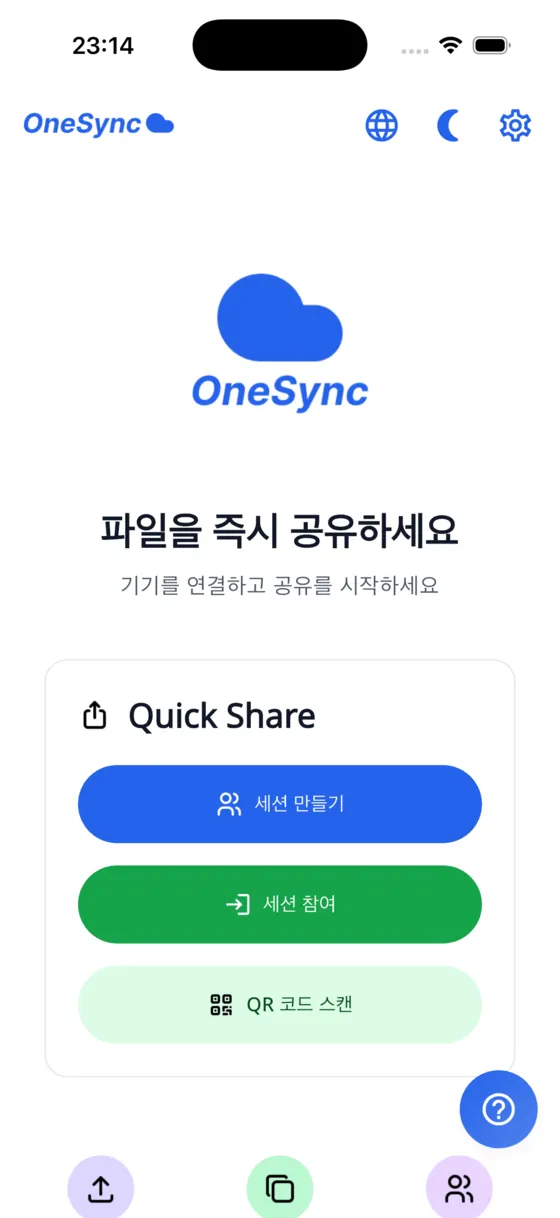
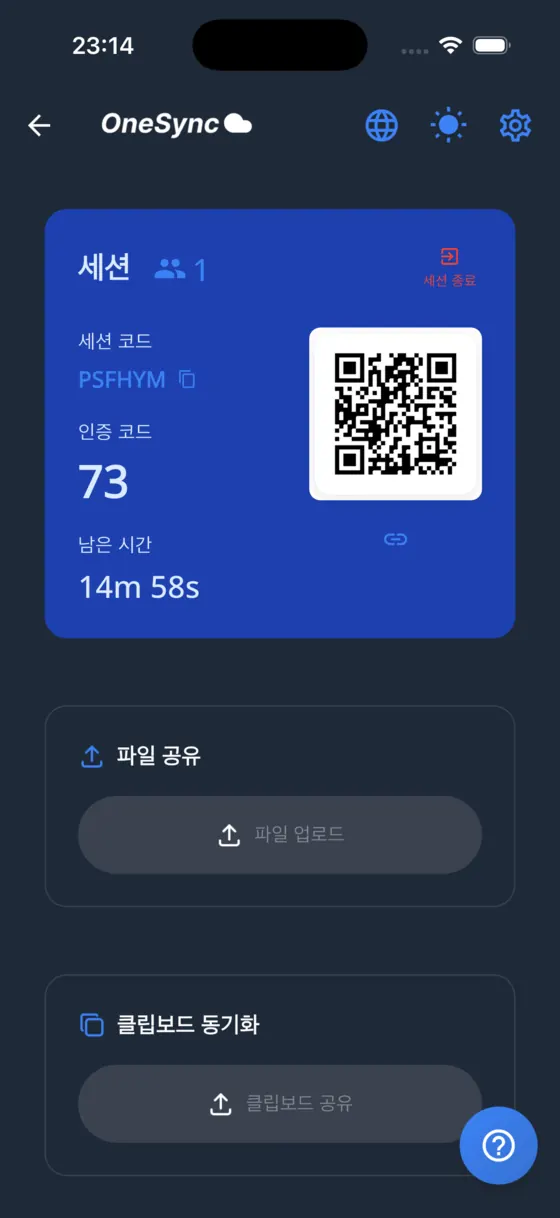
아래 두 화면이 사용 흐름의 처음과 가운데입니다. 홈에서 세션을 만들거나 참여하면 세션 화면으로 넘어갑니다.
누구에게 맞는가
- 아이폰과 안드로이드를 함께 쓰거나, 가족 구성원마다 기기 종류가 다른 경우
- 공용 PC나 남의 컴퓨터에서 로그인 없이 파일 한두 개만 옮기고 싶은 경우
- 케이블, 이메일 첨부, 메신저 나에게 보내기보다 간단한 방법을 찾는 경우
- 링크나 문장을 한 기기에서 복사해 다른 기기로 곧바로 붙여 넣고 싶은 경우
반대로 파일을 몇 달씩 보관하거나, 외부에 노출되면 안 되는 민감한 문서를 다루는 용도에는 맞지 않습니다. 이유는 아래 보안 항목에서 설명합니다.
기본 사용 흐름
1. 세션 만들기
앱을 처음 열면 짧은 온보딩 안내가 나옵니다. 홈 화면에서 "세션 만들기"를 누르면 6자리 세션 코드와 2자리 확인 코드, 그리고 이를 담은 QR 코드가 만들어집니다. 화면에는 남은 시간이 표시되며 무료 세션은 최대 1시간(Pro는 24시간)입니다. 한 세션에는 기본 2대(Pro는 10대)까지 참여할 수 있습니다.
2. 다른 기기로 참여하기
참여하는 기기에서는 두 가지 방법이 있습니다. 하나는 홈 화면의 "QR 코드 스캔"으로 상대 화면의 QR 코드를 카메라로 읽는 것이고, 다른 하나는 "세션 참여"를 눌러 세션 코드와 확인 코드를 직접 입력하는 것입니다. QR 스캔을 처음 쓸 때는 카메라 권한을 허용해야 합니다. 권한을 거부했다면 기기 설정에서 다시 허용하면 됩니다. 컴퓨터에서는 앱을 설치하지 않고 OneSync의 웹 클라이언트(onesync.setlog.net)를 브라우저로 열어 같은 방식으로 참여할 수 있습니다.
3. 파일 올리기와 내려받기
세션 화면의 "파일 업로드"에서 앨범(사진·동영상) 또는 파일 앱에서 항목을 고르면 올라가고, 같은 세션에 들어온 다른 기기의 "공유된 파일" 목록에 나타납니다. 상대는 "다운로드"를 눌러 자기 기기에 저장하고 "열기"로 바로 확인할 수 있습니다. 큰 파일은 여러 조각으로 나뉘어 올라가며, 업로드가 중간에 끊기면 앱이 이어서 올릴지 물어봅니다.
4. 텍스트 공유
"클립보드 공유"를 누르면 현재 복사해 둔 텍스트가 세션의 모든 기기에 전달되고, "공유된 텍스트" 목록에 남습니다. 긴 URL, 인증 절차 중 임시로 필요한 문장, 주소처럼 손으로 옮겨 적기 번거로운 내용에 편리합니다.
5. 세션 끝내기
용무가 끝나면 "세션 종료"를 눌러 닫습니다. 두고 나가도 시간이 지나면 만료되지만, 직접 닫는 편이 코드가 오래 살아 있는 시간을 줄여 줍니다.
한도와 보관 기간
- 세션 길이: 1시간(Pro 24시간)
- 참여 인원: 2대(Pro 10대)
- 파일 크기: 파일당 200MB(Pro 5GB)
- 텍스트 크기: 한 번에 약 900KB까지
- 보관: 세션이 만료되면 파일은 정리 대상이 되며, 정리 작업은 주기적으로 돌기 때문에 만료 직후 즉시 사라진다고 보장할 수는 없습니다. 보관 용도로 쓰지 말고 받은 파일은 바로 저장하세요.
개인정보와 보안에서 알아둘 점
OneSync에는 회원가입과 비밀번호가 없습니다. 기기는 닉네임 정도의 정보로만 구분됩니다. 파일은 서버를 거치지 않고 클라우드 저장소로 직접 올라갔다가 상대 기기가 내려받는 구조입니다. 다만 현재 구현에는 종단간 암호화가 들어 있지 않습니다. 즉 세션 코드를 아는 사람은 확인 코드까지 맞으면 같은 세션에 들어올 수 있고, 올라간 파일은 서비스의 클라우드 저장소에 임시로 놓입니다. 그래서 신분증 사본, 계약서, 비밀번호 같은 민감한 자료는 이 방식으로 보내지 않는 것이 좋습니다. 코드를 모르는 사람에게 노출하지 않고, 모든 상대가 들어온 것을 확인하면 바로 세션을 닫는 것이 기본 수칙입니다. 자세한 처리 방침은 개인정보 처리방침을 참고하세요.
실전 팁
- 같은 공간에 있다면 숫자를 읽어 주는 것보다 QR 스캔이 빠르고 오타도 없습니다.
- 세션 시간이 짧으니 보낼 파일을 미리 골라 둔 뒤 세션을 만드세요.
- 앱 전환 중에도 업로드가 이어지도록, 큰 파일은 Wi-Fi 환경에서 보내고 업로드가 끝날 때까지 화면을 닫지 마세요.
- 사진을 많이 보낼 때는 한 번에 몇십 장씩 나누어 올리면 실패했을 때 다시 올릴 양이 줄어듭니다.
문제 해결
"확인 코드가 올바르지 않습니다"가 나올 때
세션 코드가 맞아도 2자리 확인 코드가 다르면 입장이 거부됩니다. 상대 화면의 숫자를 다시 확인하세요. 짧은 시간에 여러 번 틀리면 "시도 횟수가 너무 많습니다"라는 메시지와 함께 잠시 막힐 수 있으니 잠깐 기다렸다가 다시 시도하세요.
"세션이 가득 찼습니다"가 나올 때
참여 인원 한도에 도달한 것입니다. 이미 나간 기기가 있는지 확인하거나 새 세션을 만드세요.
QR이 인식되지 않을 때
카메라 권한, 화면 밝기, 거리를 점검하세요. OneSync가 만든 QR이 아니면 "유효하지 않은 QR 코드"라는 안내가 뜹니다. 안 되면 코드를 직접 입력하는 방법이 있습니다.
연결이 끊겼을 때
"연결이 끊겼습니다. 다시 연결해 주세요"가 보이면 네트워크를 확인하고 세션 화면으로 돌아가세요. 세션이 이미 만료되었다면 새로 만들어야 합니다.
한계와 알려진 이슈
- 종단간 암호화가 없습니다. 현재 구현에는 E2E 암호화가 들어 있지 않습니다. 세션 코드와 확인 코드를 아는 사람은 입장할 수 있고, 올라간 파일은 서비스의 클라우드 저장소에 임시로 놓입니다.
- 임시 전달 통로입니다. 무료 세션은 최대 1시간(Pro는 최대 24시간)이며 만료 후 파일은 정리 대상이 됩니다. 정리는 주기적으로 돌기 때문에 만료 직후 즉시 사라진다고 보장할 수 없지만, 그렇다고 보관을 기대해서도 안 됩니다.
- 한도가 있습니다. 한 세션 기기 수는 기본 2대(Pro 10대), 파일당 200MB(Pro 5GB), 세션 시간은 1시간(Pro 24시간)입니다.
- 인터넷이 양쪽 모두 필요합니다. 같은 Wi-Fi에 있을 필요는 없지만 업로드하는 기기와 내려받는 기기 모두 연결되어 있어야 합니다. 연결이 끊기면 안내 문구가 나오고, 업로드가 끊기면 이어 올릴지 묻습니다.
- 카메라 권한은 최초 1회 필요합니다. QR 스캔을 처음 쓸 때 권한을 거부했다면 기기 설정에서 다시 허용해야 하고, 그동안은 코드를 직접 입력하는 방법을 쓰면 됩니다.
- 잘못된 확인 코드를 반복하면 잠깐 막힙니다. 짧은 시간에 여러 번 틀리면 시도 횟수 초과 메시지가 나옵니다.
다른 방법과 비교
OneSync가 항상 최선은 아닙니다. 상황에 따라 다른 도구가 더 낫습니다.
| 방법 | 강점 | 약점 |
|---|---|---|
| OneSync | 계정 없음, 기기 종류 무관, 브라우저 참여 가능 | E2E 암호화 없음, 임시 보관, 파일당 200MB(Pro 5GB) |
| 같은 제조사 기기끼리의 기본 공유 기능(AirDrop 등) | 같은 생태계 안에서는 보통 가장 매끄러움 | 다른 운영체제와는 쓰기 어려움 |
| 클라우드 드라이브 | 오래 보관, 여러 기기에서 접근 | 계정과 로그인 필요, 용량 정책이 서비스마다 다름 |
| 메신저 "나에게 보내기" | 이미 설치되어 있음 | 기록이 계속 남고 파일 크기·화질 제한이 서비스마다 다름 |
| USB 케이블 | 인터넷 불필요, 대용량 가능 | 케이블과 어댑터가 필요하고 운영체제별 설정이 번거로움 |
결론적으로 로그인 없이 한두 개를 한 번 옮기고 끝내는 상황에 맞고, 장기 보관이나 민감한 자료에는 맞지 않습니다. 더 넓은 비교는 파일 옮기는 법 가이드를 참고하세요.
자주 묻는 질문
요금이 있나요, 계정이 필요한가요?
계정은 필요 없습니다. 요금 정보는 스토어 상세 페이지에 표시된 내용을 기준으로 확인해 주세요.
컴퓨터에 설치해야 하나요?
아닙니다. 브라우저에서 웹 클라이언트를 열면 됩니다. iOS와 안드로이드 앱은 각각 스토어에서 받습니다.
두 기기가 같은 Wi-Fi에 있어야 하나요?
아니요. 파일이 클라우드 저장소를 거치므로 서로 다른 네트워크나 모바일 데이터에서도 쓸 수 있습니다. 대신 업로드와 다운로드에 각각 인터넷 연결이 필요합니다.
보낸 파일을 나중에 다시 받을 수 있나요?
세션이 끝나면 파일은 정리 대상이 되므로 보관을 기대하지 마세요.
파일이 암호화되나요?
현재 구현에는 종단간 암호화가 없습니다. 신분증이나 계약서 같은 민감한 자료는 이 방식으로 보내지 않는 것이 좋습니다.
얼마나 큰 파일까지 보낼 수 있나요?
파일당 200MB(Pro는 5GB)까지, 한 세션에는 2대(Pro는 10대)까지 참여할 수 있습니다. 큰 파일은 Wi-Fi 환경에서 보내세요.
What OneSync is
OneSync is an app for moving files and text between iPhones, Android phones and a computer browser. There is no account and no login. You link devices for a short time with a session code or a QR code, and then upload and download inside that session. It is meant for the situations where AirDrop-style features are not available because the devices run different operating systems: sending a photo from an iPhone to an Android tablet, or pasting a sentence copied on a work PC into your phone.
Key idea: OneSync is a temporary hand-off channel, not permanent storage. A free session stays open for up to 1 hour (Pro up to 24 hours), and uploaded files become eligible for cleanup after it ends.
Screens at a glance
These two screens show the start and middle of the flow. From Home you create or join a session, which opens the session screen.
Who it suits
- People who use both iPhone and Android, or families whose devices differ
- Anyone who needs to move a file or two from a shared or borrowed PC without signing in
- People who find cables, email attachments or messaging yourself too clumsy
- Anyone who wants to copy a link or a passage on one device and paste it on another
It is not a good fit for keeping files for months, or for documents that must never be exposed. The security section below explains why.
Basic flow
1. Create a session
On first launch you see a short onboarding guide. On the home screen, tap Create Session. The app generates a 6-character session code, a 2-digit verify code and a QR code that carries them. A countdown shows the time remaining; a free session lasts up to 1 hour (Pro up to 24 hours). A session allows 2 devices (10 with Pro).
2. Join from another device
There are two ways to join. You can tap Scan QR Code and point the camera at the QR code on the other screen, or tap Join Session and type the session code and verify code by hand. The first time you scan, you must allow camera access; if you refused, re-enable it in the device settings. On a computer you do not need to install anything: open the OneSync web client (onesync.setlog.net) in a browser and join the same way.
3. Upload and download files
In the session screen, choose Upload Files and pick items from your photo library or the Files app. They upload and appear in the Shared Files list on every other device in the session. The other person taps Download to save a file and Open to view it. Large files are sent in chunks, and if an upload is interrupted the app offers to resume it.
4. Share text
Tap Share Clipboard and whatever you have copied is sent to every device in the session and kept in the Shared Texts list. This is handy for long URLs, a temporary phrase needed during a sign-in, or an address that is tedious to retype.
5. End the session
When you are done, tap End Session. It would expire on its own, but closing it yourself shortens the time the code stays valid.
Limits and retention
- Session length: 1 hour (Pro 24 hours)
- Participants: 2 devices (10 with Pro)
- File size: 200 MB per file (Pro 5 GB)
- Text size: about 900 KB per share
- Retention: files become eligible for cleanup when the session expires. Cleanup runs periodically, so do not assume files vanish the instant a session ends. Do not rely on OneSync as storage; save what you receive right away.
Privacy and security notes
OneSync has no sign-up and no passwords; devices are identified by little more than a nickname. Files are uploaded straight to cloud storage rather than through an application server, and the receiving device downloads them from there. However, the current implementation does not include end-to-end encryption. Anyone who knows the session code and the matching verify code can join the session, and uploaded files sit temporarily in the service cloud storage. For that reason, avoid sending ID scans, contracts or passwords this way. Keep codes away from people you do not know, and close the session as soon as everyone has joined and received what they need. See the privacy policy for the full statement.
Practical tips
- If you are in the same room, scanning the QR code is faster than reading digits aloud and avoids typos.
- Sessions are short, so choose the files before you start the session.
- Send large files on Wi-Fi and keep the app open until the upload finishes.
- For many photos, send a few dozen at a time so a failure costs you less to redo.
Troubleshooting
"Invalid verification code"
Even with the right session code, a wrong 2-digit verify code is rejected. Re-check the digits on the other screen. After several wrong attempts in a short time you may see a too-many-attempts message and be blocked briefly; wait a moment and try again.
"Session is full"
The participant limit was reached. Check whether a device that already left still counts, or create a new session.
The QR code is not recognized
Check camera permission, screen brightness and distance. A QR code that was not made by OneSync produces an invalid QR code message. As a fallback, type the codes manually.
Connection lost
If you see a message asking you to reconnect, check your network and return to the session screen. If the session has already expired, create a new one.
Limits and known issues
- There is no end-to-end encryption. The current implementation does not include E2E encryption. Anyone who knows the session code and verify code can join, and uploaded files sit temporarily in the service cloud storage.
- It is a temporary hand-off channel. A free session lasts up to 1 hour (Pro up to 24 hours) and files become eligible for cleanup after it expires. Cleanup runs periodically, so files are not guaranteed to vanish the instant a session ends, but do not expect them to be kept either.
- There are limits. Without Pro: 2 devices per session, 200 MB per file, 1 hour per session. With Pro: 10 devices, 5 GB per file, 24 hours.
- Both sides need internet. You need not share a Wi-Fi network, but the uploading and downloading devices must both be connected. If the connection drops you see a message, and if an upload is interrupted the app asks whether to resume.
- Camera permission is needed once. If you refused it on first scan, re-allow it in device settings; meanwhile you can type the codes by hand.
- Repeated wrong verify codes cause a short block. Several mistakes in a short time bring up a too-many-attempts message.
How it compares
OneSync is not always the best choice. Depending on the situation another tool is better.
| Method | Strength | Weakness |
|---|---|---|
| OneSync | No account, any device type, browsers can join | No E2E encryption, temporary, 200 MB per file (Pro 5 GB) |
| Built-in sharing between same-maker devices (such as AirDrop) | Usually the smoothest inside one ecosystem | Hard to use with other operating systems |
| Cloud drive | Long-term keeping, access from many devices | Needs an account and login; capacity rules differ by service |
| Messenger "send to myself" | Already installed | History stays; file size and quality limits differ by service |
| USB cable | No internet needed, large files | Needs cables and adapters; per-OS setup is fiddly |
In short it suits moving a file or two once without logging in, and does not suit long-term keeping or sensitive material. For a wider comparison see the guide to moving files.
FAQ
Do I need an account, and does it cost anything?
No account is needed. For pricing, rely on what the store listing shows.
Must I install it on my computer?
No. Open the web client in a browser. The iOS and Android apps come from their stores.
Do the devices need to be on the same Wi-Fi?
No. Files pass through cloud storage, so devices on different networks or mobile data can take part. Each side does need an internet connection for its upload or download.
Can I fetch a file again later?
Once the session ends, files are eligible for cleanup, so do not expect them to be kept.
Where do I get help?
Use the support page or the contact page.
Are files encrypted?
The current implementation has no end-to-end encryption, so avoid sending ID scans, contracts or other sensitive material this way.
How large a file can I send?
The limit is 200 MB per file (5 GB with Pro), and a session allows 2 devices (10 with Pro). Send large files over Wi-Fi.