
Zipda 사용 가이드
Zipda guide: archive and extract on iPhone, iPad and Mac
Zipda는 어떤 앱인가
Zipda는 아이폰과 아이패드, 그리고 맥에서 쓰는 압축·해제 앱입니다. 같은 앱이 iOS와 macOS 모두에서 나와 있으며, 스토어 페이지는 하나의 링크로 연결됩니다. 개발 문서가 내세우는 승부처는 "한글 파일명이 깨지지 않고, 4GB가 넘어도, 분할되어 있어도 열린다"는 것입니다. 윈도우에서 압축한 파일을 아이폰에서 열었더니 파일명이 외계어로 보이거나, 용량이 큰 압축 파일이 열리지 않는 경험이 있다면 바로 그 문제를 겨냥한 앱입니다.
지원하는 포맷
- 해제와 압축: ZIP, 7z 및 tar 계열(tar, tar.gz, tar.bz2, tar.xz)
- 해제: RAR, LZH, ALZ
- 지원하지 않는 것: EGG 파일은 라이선스와 특허 문제로 지원하지 않습니다. RAR로 압축하는 기능도 없습니다. RAR 압축은 라이선스상 제3자 앱이 만들 수 없기 때문입니다.
일부 포맷의 생성 지원은 앱 버전에 따라 다르므로, 최신 상태는 스토어의 버전 내역과 설명을 확인하세요.
화면으로 미리 보기
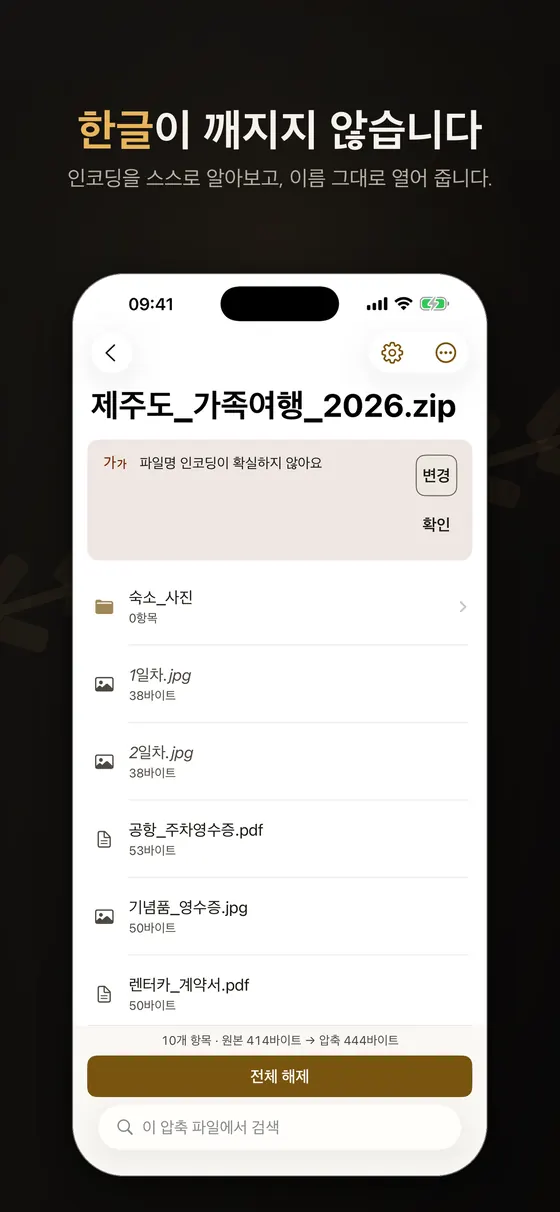
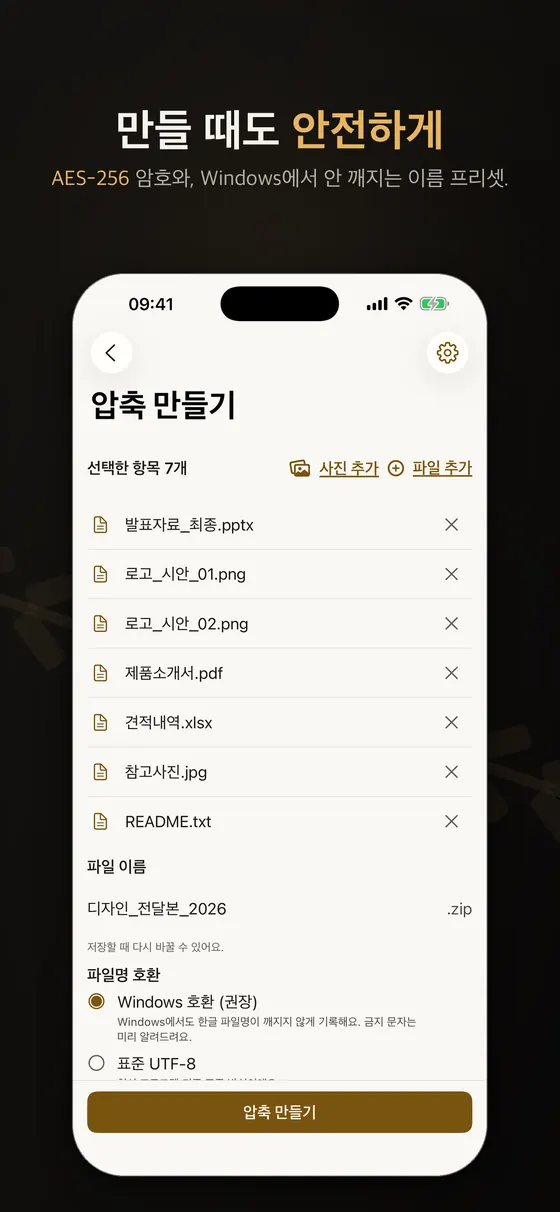
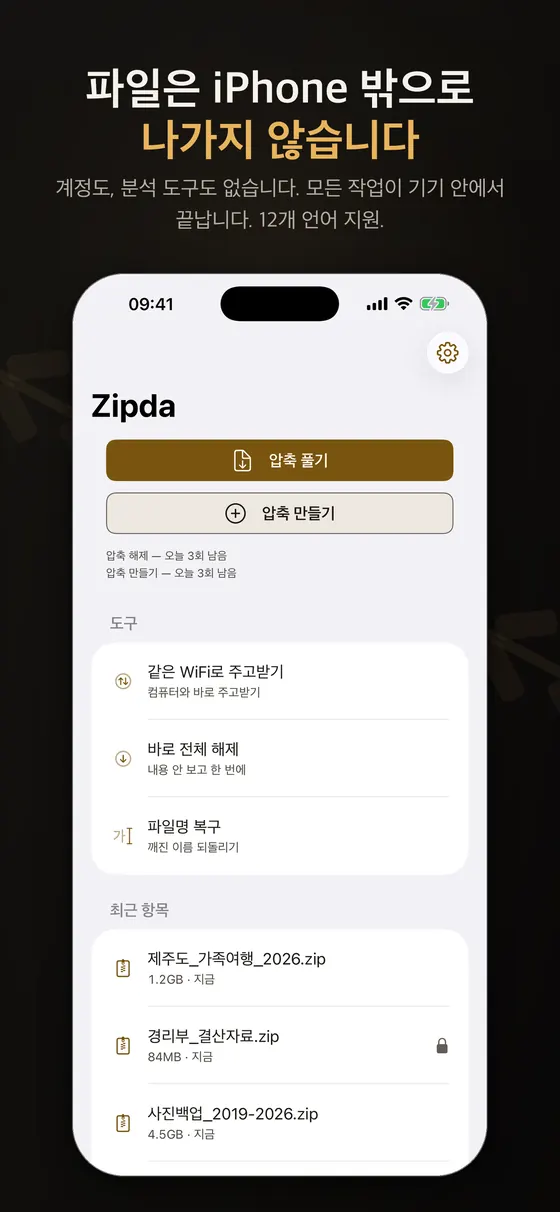
아래 여섯 장은 스토어 스크린샷이라 위쪽에 홍보 문구가 있고, 화면은 iPhone 앱입니다. 샘플 파일 이름과 숫자는 시연용입니다.
시작하기
1. 설치와 첫 실행
아래 스토어 링크에서 앱을 설치합니다. 계정 가입은 필요 없습니다. 개발 문서에 따르면 파일은 기기 안에서 처리되며 광고와 추적이 없습니다.
2. 압축 파일 열기
아이폰에서는 파일 앱에서 압축 파일을 길게 눌러 공유 메뉴로 Zipda를 선택하거나, 앱 안에서 파일을 직접 불러옵니다. 맥에서는 앱 창으로 파일을 끌어다 놓을 수 있고, 아카이브를 놓으면 해제 확인 창이 뜹니다. 여러 개를 한꺼번에 놓으면 순서대로 처리하는 방식입니다.
3. 내용 살펴보고 부분 추출하기
압축 파일 전체를 풀기 전에 목록을 훑어보고 검색하거나, 파일 하나만 미리 볼 수 있습니다. 필요한 파일 하나만 꺼내는 부분 추출도 가능합니다. 이 열어보기·검색·미리보기는 무료이며 횟수 제한이 없습니다.
4. 암호가 걸린 파일 풀기
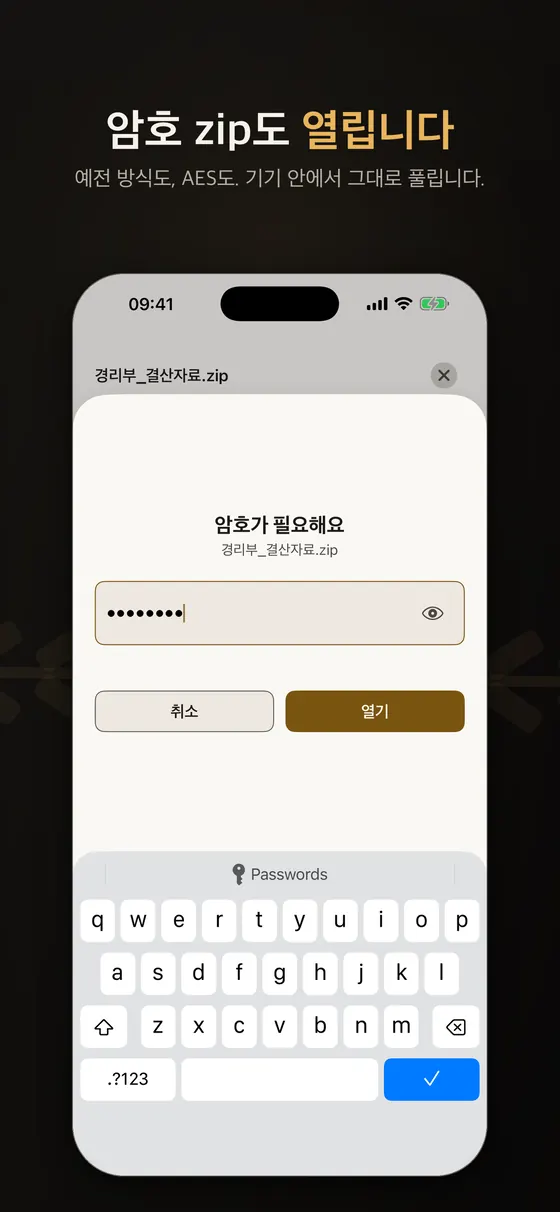
암호가 필요한 ZIP, 7z, RAR을 열면 암호를 묻습니다. 한국에서 흔한 전통적 방식(ZipCrypto)의 암호 ZIP도 처리하도록 설계되어 있습니다.
5. 압축하기
파일이나 폴더, 사진과 동영상을 여러 개 골라 압축할 수 있습니다. ZIP에는 AES-256 암호를 걸 수 있고, 윈도우에서 파일명이 깨지지 않도록 하는 "Windows 호환" 프리셋이 있습니다. 4GB를 넘는 ZIP64도 다룹니다.
한글 파일명은 왜 깨질까
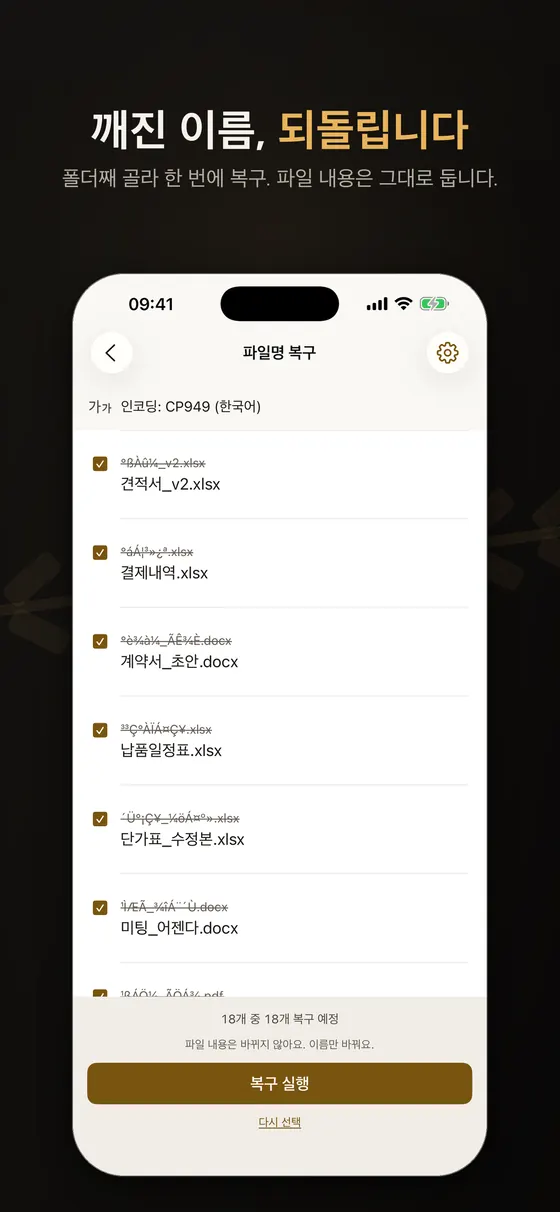
ZIP 형식의 사양서(PKWARE APPNOTE)에 따르면, 파일 이름 필드는 일반 플래그의 11번 비트가 켜져 있을 때만 UTF-8로 해석하도록 정해져 있고, 그렇지 않으면 IBM 코드 페이지 437이라는 오래된 문자 집합이 기본입니다. 그런데 한국 윈도우의 압축 도구들은 오랫동안 이 비트를 켜지 않은 채 한글 이름을 CP949(EUC-KR 계열) 바이트로 써 왔습니다. 받는 쪽 프로그램은 어떤 인코딩인지 알 수 없으니 CP437이나 서유럽 문자 집합 등 엉뚱한 규칙으로 읽다가 "ÃÖÁ¾" 같은 외계어를 만듭니다. 스크린샷의 파일명 복구 화면에서 취소선이 그어진 줄이 바로 이런 이름입니다.
해결의 핵심은 "원래 어떤 인코딩으로 썼는가"를 맞히는 것입니다. 앱은 이름 바이트를 분석해 후보를 제시하고, 확신이 서지 않으면 [변경]으로 사람이 고르게 합니다. 복구는 이름만 바꾸고 파일 내용은 건드리지 않는다고 화면에 안내됩니다. 인코딩 문제의 배경과 다른 포맷의 차이는 ZIP·RAR·7z 포맷 설명에서 따로 정리했습니다.
파일명 복구 기능
오래된 압축 도구는 파일명을 UTF-8이 아닌 지역 인코딩(한국의 CP949/EUC-KR, 일본의 Shift-JIS 등)으로 저장하는 경우가 많아서, 다른 환경에서 열면 글자가 깨집니다. Zipda는 기기 안에서 인코딩을 자동 감지해 올바른 이름으로 보여 주고, 이미 깨진 이름을 고치는 복구 도구도 제공합니다. 다만 아주 짧은 일본어 파일명이 한국어로 오판독될 수 있다는 한계가 개발 문서에 기록되어 있습니다. 결과가 이상하면 인코딩을 바꿔 보세요.
분할 압축 파일
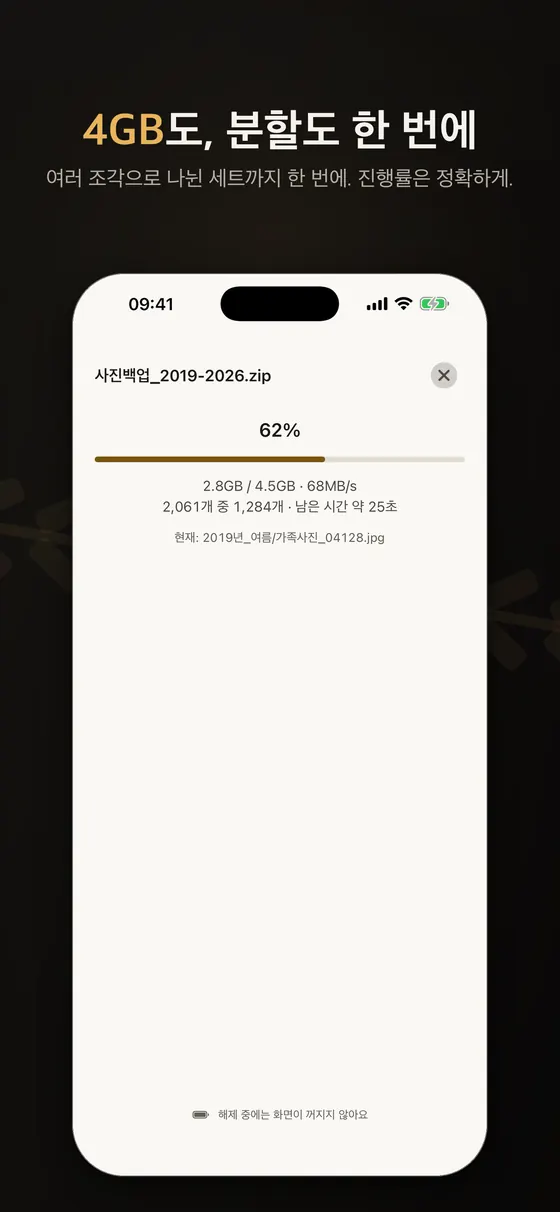
용량이 커서 여러 조각으로 나뉜 압축 파일(예: .zip.001, .z01 등)은 같은 세트를 자동으로 묶어 여는 것이 목표 기능입니다. 모든 조각이 같은 폴더에 있어야 하고, 하나라도 빠지면 풀리지 않습니다. 이 가이드는 해제를 기준으로 설명하며 분할 압축 생성은 다루지 않습니다.
요금과 한도
열기·목록·미리보기, UTF-8 ZIP·tar 해제, 암호 없는 ZIP·tar 만들기는 무료이며 횟수 제한이 없습니다. RAR·7z·ALZ·LZH 해제, 분할 압축, 암호 걸린 파일 해제, 한글 등 파일명 복구 해제, 암호·7z·분할 압축 만들기는 Pro 기능입니다. Pro는 월간·연간 구독 또는 평생 구매로 선택할 수 있고, 가격은 스토어에 표시되는 금액을 확인하세요. 광고는 없습니다.
어떤 상황에서 특히 유용한가
회사나 학교에서 윈도우로 만든 자료를 아이폰으로 받아 보는 경우, 메일이나 메신저로 받은 ZIP을 출장지에서 바로 열어야 하는 경우, 사진과 동영상을 여러 장 골라 하나의 압축 파일로 묶어 보내려는 경우가 대표적입니다. 파일 앱의 기본 압축 기능으로 충분한 단순한 ZIP이라면 굳이 별도 앱이 필요 없지만, RAR나 7z처럼 기본 기능이 다루지 못하는 포맷이나 암호, 인코딩 문제가 얽히면 전용 앱이 편해집니다.
같은 Wi-Fi로 컴퓨터와 주고받기
홈 화면의 도구에는 "같은 WiFi로 주고받기"가 있습니다. 개인정보 처리방침에 따르면 이 화면을 직접 열었을 때만 기기 안에서 임시 웹 서버가 동작하고, 같은 로컬 네트워크의 컴퓨터가 브라우저로 접속해 파일을 주고받습니다. 파일은 외부 서버를 거치지 않습니다. 다만 같은 문서가 밝히듯 이 연결은 암호화되지 않은 일반 HTTP이므로 카페나 공항 같은 신뢰할 수 없는 공용 Wi-Fi에서는 쓰지 말고, 집이나 사무실처럼 믿을 수 있는 네트워크에서만 사용하세요. 전송이 끝나면 화면을 닫아 서버를 멈추는 것도 좋은 습관입니다.
실전 팁
- 받은 압축 파일이 이상하게 열리면 먼저 용량이 정상인지, 분할 파일의 모든 조각이 있는지 확인하세요.
- 윈도우 사용자에게 보낼 파일은 "Windows 호환" 프리셋으로 압축하면 이름 문제가 줄어듭니다.
- 암호는 압축 파일과 다른 경로(전화, 다른 메신저)로 전달하세요.
- 큰 파일을 풀 때는 기기의 여유 저장 공간을 먼저 확인하세요.
- iOS는 앱이 백그라운드로 가면 작업이 중단될 수 있으므로 해제 중에는 화면을 켜 두는 것이 안전합니다.
문제 해결
암호를 입력했는데 풀리지 않는다
대소문자와 키보드 언어를 확인하세요. 암호가 파일명까지 암호화한 7z라면 파일 목록 자체가 암호 입력 뒤에야 보입니다.
파일명이 여전히 깨진다
파일명 복구에서 다른 인코딩을 시도해 보세요.
분할 파일이 열리지 않는다
조각이 모두 같은 위치에 있는지, 이름이 바뀌지 않았는지 확인하세요.
.egg 파일이다
지원하지 않는 포맷입니다. 보낸 사람에게 ZIP이나 7z로 다시 받으세요.
한계와 알려진 이슈
- RAR는 풀기만 되고 만들 수 없습니다. RAR 압축은 라이선스상 제3자 앱이 만들 수 없습니다. LZH도 해제 전용입니다.
- EGG 파일은 지원하지 않습니다. 라이선스와 특허 문제 때문이며, 보낸 사람에게 ZIP이나 7z로 다시 받는 것이 방법입니다.
- 분할 압축은 조각이 모두 있어야 합니다. 한 조각만 빠져도 풀리지 않고, 분할 압축 파일을 만드는 기능은 없습니다.
- 인코딩 자동 감지가 틀릴 수 있습니다. 개발 문서에는 아주 짧은 일본어 이름이 한국어로 오판독될 수 있다는 한계가 적혀 있습니다. 결과가 이상하면 인코딩을 직접 바꿔 보세요.
- iOS는 백그라운드에서 해제를 이어 갈 수 없습니다. OS 구조상 앱이 뒤로 가면 작업이 중단될 수 있어 해제 중에는 화면을 켜 두도록 설계되어 있고, 여러 파일을 하나로 이어 압축한 방식(솔리드 압축)은 중간부터 재개하지 못합니다.
- 같은 Wi-Fi 전송은 암호화되지 않습니다. 신뢰할 수 있는 네트워크에서만 쓰세요.
- RAR·7z·ALZ·LZH 해제와 분할·암호 관련 기능은 Pro입니다. 무료 범위(열기·미리보기, UTF-8 ZIP·tar 해제, 암호 없는 ZIP·tar 만들기)에는 횟수 제한이 없습니다.
- 일부 포맷의 생성 지원은 버전에 따라 다릅니다. 예를 들어 tar 계열 생성은 최근 버전에서 추가되는 항목이므로 스토어의 버전 내역을 확인하세요.
다른 방법과 비교
| 방법 | 강점 | 약점 |
|---|---|---|
| Zipda | RAR·7z·LZH·ALZ 해제, 한글 파일명 복구, ZipCrypto 암호 ZIP, 큰 파일과 분할 세트, 광고 없음 | RAR·7z 등 일부 기능은 Pro, RAR 생성 불가 |
| 파일 앱의 기본 압축·해제 | 설치 불필요, 단순한 ZIP에는 충분 | 다루는 포맷이 한정적이고 인코딩 복구나 분할 세트 같은 기능은 없음(지원 형식은 OS 버전에 따라 다르니 Apple 안내 확인) |
| PC나 Mac에서 풀고 다시 전송 | 익숙한 도구, 포맷 제약이 적음 | 컴퓨터가 옆에 있어야 하고 파일을 두 번 옮겨야 함 |
| 다른 압축 앱 | 기능과 가격이 앱마다 다양 | 광고, 업로드 여부, 한글 이름 처리는 앱마다 달라 직접 확인 필요 |
단순한 ZIP 한두 개를 열기만 한다면 기본 기능으로 충분합니다. 한글 이름이 깨지거나, RAR·7z를 받았거나, 몇 GB짜리 세트를 열어야 한다면 전용 앱이 시간을 아껴 줍니다.
출처 및 더 읽을거리
- PKWARE: ZIP File Format Specification (APPNOTE 6.3.9), 일반 플래그 비트 11과 파일명 인코딩
- Microsoft Learn: Code page identifiers (CP949 등)
- 7-Zip: 7z 포맷 소개
자주 묻는 질문
아이폰용인가요, 맥용인가요?
둘 다입니다. iOS와 macOS용으로 같은 이름의 앱이 있습니다.
파일이 외부 서버로 올라가나요?
개발 문서상 처리는 기기 안에서 이루어지며 파일이 기기를 떠나지 않는다고 설명되어 있습니다. 세부 내용은 개인정보 처리방침을 보세요.
RAR로 압축할 수 있나요?
아니요. 해제만 가능합니다.
무료로 어디까지 쓸 수 있나요?
열기·목록·미리보기, UTF-8 ZIP·tar 해제, 암호 없는 ZIP·tar 만들기는 무료이고 횟수 제한이 없습니다. RAR·7z·ALZ·LZH 해제, 분할 압축, 암호 걸린 파일 해제, 한글 등 파일명 복구 해제, 암호·7z·분할 압축 만들기는 Pro입니다.
문의는 어디로 하나요?
지원 페이지를 이용해 주세요.
파일명 복구를 하면 원본 파일이 바뀌나요?
화면 안내에 따르면 파일 내용은 바뀌지 않고 이름만 바뀝니다. 복구는 폴더째 골라 한 번에 실행할 수 있고, 횟수 제한은 없지만 복구해서 풀기는 Pro 기능입니다.
같은 Wi-Fi 전송은 안전한가요?
파일이 외부 서버를 거치지는 않지만 연결은 암호화되지 않는 로컬 HTTP입니다. 집이나 사무실처럼 믿을 수 있는 네트워크에서만 쓰고, 공용 Wi-Fi에서는 피하세요.
What Zipda is
Zipda is an archive and extract app for iPhone, iPad and Mac. The same app is available on iOS and on macOS, linked from a single store page. The promise in its development notes is that filenames do not turn into garbage, files over 4 GB still open, and split archives still open. If you have ever opened a Windows-made archive on an iPhone and seen unreadable filenames, or hit a large archive that would not open, that is the problem this app targets.
Supported formats
- Extract and create: ZIP, 7z and the tar family (tar, tar.gz, tar.bz2, tar.xz)
- Extract only: RAR, LZH, ALZ
- Not supported: EGG files are not supported because of licensing and patent concerns. There is also no RAR creation, since the RAR format cannot be written by third-party apps under its license.
Which formats can be created varies by app version, so check the store description and version notes for the current state.
Screens at a glance
The six images below are store screenshots with a promo headline on top; the screens are the iPhone app. Sample file names and numbers are for demonstration.
Getting started
1. Install and first launch
Install from the store links above. No account is needed. According to the development notes, files are processed on the device, and there are no ads and no tracking.
2. Open an archive
On iPhone, long-press an archive in the Files app and choose Zipda from the share menu, or import a file inside the app. On Mac you can drag a file onto the app window; dropping an archive brings up an extraction confirmation, and dropping several processes them one after another.
3. Browse and extract part of an archive
Before extracting everything you can scan the list, search it, or preview a single file. You can also pull out just one file. Opening, browsing, searching and preview are available without limits.
4. Open a password-protected archive
Opening an encrypted ZIP, 7z or RAR prompts for the password. The app is designed to handle the traditional ZipCrypto scheme still common in password-protected ZIP files, as well as newer ones.
5. Create an archive
Pick files, folders, or several photos and videos to compress. Password-protected ZIP creation is a Pro feature, and a Windows-compatible preset helps filenames survive on Windows. ZIP64 archives over 4 GB are handled as well.
Why do Korean filenames garble?
According to the ZIP specification (PKWARE APPNOTE), the filename field is interpreted as UTF-8 only when bit 11 of the general purpose flag is set; otherwise the default is the old IBM code page 437 character set. Yet Korean Windows compression tools long wrote Hangul names as CP949 (EUC-KR family) bytes without setting that bit. The receiving program has no way to know the intended reading, so it decodes the bytes with the wrong rule, such as CP437 or a Western European character set, and produces gibberish such as "ÃÖÁ¾". The struck-through lines on the filename repair screenshot are exactly such names.
The fix is to guess which encoding was originally used. The app analyzes the name bytes and proposes a candidate, and when it is not confident it lets you choose by tapping Change. The screen states that repair changes only names and leaves file contents untouched. The background on encoding trouble and how formats differ is covered separately in ZIP, RAR and 7z formats explained.
Filename repair
Older archive tools often store filenames in a regional encoding rather than UTF-8, such as CP949 or EUC-KR in Korea and Shift-JIS in Japan, so the names look broken when opened elsewhere. Zipda detects the encoding on the device and shows the correct names, and provides a repair tool for names that are already garbled. The development notes record one limitation: very short Japanese filenames can be misread as Korean. If a result looks wrong, try a different encoding.
Split archives
Archives divided into several parts (for example .zip.001 or .z01) are meant to be grouped into one set and opened together. All parts must be in the same folder, and one missing part means it cannot be extracted. This guide covers opening split sets and does not cover creating them.
Pricing and limits
Opening, listing, previewing, extracting UTF-8 ZIP and tar, and creating plain ZIP and tar are available without limits. Extracting RAR, 7z, ALZ and LZH, split archives, encrypted archives and filename-recovery extraction, and creating 7z, encrypted and split archives, are Pro features. Pro is available as a monthly or yearly subscription or a lifetime purchase; check the price shown in the store. There are no ads.
Transferring with a computer over the same Wi-Fi
The Tools list on the home screen includes "Transfer over the same Wi-Fi". According to the privacy policy, a temporary web server runs on the device only while you have this screen open, and a computer on the same local network connects with a browser to exchange files. Files do not pass through any outside server. As the same document says, though, this connection is plain, unencrypted HTTP, so do not use it on untrusted public Wi-Fi such as cafes or airports; use it only on a network you trust, like home or the office. Closing the screen when you are done, which stops the server, is also a good habit.
Practical tips
- If an archive misbehaves, first check that its size looks right and that every part of a split set is present.
- For recipients on Windows, create with the Windows-compatible preset to reduce filename problems.
- Send the password through a different channel (a phone call, another messenger) than the archive.
- Before unpacking something large, check how much free storage the device has.
- iOS may pause work when an app goes to the background, so keep the screen on during large extractions.
Troubleshooting
The password is rejected
Check case and keyboard language. With a 7z that also encrypts filenames, even the file list appears only after the password is accepted.
Filenames are still garbled
Try another encoding in filename repair.
A split set will not open
Make sure all parts are in the same place and none was renamed.
The file is .egg
That format is unsupported. Ask the sender for ZIP or 7z.
Limits and known issues
- RAR can be extracted but not created. Creating RAR is not possible for third-party apps under the license. LZH is extract-only too.
- EGG files are not supported. The reason is licensing and patent concerns; ask the sender to resend as ZIP or 7z.
- Split archives need every part. A single missing part prevents extraction, and there is no feature to create split archives.
- Encoding detection can be wrong. The development notes record that very short Japanese names can be misread as Korean. If the result looks odd, change the encoding yourself.
- iOS cannot keep extracting in the background. By the OS model, work can stop when the app goes to the background, so the app is designed to keep the screen on while extracting, and solid archives (many files compressed as one stream) cannot be resumed midway.
- Same-Wi-Fi transfer is not encrypted. Use it only on a network you trust.
- RAR, 7z, ALZ and LZH extraction and split or encrypted archives are Pro. The basic range (open, preview, UTF-8 ZIP and tar extraction, plain ZIP and tar creation) has no usage limit.
- Support for creating some formats varies by version. For example, creating tar-family archives is a recent addition, so check the store's version history.
How it compares
| Method | Strengths | Weaknesses |
|---|---|---|
| Zipda | Extracts RAR, 7z, LZH and ALZ, repairs Korean filenames, handles ZipCrypto ZIPs, large files and split sets, no ads | Some features need Pro, cannot create RAR |
| The Files app's built-in compress and extract | Nothing to install, enough for a plain ZIP | Handles a limited set of formats and has no encoding repair or split-set handling (supported types vary by OS version, so check Apple's guidance) |
| Extract on a PC or Mac and send again | Familiar tools, few format limits | You need a computer at hand and must move the files twice |
| Other archive apps | Features and prices vary widely | Ads, uploads and Korean-name handling differ per app, so check yourself |
If you only open a ZIP or two, the built-in tools are enough. When Korean names garble, when you receive RAR or 7z, or when you have to open a multi-gigabyte set, a dedicated app saves time.
Sources and further reading
- PKWARE: ZIP File Format Specification (APPNOTE 6.3.9), general purpose flag bit 11 and filename encoding
- Microsoft Learn: Code page identifiers (CP949 and others)
- 7-Zip: the 7z format
FAQ
Is it for iPhone or Mac?
Both. An app of the same name exists for iOS and macOS.
Are my files uploaded anywhere?
The development notes describe processing on the device, with files not leaving it. See the privacy policy for details.
Can it create RAR files?
No. RAR is extract-only.
What can I do without Pro?
Open, list and preview archives, extract UTF-8 ZIP and tar, and create plain ZIP and tar, with no usage limit. RAR, 7z, ALZ and LZH extraction, split and encrypted archives are Pro.
Where do I ask for help?
Use the support page.
Does filename repair change the original file?
According to the on-screen note, file contents are not changed, only names. You can repair a whole folder at once, and the development notes say filename repair has no usage limit on free or paid.
Is same-Wi-Fi transfer safe?
Files do not pass through an outside server, but the connection is unencrypted local HTTP. Use it only on a network you trust, like home or the office, and avoid public Wi-Fi.