
IntervalRunner 사용 가이드
IntervalRunner Guide: interval coaching with voice, sound and haptic alerts
IntervalRunner가 해결하는 문제
인터벌 러닝은 "빠르게 뛰는 구간"과 "회복 구간"을 정해진 순서로 반복하는 훈련입니다. 문제는 뛰는 도중에 내가 정말 목표 속도로 달리고 있는지 알기 어렵다는 점입니다. 손목을 자꾸 들여다보면 자세가 흐트러지고, 흥분해서 첫 반복을 너무 빠르게 시작하면 마지막 반복에서 무너집니다. IntervalRunner는 시간, 거리, 심박 존으로 인터벌을 짜 두면 현재 속도가 목표에서 벗어날 때 소리와 진동으로 알려 주는 코치 앱입니다. 화면을 보지 않고도 "지금 너무 느리다" 또는 "너무 빠르다"를 알 수 있게 하는 것이 목적입니다.
이 앱은 달리기 전체를 대신 결정해 주지 않습니다. 목표 페이스나 구성은 사용자가 정하고, 앱은 그 설정을 지킬 수 있게 알림으로 보조합니다. 일반적인 훈련 정보는 인터벌 러닝 입문 글에서 따로 정리했습니다.
지원 환경
- iPhone 앱은 iOS 26 이상을 대상으로 합니다.
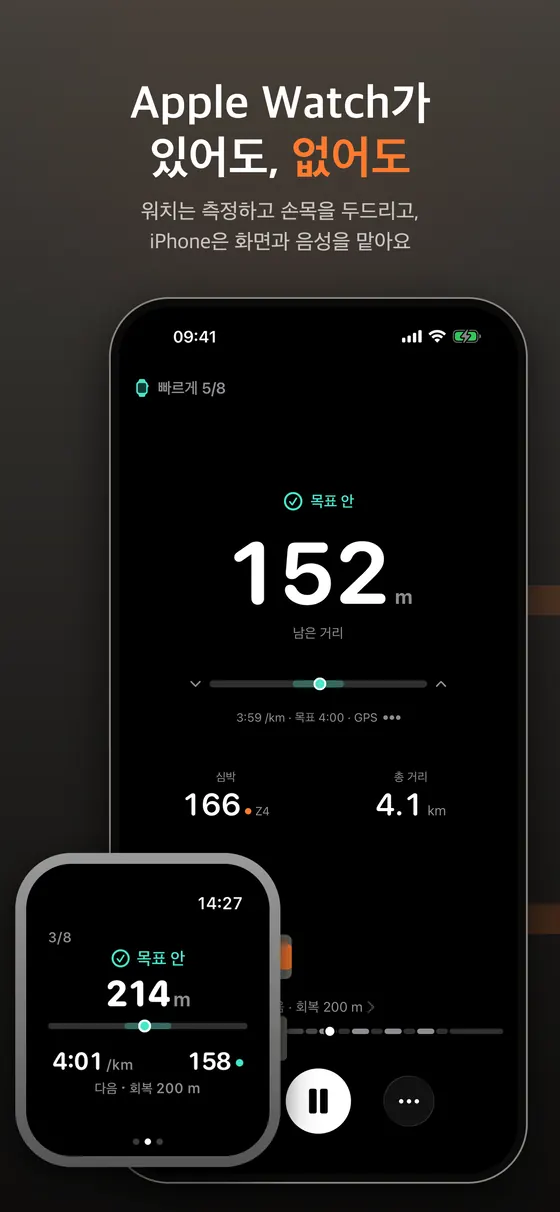
- Apple Watch 앱은 watchOS 10 이상을 지원합니다. 시계가 있으면 측정은 항상 시계에서 하고, iPhone은 화면과 음성 안내를 맡습니다.
- iPhone 단독 실행도 가능합니다. 시작할 때 이 iPhone에서만 실행을 선택하면 시계 없이 폰의 위치와 센서로 측정합니다. 이때 심박은 별도 센서가 없으면 쓸 수 없습니다.
- Android 버전은 Google Play에 등록되어 있습니다. 지원 기기와 기능 범위는 스토어 설명을 기준으로 확인해 주세요.
위치 권한은 앱을 사용하는 동안만 요청합니다. 앱은 계정이나 별도 분석 도구 없이 동작하고, 구독 결제는 스토어가 처리합니다. 뛰는 데 필요한 핵심 기능은 무료로 쓸 수 있고, 일부 부가 기능은 구독 대상입니다.
화면으로 미리 보기
아래 여섯 장은 스토어 스크린샷이라 위쪽에 홍보 문구가 들어 있고, 화면 자체는 iPhone 앱입니다. 네 번째 이미지에는 Apple Watch 화면도 함께 나옵니다.
인터벌 설정하는 법
- 구성 요소 고르기. 워밍업, 반복, 회복, 쿨다운을 차례로 추가합니다. 반복 구간은 시간(예: 목표 속도로 3분) 또는 거리(예: 목표 속도로 400미터)로 정할 수 있고, 두 방식을 섞어도 됩니다.
- 회복 방식 정하기. 회복은 조깅, 걷기, 정지 중에서 선택합니다. 심박 기반으로 회복 종료를 설정하면 정해진 시간이 아니라 심박이 내려갈 때까지 기다린 뒤 다음 반복으로 넘어갑니다.
- 목표 정하기. 목표는 속도(페이스) 또는 심박 존으로 줄 수 있습니다. 허용 범위를 두기 때문에 정확히 한 값이 아니라 범위 안에 있으면 정상으로 취급됩니다.
- 카운트 방식 선택. 목표 속도에 도달한 뒤 시작, 범위 안에 있을 때만 누적, 즉시 시작 중에서 고릅니다. 정확히 목표 속도로 달린 시간만 세고 싶다면 두 번째 방식이 맞고, 단순히 시간표대로 가고 싶다면 즉시 시작이 어울립니다.
- 알림 확인. 음성 안내, 빠름과 느림을 구분하는 효과음, Apple Watch 햅틱을 각각 켜고 끌 수 있습니다. 이어폰 없이도 들릴지 시험해 보세요.
- 시작. 시작을 누르면 카운트다운 후 구성이 순서대로 진행됩니다.
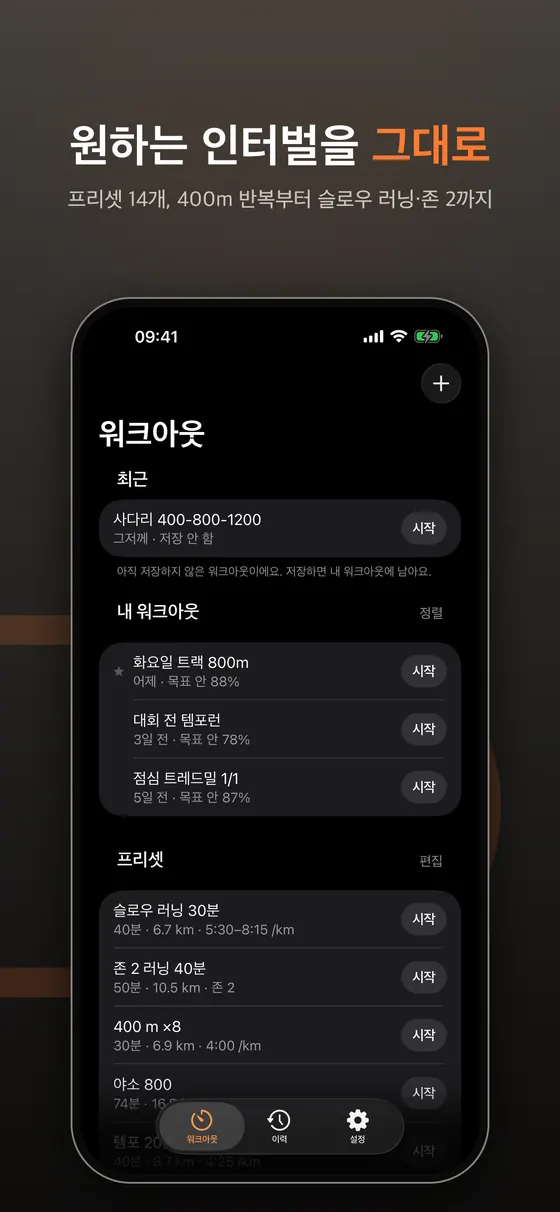
사전 설정을 만들 필요 없이 거리나 페이스만 정해 바로 달리는 빠른 시작과, 사다리나 피라미드 같은 흔한 구성의 템플릿도 기획되어 있습니다. 앱 버전에 따라 제공되는 범위가 다를 수 있으니 앱 안의 목록을 확인해 주세요.
러닝 화면과 요약 읽는 법
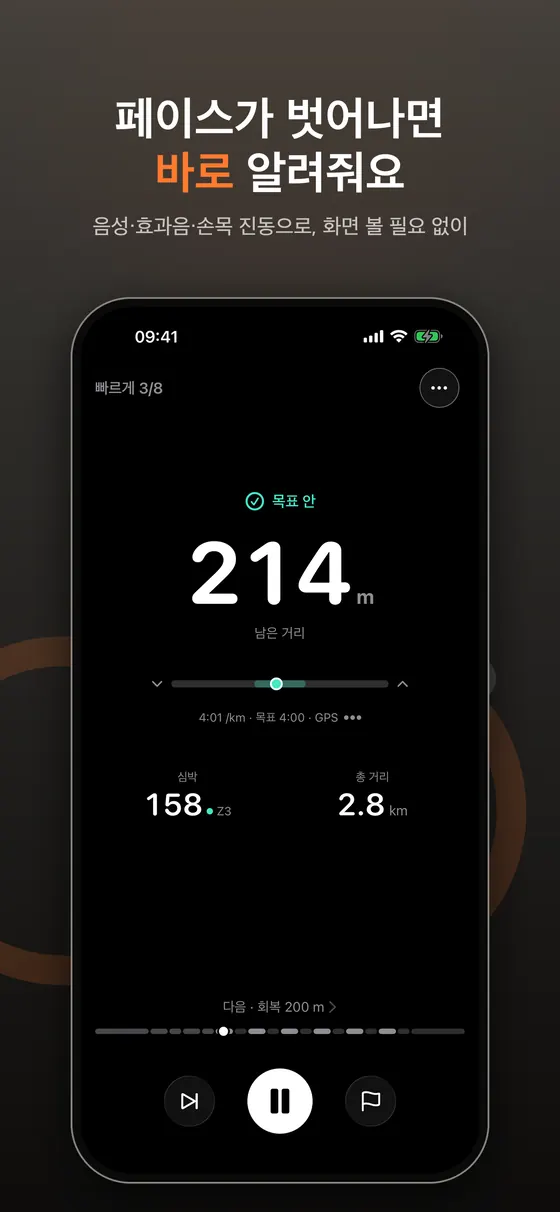
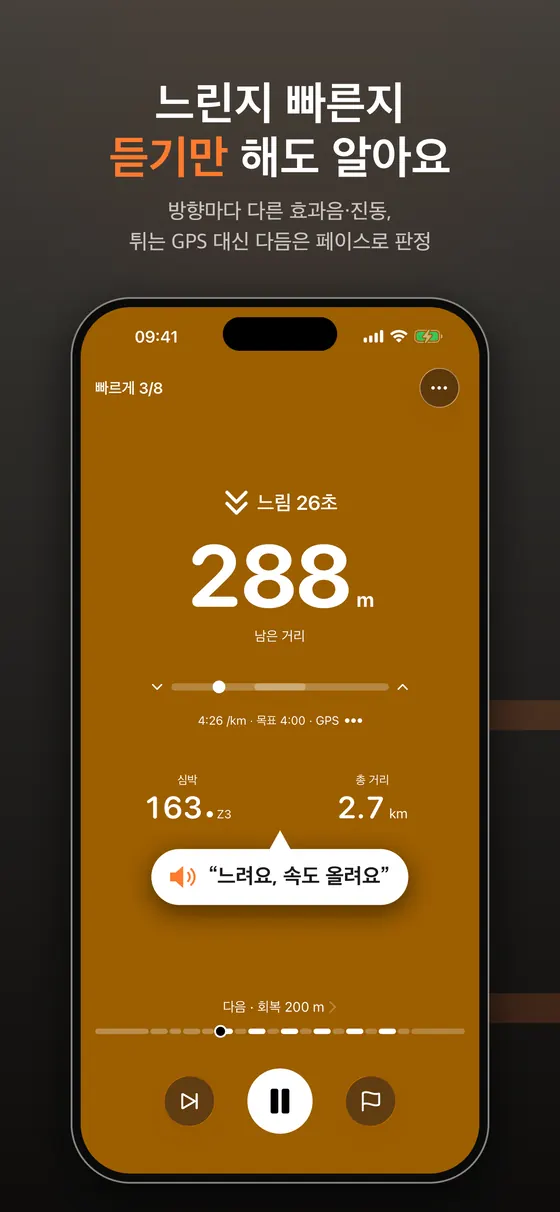
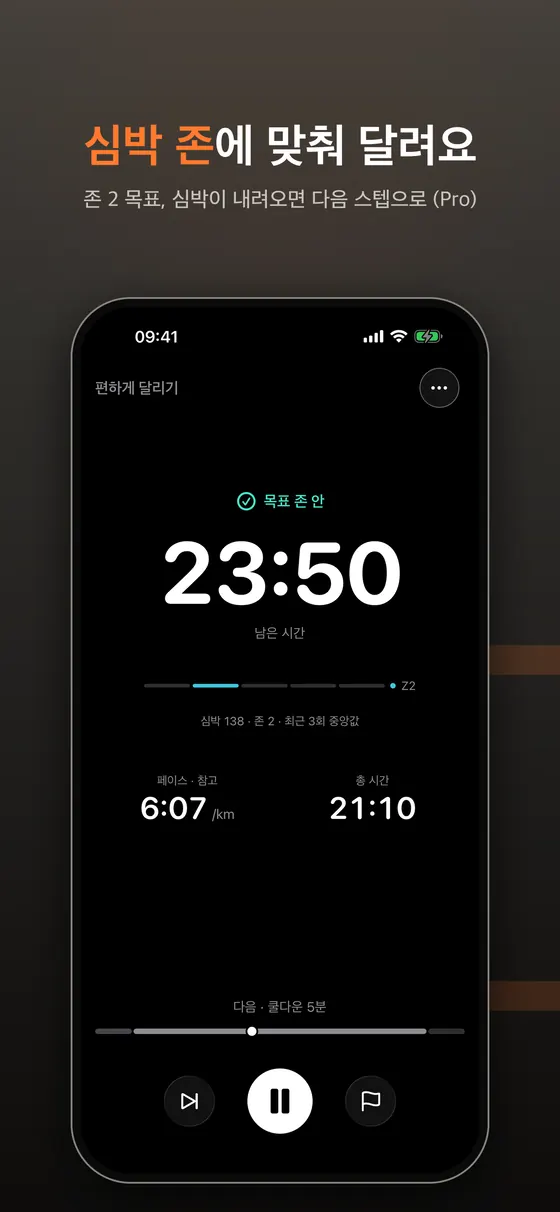
러닝 화면은 달리는 중에 한눈에 읽도록 단순하게 만들어져 있습니다. 가장 큰 숫자는 지금 구간에서 남은 거리(시간 기반 구간이면 남은 시간)이고, 그 아래 가로 막대에서 점이 민트색 구간 안에 있으면 목표 페이스 범위 안에 있다는 뜻입니다. 점이 왼쪽으로 가면 느린 쪽, 오른쪽으로 가면 빠른 쪽입니다. 막대 밑에는 현재 페이스와 목표, 위치 정보 상태가 작게 표시되고, 하단에는 심박(존 번호 포함), 총 거리, 다음 단계가 나옵니다. 맨 아래 가는 줄은 전체 워크아웃의 진행 위치입니다.
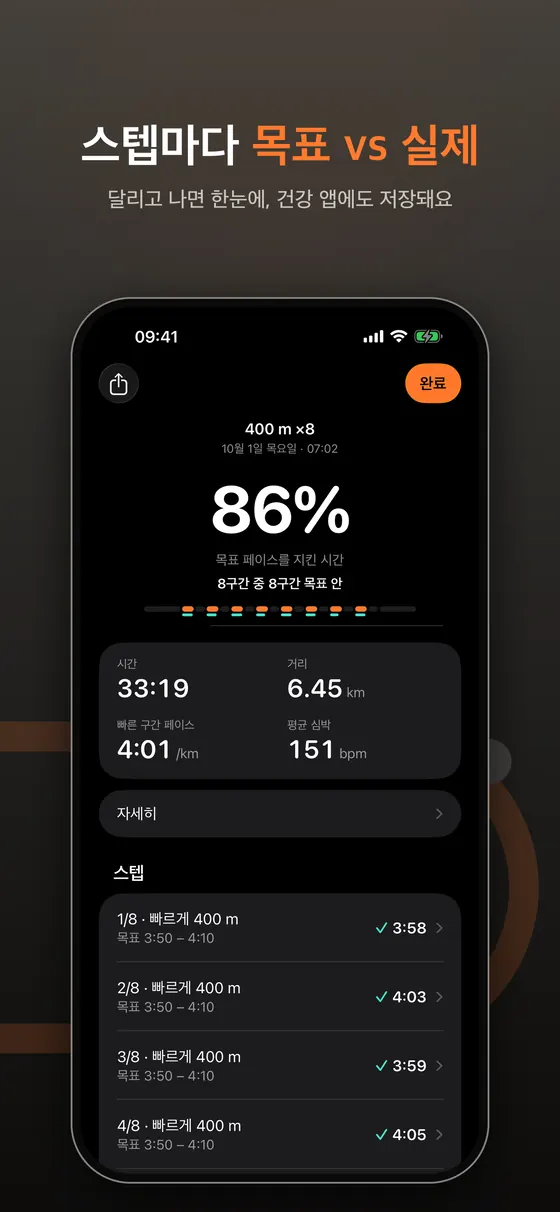
끝나고 나오는 요약 화면은 "목표 안에 머문 시간 비율"과 스텝별 목표 대비 실제 페이스를 보여 줍니다. 한 번의 숫자(평균 페이스)보다 이 스텝별 표가 인터벌 훈련에서는 더 쓸모가 있습니다. 평균이 목표와 같아도 첫 반복은 너무 빠르고 마지막 반복은 무너졌다면 훈련의 질이 달라지기 때문입니다. 예를 들어 400미터 여덟 번을 3:50~4:10 범위로 설정했을 때 실제 기록이 3:58, 4:03, 3:59, 4:05처럼 범위 안에서 고르게 나오는지, 뒤로 갈수록 한쪽으로 밀리는지를 요약에서 확인할 수 있습니다. 다음 훈련의 목표 범위를 정할 때 이 흐름을 참고하세요. 기록은 건강 앱에도 저장되므로 시계나 다른 앱에서 이어서 볼 수 있습니다.
알림이 작동하는 방식
순간 속도는 GPS 오차 때문에 크게 흔들립니다. 그래서 앱은 값을 일정 시간 평활화해서 판단하고, 이탈이 몇 초 이상 이어질 때만 알립니다. 같은 알림이 연달아 울리지 않도록 간격을 두며, 이탈이 길어지면 알림이 점차 강해집니다. 효과음은 빠름과 느림의 톤이 달라서 말을 알아듣지 않아도 구분됩니다. 음성은 미리 만들어 둔 문장 파일을 재생하는 방식이며, 합성 음성이라는 점이 앱에서 안내됩니다. 12개 언어를 지원합니다.
무료와 구독(Pro)의 경계
개발 문서가 밝히는 원칙은 "뛰는 데 필요한 것은 무료, 설계 깊이와 분석은 Pro"입니다. 알림 세 채널, 카운트 모드, 트레드밀 모드, Apple Watch 동기화, GPX 내보내기는 무료입니다. 반면 심박 존을 목표로 쓰기, 심박이 내려오면 다음 스텝으로 넘어가는 회복 종료, 반복 안에 반복을 넣는 중첩 구성, 사다리·피라미드·야소 같은 생성기, 스텝별 상세 분석과 추세, CSV 내보내기는 구독 범위로 문서에 정리되어 있습니다. 워크아웃은 무료로 세 개까지 저장할 수 있지만, 저장하지 않고 바로 실행하는 것은 언제나 가능합니다. 구독이 끝나도 기록은 지워지지 않고, 잠긴 기능만 닫힙니다.
단, 무료·유료 경계는 버전이 올라가며 조정될 수 있습니다. 실제로 어떤 항목이 구독에 포함되는지는 앱의 구독 화면 비교표가 기준이며, 가격과 무료 체험 조건도 그 화면과 스토어 표시를 따르세요. 스크린샷의 심박 존 화면에 (Pro) 표시가 붙은 것도 같은 맥락입니다.
사용 팁
- 첫 번째 반복은 목표보다 살짝 느리게 시작해도 괜찮습니다. 알림이 빠르다고 말하면 따르세요.
- 허용 범위를 너무 좁게 잡으면 알림이 계속 울립니다. 처음에는 넓게 두고 익숙해지면 줄이세요.
- 언덕이나 맞바람에서는 속도 대신 심박 목표가 더 현실적일 수 있습니다.
- 시계 햅틱은 소음이 큰 곳에서 특히 유용하고, 음성은 이어폰을 끼고 있을 때 가장 명확합니다.
- 시작 전에 시계와 폰의 배터리와 GPS 신호를 확인하세요.
문제가 생겼을 때
- 알림이 너무 자주 울려요. 허용 범위를 넓히거나 카운트 방식을 바꿔 보세요.
- 심박 목표가 작동하지 않아요. Watch나 심박 센서가 연결되어 있는지, 건강 데이터 권한이 허용되어 있는지 확인하세요. iPhone 단독 실행에서는 심박이 없습니다.
- 음성이 들리지 않아요. 무음 스위치나 미디어 볼륨, 블루투스 연결을 확인하세요.
- 속도가 튀어요. 건물 사이나 출발 직후에는 GPS가 불안정합니다. 신호가 잡힌 뒤에 시작하세요.
한계와 알려진 이슈
- 페이스는 GPS에 의존합니다. 건물 사이, 터널, 출발 직후에는 속도가 튈 수 있습니다. 앱이 값을 평활화하고 일정 시간 이탈이 이어질 때만 알리지만, 신호가 나쁜 곳에서는 알림이 늦거나 어긋날 수 있습니다. 트레드밀 모드에서는 GPS 없이 트레드밀 속도를 기준으로 단계가 전환됩니다.
- 심박은 센서 품질에 달렸습니다. 손목 광학 센서는 추운 날씨나 느슨한 착용에서 흔들립니다. 심박 센서가 없는 상태에서 심박 기반 스텝을 만나면 앱은 시간 기준으로 넘어가며, 이를 시작 전에 알려 줍니다.
- iPhone은 iOS 26 이상, Apple Watch는 watchOS 10 이상이 필요합니다. 이보다 오래된 기기에서는 설치할 수 없습니다.
- 음성 안내는 합성 음성입니다. 미리 만든 문장 파일을 재생하는 방식이며 12개 언어를 지원하지만, 문장 목록은 정해져 있어 자유 문구를 넣을 수는 없습니다.
- 훈련 처방이나 의료 기능이 아닙니다. 목표 페이스, 심박 존, 반복 횟수는 사용자가 정합니다. 앱의 심박·페이스 표시는 의학적 진단 도구가 아니므로, 가슴 통증이나 어지러움이 있으면 즉시 멈추세요.
- Android 버전의 범위는 스토어 상세 페이지를 기준으로 확인하세요. 이 가이드의 화면과 설명은 iPhone·Apple Watch 기준입니다.
다른 방법과 비교
| 방법 | 강점 | 약점 |
|---|---|---|
| IntervalRunner | 시간·거리·심박 존 구간을 짜고 이탈할 때만 소리·진동으로 알림, 스텝별 결과 요약 | iOS 26 이상 필요, 일부 기능은 구독, 설정을 직접 해야 함 |
| 시계에 내장된 운동 앱의 인터벌·페이스 알림 | 추가 설치 없음, 시계 하나로 완결 | 지원하는 구성과 알림 방식은 기기와 앱마다 다름. 사전에 확인 필요 |
| 일반 러닝 앱의 주기적 음성 안내(1km마다 등) | 단순하고 익숙함 | 구간이 짧은 인터벌에서는 이탈을 바로 알려 주지 못함 |
| 스톱워치와 직접 계산 | 비용 없음, 장비 불필요 | 달리는 중 화면을 봐야 하고 페이스 판단이 어려움 |
어느 쪽이 맞는지는 훈련 목적에 달려 있습니다. 인터벌 훈련 자체가 처음이라면 먼저 인터벌 러닝 입문 글의 기본 구성(워밍업, 짧은 반복, 충분한 회복)을 읽고, 시계 기본 기능으로 시작해 보아도 충분합니다. 이탈 알림이 필요해지는 시점에 전용 앱을 고려하세요.
출처 및 더 읽을거리
- Apple Developer: HKWorkoutSession (운동 세션 API)
- Apple Developer: watchOS apps
- WHO: Physical activity fact sheet
자주 묻는 질문
Apple Watch가 꼭 필요한가요?
아니요. 이 iPhone에서만 실행하는 방식으로 폰 단독으로도 뛸 수 있습니다. 다만 손목 햅틱과 시계 측정 심박은 사용할 수 없습니다.
무료로 어디까지 가능한가요?
뛰는 데 필요한 핵심 기능은 무료입니다. 구독이 필요한 항목과 가격은 앱 안 구독 화면에 표시된 내용이 기준입니다.
초보자도 쓸 수 있나요?
설정이 단순한 구성부터 시작할 수 있지만, 훈련 강도와 몸 상태는 본인이 판단해야 합니다. 건강이 걱정된다면 전문가와 상의하세요.
데이터는 어디에 저장되나요?
기록은 기기와 건강 앱을 중심으로 저장되며, 앱은 계정 없이 동작합니다. 자세한 내용은 개인정보 처리방침을 참고하세요.
영상으로 남기고 싶어요.
건강 앱에 저장된 러닝은 RunVue 같은 앱으로 영상으로 만들 수 있습니다.
알림이 울리는 기준은 무엇인가요?
현재 속도를 일정 시간 평활화한 값이 목표 범위를 벗어나고, 그 상태가 몇 초 이상 이어질 때 알립니다. 같은 알림이 연달아 울리지 않도록 간격을 두고, 이탈이 길어지면 알림이 점차 강해집니다.
트레드밀에서도 쓸 수 있나요?
개발 문서에는 GPS 없이 트레드밀 속도 그대로 단계를 전환하는 트레드밀 모드가 포함되어 있습니다. 실외와 달리 속도 표시가 트레드밀 설정에 의존하니, 처음에는 허용 범위를 넓게 두고 시험해 보세요.
구독을 해지하면 기록이 사라지나요?
개발 문서의 원칙은 데이터를 지우지 않는 것입니다. 기록은 남고 잠긴 기능만 닫힙니다. 정확한 조건은 앱의 구독 화면과 스토어 안내를 확인하세요.
그 밖의 질문은 지원 페이지에서 받습니다.
The problem IntervalRunner solves
Interval running alternates fast efforts with recovery in a planned order. The hard part is knowing, mid-run, whether you are truly running at your target pace. Staring at your wrist wrecks your form, and starting the first repetition too fast tends to cost you in the last one. IntervalRunner is a coaching app: you build intervals by time, distance or heart rate zone, and it alerts you by sound and vibration when your speed drifts away from the target. The goal is that you can tell "too slow" or "too fast" without looking at a screen.
It does not decide your workout for you. You choose the target pace and structure, and the app helps you stick to it with alerts. For general training background, see our separate interval running basics article.
Supported platforms
- The iPhone app targets iOS 26 and later.
- The Apple Watch app supports watchOS 10 and later. When a watch is available it does the measuring, and the iPhone handles the screen and voice guidance.
- iPhone-only running also works. Choose to run on this iPhone only and it measures with the phone's location and sensors. Heart rate is then unavailable unless you have a separate sensor.
- An Android version is listed on Google Play. Check the store description for supported devices and feature scope.
Location permission is requested only while the app is in use. The app works without an account or extra analytics tools, and subscription payments are handled by the store. The core features you need to run are free, and some extras are part of a subscription.
Screens at a glance
The six images below are store screenshots, so they carry a promo headline on top; the screens themselves are the iPhone app. The fourth image also includes an Apple Watch screen.
How to build an interval workout
- Pick the building blocks. Add a warm-up, repeats, recovery and a cool-down in order. Repeats can be defined by time (for example three minutes at target pace) or distance (for example 400 meters at target pace), and you can mix both.
- Choose recovery. Recovery can be a jog, a walk or a stop. If you set heart-rate-based recovery, the app waits for your heart rate to come down rather than for a fixed time before moving on.
- Set the target. The target can be a pace or a heart rate zone. A tolerance band is used, so being anywhere inside the range counts as on target rather than a single exact value.
- Select a counting mode. Choose between starting after you reach the target, accumulating only while inside the band, or starting immediately. If you want to count only the time actually spent on target, the second fits; for a plain timetable, immediate start fits.
- Check the alerts. Voice, distinct tones for fast and slow, and Apple Watch haptics can each be switched on or off. Test whether you can hear them without earphones.
- Start. After a countdown the workout moves through your plan in order.
A quick start where you set only a distance or pace, and templates for common structures such as ladders and pyramids, are part of the design. What is available depends on the app version, so check the lists inside the app.
Reading the run screen and summary
The run screen is kept simple so you can read it at a glance. The largest number is what remains in the current step: distance, or time for a time-based step. Below it, a horizontal bar has a dot, and when the dot sits inside the mint section you are inside the target pace band. A dot to the left means slow, to the right means fast. Under the bar, current pace, the target and the location status appear in small type, and the bottom shows heart rate with its zone, total distance and the next step. The thin line at the very bottom marks your position in the whole workout.
The summary after the run shows the share of time you stayed on target and each step's actual pace against its target. For interval training that per-step list is more useful than a single average pace. An average can match your target while the first repeat was far too fast and the last one fell apart, and those are different workouts. For eight 400 m repeats set to a 3:50 to 4:10 band, you can see whether results such as 3:58, 4:03, 3:59 and 4:05 stay evenly inside the band or drift to one side as the session goes on, and use that when you choose the next target band. The record is also saved to the health app, so you can continue to look at it from your watch or another app.
How the alerts behave
Instant speed from GPS fluctuates a lot. The app smooths values over a short time and alerts only when a deviation lasts for a few seconds. It keeps a gap between alerts so you are not nagged repeatedly, and alerts escalate if the deviation continues. The sound cues use different tones for fast and slow, so you can tell them apart without parsing speech. Voice guidance plays pre-generated sentence files, and the app discloses that the voice is synthetic. Twelve languages are supported.
Where free ends and Pro begins
The principle stated in the development documents is that what you need to run is free, while design depth and analysis are Pro. The three alert channels, counting modes, treadmill mode, Apple Watch sync and GPX export are free. Using a heart rate zone as the target, heart-rate-based recovery that ends when your heart rate drops, nested repeats, the ladder, pyramid and Yasso generators, per-step analysis and trends, and CSV export are listed as subscription features. You can save three workouts for free, and running a workout without saving it is always allowed. If a subscription lapses, your records are not deleted; only the locked features close.
These boundaries can be adjusted as versions change. What the subscription actually includes is whatever the comparison table on the in-app subscription screen shows, and so are the price and any free trial terms. The (Pro) label on the heart rate zone screenshot reflects the same split.
Tips
- Starting the first repetition slightly under target is fine. If the alert says you are fast, follow it.
- A very narrow tolerance band makes alerts fire constantly. Start wide and tighten as you get used to it.
- On hills or in a headwind, a heart rate target can be more realistic than pace.
- Watch haptics are especially useful in noisy places, while voice is clearest with earphones.
- Before you start, check battery and GPS signal on both watch and phone.
Troubleshooting
- Alerts fire too often. Widen the tolerance band or change the counting mode.
- Heart rate targets do not work. Check that a Watch or heart rate sensor is connected and health data permission is granted. There is no heart rate in iPhone-only mode without a sensor.
- I cannot hear the voice. Check the silent switch, media volume and Bluetooth connection.
- Speed jumps around. GPS is unstable between buildings and right after starting. Wait for a good signal before you begin.
Limits and known issues
- Pace depends on GPS. Speed can jump between tall buildings, in tunnels and right after you start. The app smooths values and alerts only when a deviation persists, but in poor signal alerts can be late or off. In treadmill mode, steps switch by treadmill speed without GPS.
- Heart rate depends on the sensor. Wrist optical sensors wobble in cold weather or with a loose strap. If a heart-rate-based step comes up with no heart rate source, the app moves on by time instead and tells you before you start.
- The iPhone needs iOS 26 or later and the Apple Watch needs watchOS 10 or later. Older devices cannot install it.
- Voice cues are synthetic. The app plays pre-generated sentence files in 12 languages; the phrase list is fixed, so you cannot add free-form phrases.
- It is not a training prescription or a medical tool. You choose the target pace, heart rate zone and number of repeats. Heart rate and pace readouts are not diagnostic. If you feel chest pain or dizziness, stop right away.
- For the Android version, check the store listing for scope. The screens and descriptions in this guide are for iPhone and Apple Watch.
How it compares
| Method | Strengths | Weaknesses |
|---|---|---|
| IntervalRunner | Build time, distance and heart rate zone steps, get sound and haptic alerts only on deviation, per-step result summary | Needs iOS 26 or later, some features are subscription, you must set things up yourself |
| A watch's built-in workout app with interval or pace alerts | Nothing to install, the watch does it all | Supported structures and alert styles differ by device and app, so check first |
| A general running app's periodic voice updates (every km and so on) | Simple and familiar | Cannot flag a deviation right away in short intervals |
| A stopwatch and mental arithmetic | Free and no gear | You must look at the screen while running and judging pace is hard |
Which one fits depends on your goal. If interval training is new to you, read the basic structure (warm-up, short repeats, enough recovery) in our interval running basics article and start with your watch's built-in features. Consider a dedicated app once you need deviation alerts.
Sources and further reading
FAQ
Do I need an Apple Watch?
No. You can run with the iPhone alone using the run-on-this-iPhone-only option, though wrist haptics and watch-measured heart rate will not be available.
What is free?
The core features you need to run are free. Which items need a subscription, and the price, are shown on the in-app subscription screen.
Can beginners use it?
You can start with simple structures, but you are responsible for judging intensity and your condition. If you have health concerns, consult a professional.
Where is my data stored?
Records live mainly on your device and in the health app, and the app works without an account. See the privacy policy.
Can I turn a run into a video?
Runs saved to your health app can be turned into videos with an app such as RunVue.
When exactly does an alert fire?
When the smoothed current speed leaves the target band and stays out for a few seconds. Alerts are spaced apart so the same one does not repeat back to back, and they escalate if the deviation continues.
Does it work on a treadmill?
The development documents include a treadmill mode that switches steps by treadmill speed without GPS. Unlike outdoors, the speed readout depends on the treadmill setting, so try it with a wider tolerance band first.
Do I lose my records if I cancel the subscription?
The stated principle is not to delete data. Records stay and only locked features close. Check the in-app subscription screen and store listing for exact terms.
For other questions, visit the support page.