ZIP·RAR·7z·tar 압축 포맷 한눈에 이해하기
ZIP, RAR, 7z and tar explained: formats, encryption and cross-platform pitfalls
압축 파일이 하는 두 가지 일
압축 파일(아카이브)은 서로 다른 두 가지 일을 합니다. 하나는 여러 파일과 폴더를 하나로 묶는 것이고, 다른 하나는 데이터를 더 작게 줄이는 것입니다. ZIP이나 7z는 둘을 한 번에 처리하지만, tar는 묶기만 하고 줄이기는 gzip·xz·zstd 같은 별도 압축기에 맡깁니다. 그래서 리눅스 세계에서는 .tar.gz처럼 확장자가 두 겹이 됩니다. 이 구분을 알면 낯선 확장자를 만나도 성질을 짐작할 수 있습니다.
포맷을 고를 때 실제로 부딪히는 문제는 압축률보다 호환성입니다. 받는 사람이 열 수 있는지, 한글 파일명이 깨지지 않는지, 암호를 걸었다면 상대의 도구가 그 방식을 지원하는지가 훨씬 자주 문제를 만듭니다. 이 글은 포맷별 특성을 표로 정리한 뒤, 암호화와 운영체제 간 함정을 따로 다룹니다.
포맷 비교표
| 포맷 | 구조와 압축 | 암호화 | 호환성 | 큰 파일·분할 |
|---|---|---|---|---|
| ZIP | 파일별로 따로 압축(한 파일만 빠르게 꺼내기 쉬움). 압축률은 대체로 7z보다 낮음 | 전통 방식(ZipCrypto)은 사양 문서가 "현대 기준으로 약하다"고 평가 [1]. AES는 도구가 지원할 때만 | Windows, macOS, iOS 파일 앱, 대부분의 Android 파일 앱이 기본 수준에서 처리 | ZIP64 확장으로 4GB를 넘는 파일, 6만 5535개를 넘는 항목 처리 [1]. 여러 볼륨 분할 가능(사양 4.3.3) |
| 7z | LZMA·LZMA2 기반으로 높은 압축률. 여러 파일을 한 덩어리로 묶는 솔리드 압축과 헤더 압축 지원 [2] | AES-256. 키는 SHA-256을 여러 번 반복해 도출 [2]. 파일명까지 숨기는 헤더 암호화 옵션이 7-Zip에 있음 | 7-Zip, 일부 최신 OS 기본 기능, 전용 앱. 구버전 환경은 별도 도구 필요 | 사양상 최대 파일 크기가 사실상 무제한 수준(문서 기준 16000000000GB) [2]. 볼륨 분할 지원 |
| RAR | 독점 포맷. RAR5는 복구 레코드를 넣을 수 있고 최대 크기가 보호 데이터의 1000%까지 늘었다고 개정 이력에 기록 [3] | AES 기반 암호화와 파일명 암호화 옵션(WinRAR 기준) | 풀 수 있는 도구는 많지만 만드는 쪽은 WinRAR 등 정식 도구 필요 | 분할(part1.rar 등)과 복구 레코드가 강점. RAR5 사전 크기는 64GB까지 확장 [3] |
| tar.gz / tar.xz | tar가 묶고 gzip 또는 xz가 줄임. xz는 대체로 더 작지만 느림 | 포맷 자체에는 암호화 없음(별도 도구 필요) | 리눅스·macOS 기본. Windows 일반 사용자에게는 낯설음 | 유닉스 권한·소유자·심볼릭 링크 보존에 강함 |
| tar.zst | Zstandard는 빠른 속도와 높은 압축률의 균형을 내세우는 알고리즘이며 IETF RFC 8878로 표준화 [4] | 포맷 자체에는 없음 | 개발 환경 중심. 일반 사용자 도구에서는 지원이 아직 고르지 않음 | 압축 해제가 레벨과 상관없이 빠른 편이라고 소개됨 [4] |
| LZH, ALZ, EGG | 과거 일본·한국에서 쓰이던 포맷 | 도구별 | 받아서 풀기만 하는 경우가 대부분. 지원 도구가 제한적 | — |
7z의 "16000000000GB" 같은 사양상 한도는 현실의 한계가 아닙니다. 실제 한계는 저장 장치의 파일 시스템, 남은 디스크 용량, 그리고 받는 쪽 도구의 구현입니다. 특히 4GB가 넘는 ZIP은 ZIP64를 이해하는 도구여야 열린다는 점이 구형 도구에서 자주 문제가 됩니다.
암호화: ZipCrypto, AES, 파일명 숨김
압축은 크기를 줄이는 것이고 암호화는 내용을 숨기는 것입니다. 한 화면에서 같이 설정되지만 원리는 별개입니다. 암호를 건다고 파일이 작아지지 않으며, 압축했다고 안전해지지도 않습니다. 압축 암호에서 짚어야 할 것은 세 가지입니다.
1) ZipCrypto와 AES는 다르다
ZIP의 전통 암호화는 사양 문서(PKWARE APPNOTE 6.0.1)가 스스로 "오늘날의 기준으로 약하다고 간주되며 낮은 보안 수요나 구형 ZIP 프로그램과의 호환 용도로만 권장한다"고 적을 만큼 약한 방식입니다 [1]. 같은 사양의 7장은 AES를 포함한 강한 암호화 알고리즘을 따로 정의합니다. 그런데 도구 화면에는 "암호 설정"이라고만 나오는 경우가 많아, 모르고 구형 방식으로 저장되기 쉽습니다. 중요한 자료라면 도구에서 AES-256을 명시적으로 고르세요. 대가는 호환성입니다. AES ZIP을 열지 못하는 구형 도구가 있어서, 받는 사람 환경을 모른다면 열리는지 먼저 확인해야 합니다.
2) 암호를 걸어도 파일명이 보일 수 있다
ZIP은 암호를 걸어도 파일 이름 목록이 그대로 보이는 경우가 많습니다. 이름만으로 내용을 짐작할 수 있다면 정보가 샙니다(예: "2026_연봉협상_김과장.xlsx"). 7z는 7-Zip에서 파일명 암호화(헤더 암호화) 옵션을 켜면 비밀번호를 입력하기 전에는 목록 자체가 보이지 않습니다. 파일명도 민감하다면 7z의 이 옵션을 쓰거나, 파일을 하나로 묶어 이름을 무난하게 바꾼 뒤 암호화하세요.
3) 암호가 약하면 알고리즘은 소용없다
AES-256이어도 암호가 "1234"이면 의미가 없습니다. 7z는 키를 SHA-256 해시를 여러 번 반복해 만들어 무차별 대입을 더 어렵게 하지만 [2], 반복 횟수가 약한 암호를 구해 주지는 못합니다. 길고 추측하기 어려운 문구를 쓰고, 암호는 압축 파일과 다른 경로(전화, 다른 메신저)로 전달하세요.
운영체제 사이에서 생기는 함정
한글 파일명이 깨질 때
가장 흔한 문제입니다. ZIP 사양에서 파일명의 기본 문자 집합은 원래 IBM 코드 페이지 437이고, 일반 상태 비트 11이 켜져 있어야 파일명을 UTF-8로 해석하도록 규정돼 있습니다 [1]. 이 비트를 켜지 않고 한국어 윈도우 환경에서 압축하면 한글이 시스템 코드 페이지(CP949, 마이크로소프트 식별자 949)로 저장되는 경우가 많습니다 [5]. 이런 ZIP을 UTF-8만 가정하는 도구에서 열면 파일명이 외계어가 됩니다. 반대로 UTF-8로 저장된 ZIP을 오래된 윈도우 도구가 지역 코드 페이지로 읽어도 깨집니다.
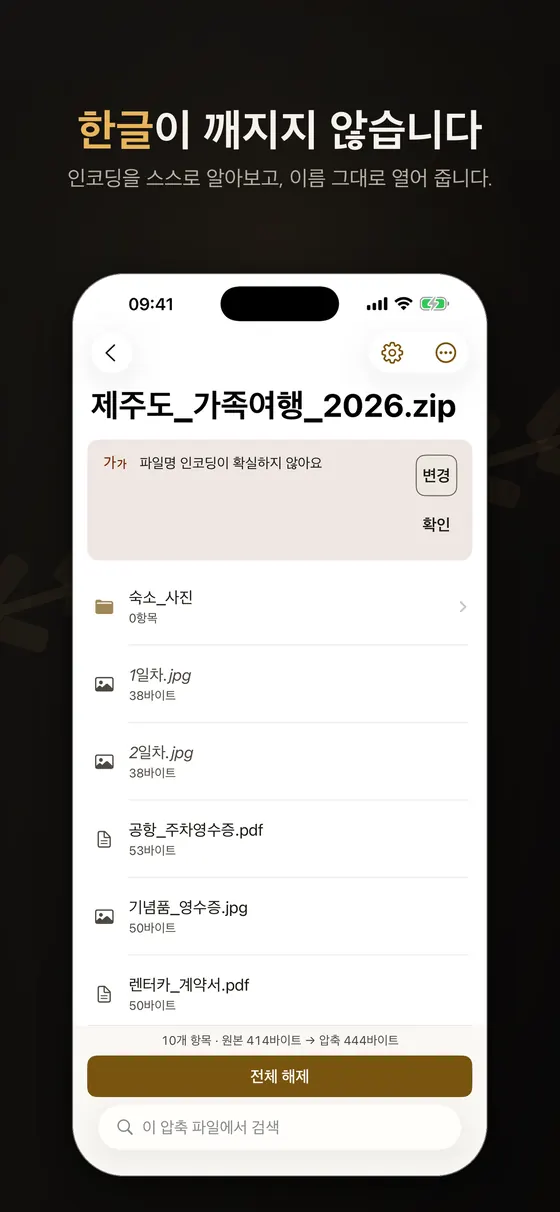
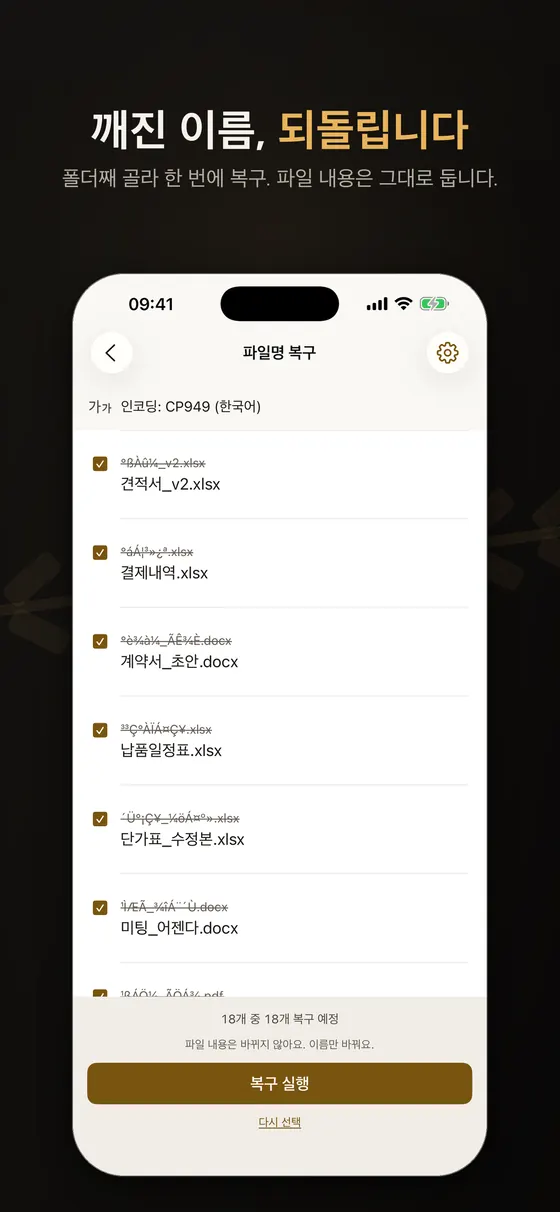
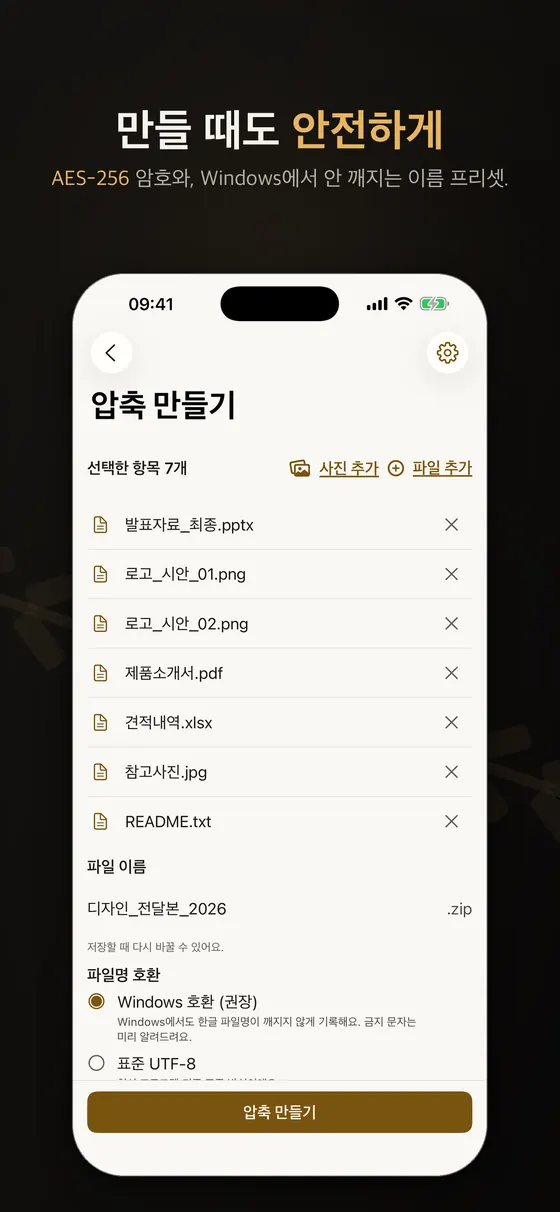
해결은 두 갈래입니다. 받는 쪽에서는 인코딩을 감지하거나 직접 고를 수 있는 도구를 쓰고(CP949 ↔ UTF-8), 보내는 쪽에서는 윈도우에서 열릴 것을 고려해 도구의 "호환 이름" 옵션을 사용하거나 7z·tar처럼 이름을 유니코드로 저장하는 포맷을 쓰세요. 파일 내용은 멀쩡하고 이름만 바뀐 것이므로, 이름을 복구하면 됩니다. 아래 Zipda 사례에서 화면을 볼 수 있습니다.
macOS가 몰래 넣는 메타데이터
맥에서 만든 ZIP을 윈도우에서 열면 __MACOSX 폴더, .DS_Store, 그리고 ._파일명 형태의 보조 파일이 같이 보이는 경우가 있습니다. 맥의 리소스 포크와 확장 속성, 폴더 보기 설정이 담긴 파일들로, 맥에서는 숨겨져 있고 윈도우에서는 그냥 쓰레기처럼 보입니다. 지워도 데이터는 손상되지 않습니다. 윈도우·리눅스 사용자에게 보낼 때는 이런 파일이 들어가지 않는 도구나 옵션을 쓰는 편이 깔끔합니다. 또 맥 파일명에서 자주 보이는 현상으로 한글 자모가 분리되어 보이는 경우(유니코드 정규화 형태의 차이)가 있는데, 이 역시 이름의 표현 방식 문제이지 파일 손상이 아닙니다.
이미 압축된 데이터는 더 줄지 않는다
JPG, MP4, 이미 압축된 ZIP, PDF 안의 이미지는 압축을 해도 거의 줄지 않습니다. 사진 폴더를 ZIP이나 7z로 묶는 목적은 크기 감소가 아니라 한 덩어리로 보내기라고 생각하는 편이 정확합니다. 압축하고 또 압축해도 크기는 줄지 않고 시간만 듭니다.
큰 파일과 분할 압축
이메일 첨부나 메신저 한도 때문에 큰 파일을 조각으로 나눠 보내는 경우가 있습니다. 포맷마다 이름 규칙이 다릅니다. 7z와 ZIP은 .7z.001, .zip.001 같은 번호 방식이나 .z01, .z02 뒤에 .zip이 오는 방식을, RAR는 .part1.rar 방식을 씁니다. ZIP 사양도 여러 볼륨으로 나뉘거나 사용자 지정 크기로 분할될 수 있음을 규정합니다 [1].
- 모든 조각을 같은 폴더에 두세요. 하나라도 빠지면 풀리지 않습니다.
- 조각 이름을 바꾸지 마세요. 도구가 이름 규칙으로 세트를 찾습니다.
- 첫 조각(
.001,.part1.rar, 또는 마지막의.zip)을 열면 나머지가 이어서 읽힙니다. - 받은 조각의 크기가 보낸 쪽과 같은지 확인하세요. "손상된 아카이브" 오류의 가장 흔한 원인은 다운로드가 중간에 끊겼거나 조각이 빠진 경우입니다.
분할은 편하지만 한 조각이라도 잃으면 전체가 막힙니다. 파일 공유 방법 자체를 바꾸는 편이 나을 때도 많으므로 기기 간 파일 옮기는 법에서 한도별 대안을 비교해 보세요.
어떤 포맷을 고를까: 선택 도우미
핵심 기준은 받는 사람이 누구인가입니다. 모르면 ZIP, 용량이 중요하고 상대가 도구를 갖췄으면 7z, 리눅스·개발 환경이면 tar 계열, 파일명까지 숨겨야 하면 7z 헤더 암호화가 기본 답입니다. 아래 도우미에 목적, 받는 사람, 분할 여부를 고르면 후보와 이유를 보여 줍니다.
폰에서 다루기: Zipda 사례
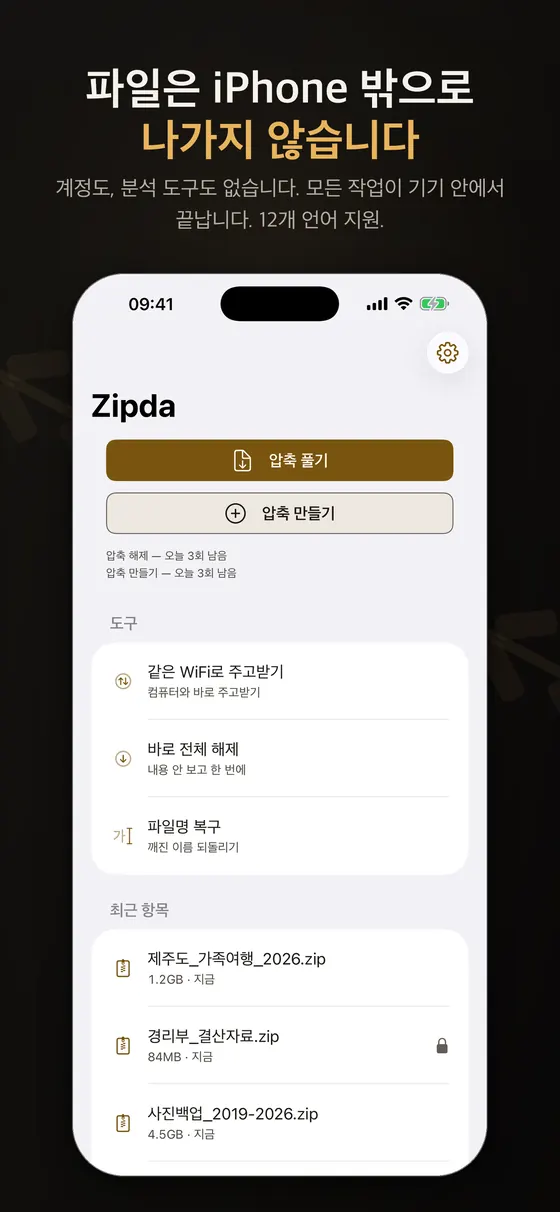
아이폰의 파일 앱은 ZIP을 풀고 만드는 기능을 기본 제공하지만 RAR, 7z, 암호 압축, 한글 인코딩 문제는 기본 기능만으로 다루기 어렵습니다. 이런 경우를 위해 필자가 만든 iOS·macOS 앱 Zipda가 있습니다. 이 글에서 앱을 소개하는 곳은 이 섹션뿐이며, 앞의 내용은 앱과 무관하게 적용됩니다. 개발 문서와 스토어 화면 기준으로 확인된 기능은 다음과 같습니다.
- ZIP, 7z, tar 계열(tar, tar.gz, tar.bz2, tar.xz)을 압축·해제하고 RAR, LZH, ALZ는 해제만 합니다. EGG는 라이선스·특허 문제로 지원하지 않고 RAR 생성도 없습니다.
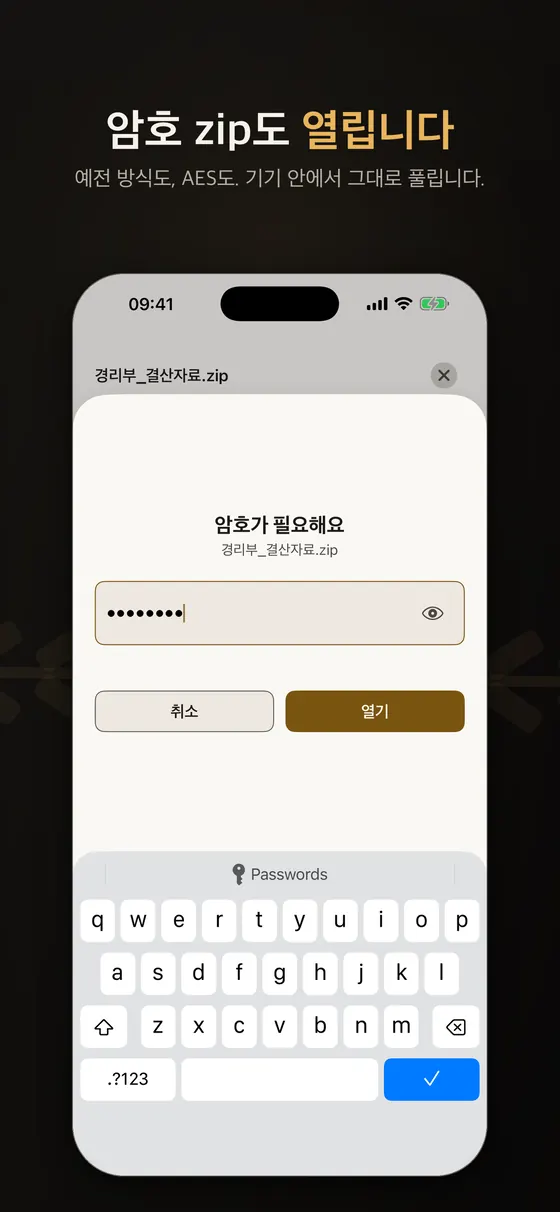
- 암호가 걸린 ZIP, 7z, RAR을 열 수 있고 ZipCrypto 방식도 처리하도록 설계되었습니다. 만들 때는 ZIP에 AES-256을 걸 수 있습니다.
- 파일명 인코딩을 기기 안에서 감지하고, 깨진 이름을 되돌리는 복구 도구가 있습니다. 아주 짧은 일본어 파일명이 한국어로 오판될 수 있다는 한계가 개발 문서에 기록돼 있어, 결과가 이상하면 인코딩을 바꿔 봐야 합니다.
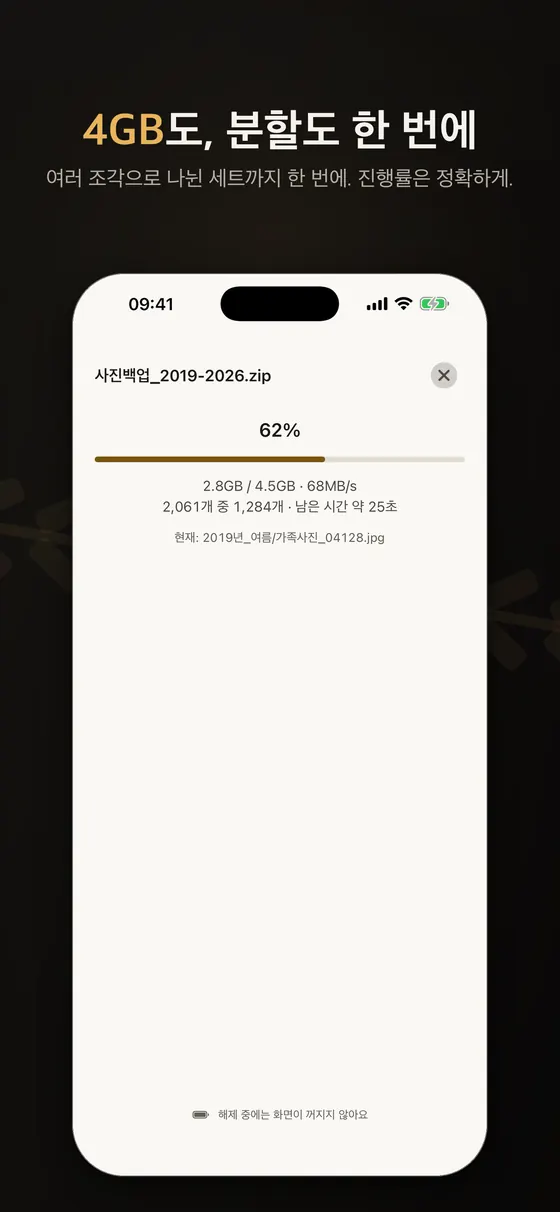
- 4GB를 넘는 파일(ZIP64)과 분할 세트를 열 수 있습니다. 분할 압축 생성은 이 가이드의 범위가 아닙니다.
- 열기·목록·미리보기, UTF-8 ZIP·tar 해제, 암호 없는 ZIP·tar 만들기는 무료이며 횟수 제한이 없습니다. RAR·7z·ALZ·LZH 해제, 분할·암호 압축 등은 Pro 기능입니다. 가격은 스토어에서 확인하세요.
누구에게 맞고 누구에게 맞지 않는가
잘 맞는 경우
- 윈도우에서 만든 한글 ZIP을 아이폰·맥에서 열어야 할 때
- RAR, 7z, 암호 압축을 폰에서 풀어야 할 때
- 파일이 기기 밖으로 나가지 않기를 바랄 때
맞지 않는 경우
- 단순 ZIP 한두 개: 파일 앱 기본 기능으로 충분
- RAR 압축 파일을 만들어야 할 때: 지원하지 않음
- 안드로이드·윈도우 사용자: 앱은 iOS·macOS용
더 자세한 사용법은 Zipda 가이드에 있습니다. 어떤 앱을 쓰든 출처를 모르는 압축 파일은 풀기 전에 신뢰할 수 있는지 먼저 판단하세요.
문제 해결
| 증상 | 가능한 원인 | 해결 |
|---|---|---|
| 파일명이 외계어로 보인다 | CP949로 저장된 이름을 UTF-8로 해석(또는 반대) | 인코딩을 선택해 여는 도구 사용, 이름 복구 |
| "손상된 아카이브" | 다운로드 중단, 분할 조각 누락 | 크기 비교 후 재다운로드, 조각을 같은 폴더에 |
| 암호가 맞는데 열리지 않음 | 도구가 AES 같은 방식을 지원하지 않음 | 7-Zip 등 지원 도구로 시도, 보낸 쪽에 방식 확인 |
| 4GB 이상 ZIP이 안 열림 | ZIP64 미지원 도구 | 최신 도구 사용 또는 7z로 재압축 요청 |
| __MACOSX, .DS_Store가 보임 | macOS 메타데이터 | 삭제해도 무방, 보낼 때 제외 옵션 사용 |
| .egg 파일 | 지원하지 않는 포맷이 많음 | 보낸 사람에게 ZIP·7z로 재요청 |
출처 및 더 읽을거리
- PKWARE, ZIP 파일 포맷 사양 APPNOTE 6.3.9 (ZIP64 4.5.3, 분할 4.3.3, 암호화 6.0.1·7.0, 언어 인코딩 부록 D): APPNOTE-6.3.9.TXT
- 7-Zip, 7z 포맷 소개: 7-zip.org/7z.html
- RARLAB, WinRAR 변경 이력: rarlab.com/rarnew.htm
- Zstandard 공식 사이트: facebook.github.io/zstd
- Microsoft Learn, 코드 페이지 식별자(949 한국어, 65001 UTF-8): code-page-identifiers
검증하지 못해 수치를 쓰지 않은 항목: RAR의 최대 파일 크기와 AES 세부 사양, tar의 크기 제한, macOS·Windows 기본 도구의 포맷별 지원 범위(버전에 따라 달라 숫자 대신 일반론만 적음).
자주 묻는 질문
ZIP과 7z 중 무엇이 더 좋은가요?
호환성은 ZIP, 크기는 보통 7z가 유리합니다. 받는 사람의 환경을 모르면 ZIP, 상대가 7-Zip 같은 도구를 가지고 있고 용량이 중요하면 7z를 고르세요.
압축하면 보안이 되나요?
아닙니다. 암호를 걸어야 하고 방식도 중요합니다. 전통 ZipCrypto는 약하므로 AES-256을 고르고, 파일명까지 숨겨야 하면 7z의 파일명 암호화 옵션을 쓰세요.
압축 파일을 여러 번 압축하면 더 작아지나요?
대개 아닙니다. 이미 압축된 데이터는 거의 줄지 않습니다. 사진이나 영상은 한 번 묶는 것이 목적이지 용량 감소가 목적이 아닙니다.
RAR를 폰에서 만들 수 있나요?
RAR 압축은 라이선스상 정식 도구가 필요해서 대부분의 폰 앱은 해제만 지원합니다. 보낼 때는 ZIP이나 7z를 쓰세요.
한글 파일명이 깨질 때는 어떻게 하나요?
파일 내용이 아니라 이름의 문자 인코딩이 어긋난 것입니다. CP949와 UTF-8을 바꿔 보는 도구로 열거나 이름 복구 기능을 쓰면 됩니다. 보내는 쪽은 Windows 호환 옵션이 있는 도구를 쓰면 줄어듭니다.
도움이 필요하면 어디로 문의하나요?
지원 페이지를 확인해 주세요.
The two jobs of an archive
An archive does two separate things: it bundles many files and folders into one, and it shrinks the data. ZIP and 7z do both at once, while tar only bundles and leaves shrinking to a separate compressor such as gzip, xz or zstd, which is why Linux files carry double extensions like .tar.gz. Knowing this lets you guess what an unfamiliar extension does.
In practice the problem is rarely the compression ratio. It is whether the recipient can open the file, whether Korean file names survive, and whether the recipient's tool supports the encryption you chose. This guide tabulates the formats, then covers encryption and cross-platform traps separately.
Format comparison
| Format | Structure and compression | Encryption | Compatibility | Large files, splitting |
|---|---|---|---|---|
| ZIP | Each file compressed separately, so extracting one file is quick. Ratio is generally lower than 7z | Traditional ZipCrypto is called weak by today's standards in the spec itself [1]. AES only where the tool supports it | Windows, macOS, the iOS Files app and most Android file managers handle it at a basic level | ZIP64 extends beyond 4 GB files and 65,535 entries [1]. Multi-volume splitting is defined (section 4.3.3) |
| 7z | LZMA/LZMA2 for a high ratio; solid compression and header compression [2] | AES-256, key derived by repeated SHA-256 [2]. 7-Zip has a header-encryption option that hides file names | 7-Zip, some recent OS built-ins, dedicated apps; older systems need extra tools | Spec allows sizes up to 16000000000 GB per its documentation [2]. Volume splitting supported |
| RAR | Proprietary. The changelog records that RAR5 recovery records can reach 1000% of protected data [3] | AES-based encryption and file-name encryption (WinRAR) | Many tools can extract; creating needs WinRAR or similar | Splitting (part1.rar) and recovery records are strengths. RAR5 dictionaries extend to 64 GB [3] |
| tar.gz / tar.xz | tar bundles; gzip or xz shrinks. xz is usually smaller but slower | None in the format itself | Native on Linux and macOS; unfamiliar to many Windows users | Good at preserving Unix permissions, owners and symlinks |
| tar.zst | Zstandard balances speed and ratio and is standardized as IETF RFC 8878 [4] | None in the format itself | Developer-oriented; consumer tool support is uneven | Decompression stays fast across levels per the project [4] |
| LZH, ALZ, EGG | Legacy formats once common in Japan and Korea | Tool-specific | Usually extract-only, with limited tool support | — |
A spec ceiling such as 7z's 16000000000 GB is not a practical limit. The real limits are the file system, free disk space and the recipient's tool. A ZIP over 4 GB needs a tool that understands ZIP64, which is a frequent problem with older software.
Encryption: ZipCrypto, AES and file names
Compression shrinks; encryption hides. They are configured on one screen but are independent: a password does not make a file smaller, and compressing does not make it safe. Three points matter.
1) ZipCrypto and AES are different
The PKWARE APPNOTE (section 6.0.1) describes traditional ZIP encryption as "considered weak by today's standards" and recommends it only for low-security needs or compatibility with old ZIP software. Section 7.0 defines strong encryption with ciphers including AES [1]. Many tools just say "set password", so you may silently get the old method. For anything important, choose AES-256 explicitly. The cost is compatibility: some older tools cannot open AES ZIPs, so confirm the recipient can.
2) A password may not hide file names
A password-protected ZIP often still shows its file list. If names reveal content, information leaks. In 7-Zip, turning on file-name (header) encryption for a 7z hides the list until the password is entered. If names are sensitive, use that option, or bundle into one neutrally named file before encrypting.
3) A weak password defeats any algorithm
AES-256 with "1234" is pointless. 7z derives its key through repeated SHA-256 hashing to slow brute force [2], but that cannot rescue a weak password. Use a long, hard-to-guess phrase and send it through a different channel than the archive.
Cross-platform pitfalls
Garbled Korean file names
The most common problem. The ZIP spec's default file-name character set is IBM Code Page 437, and names are read as UTF-8 only when general-purpose bit 11 is set [1]. Archivers on Korean Windows that do not set the bit often store names in the system code page (CP949, Microsoft identifier 949) [5]. Opening that ZIP in a tool that assumes UTF-8 produces gibberish; the reverse also garbles names in old Windows tools that read UTF-8 as a local code page.
Fix it on both ends. As a receiver, use a tool that detects or lets you choose the encoding (CP949 versus UTF-8). As a sender, use a "Windows-compatible names" option if your tool has one, or use formats such as 7z or tar that store Unicode names. File contents are intact; only names are misread, so restoring names is enough. The Zipda section below shows this on screen.
Metadata macOS adds
A ZIP made on a Mac may show __MACOSX, .DS_Store and ._filename helper files when opened on Windows. They hold resource forks, extended attributes and folder view settings; they are hidden on macOS and look like clutter elsewhere. Deleting them does not damage your data. When sending to Windows or Linux users, use a tool or option that leaves them out. Another Mac-originated quirk is Korean letters shown split into separate jamo, caused by a different Unicode normalization form. That is a name representation issue, not corruption.
Already-compressed data does not shrink
JPG, MP4, existing ZIPs and images inside PDFs barely shrink. Bundling a photo folder is for sending one object, not for saving space; recompressing only costs time.
Large files and split archives
Mail or messenger limits sometimes force splitting. Naming differs: 7z and ZIP use numbered parts such as .7z.001 and .zip.001, or .z01, .z02 followed by .zip; RAR uses .part1.rar. The ZIP spec itself allows spanning multiple volumes or user-defined segment sizes [1].
- Keep every part in one folder; a missing part blocks extraction.
- Do not rename parts; tools find the set by naming pattern.
- Open the first part (
.001,.part1.rar, or the final.zip) and the rest follow. - Compare part sizes with the sender's. "Corrupted archive" usually means an interrupted download or a missing part.
Splitting is convenient, but losing one part loses everything. Often a different sharing route is better; see moving files between devices for alternatives by size limit.
Choosing a format
The deciding factor is who receives it. When unsure, ZIP. When size matters and the recipient has a tool, 7z. For Linux or developer environments, tar family. For hidden file names, 7z with header encryption. The chooser in the Korean section above (interactive tool, Korean UI) asks about your goal, the recipient and whether you need splitting, then lists candidates with reasons.
On a phone: Zipda
The iPhone Files app can create and extract ZIPs, but RAR, 7z, encrypted archives and encoding problems are beyond the built-in feature. Zipda, an iOS and macOS app I develop, targets those cases. This is the only section about it; everything above applies regardless of app. From the developer documentation and store screenshots:
- Creates and extracts ZIP, 7z and tar variants (tar, tar.gz, tar.bz2, tar.xz); extracts RAR, LZH and ALZ only. No EGG support because of licensing and patent issues, and no RAR creation.
- Opens password-protected ZIP, 7z and RAR, and is designed to handle ZipCrypto. When creating, ZIP can use AES-256.
- Detects file-name encodings on the device and has a repair tool for garbled names. The developer docs note a limitation: very short Japanese names can be misread as Korean, so try another encoding if results look wrong.
- Opens files over 4 GB (ZIP64) and split sets. Creating split archives is outside this guide.
- Free, with extraction and creation each capped at 3 per 24 hours; browsing, search, preview and file-name repair do not count. A subscription removes the cap; see the store for pricing.
The screenshots in the Korean section show the name list, name repair with CP949, the password prompt, large-file progress, the create screen with a Windows-compatible names option, and the home screen with the Extract and Create buttons.
Who it suits and who it does not
Good fit
- Opening Korean-named ZIPs made on Windows, on an iPhone or Mac
- Extracting RAR, 7z or password archives on a phone
- Keeping files on the device
Poor fit
- A single plain ZIP: the Files app is enough
- Creating RAR files: not supported
- Android or Windows users: the app is iOS and macOS only
More in the Zipda guide. Whatever app you use, decide whether an archive from an unknown source is trustworthy before extracting it.
Troubleshooting
| Symptom | Likely cause | Fix |
|---|---|---|
| File names look like gibberish | CP949 names read as UTF-8, or the reverse | Use a tool that lets you pick the encoding; repair names |
| "Corrupted archive" | Interrupted download, missing split part | Compare sizes, re-download, keep parts in one folder |
| Right password but will not open | Tool lacks AES support | Try 7-Zip or similar; ask the sender which method was used |
| ZIP over 4 GB will not open | No ZIP64 support | Use a newer tool or ask for a 7z |
| __MACOSX or .DS_Store visible | macOS metadata | Safe to delete; exclude when sending |
| .egg file | Many tools do not support it | Ask the sender for ZIP or 7z |
Sources
Same URLs as the Korean list above: PKWARE ZIP APPNOTE 6.3.9 [1] (ZIP64 4.5.3, spanning 4.3.3, encryption 6.0.1 and 7.0, language encoding appendix D), 7-Zip 7z format page [2], RARLAB WinRAR changelog [3], Zstandard site [4], Microsoft Learn code page identifiers [5]. Not verified, so no figure given: RAR maximum file size and AES details, tar size limits, and per-version format support in the macOS and Windows built-in tools.
FAQ
Is ZIP or 7z better?
ZIP wins on compatibility; 7z usually wins on size. If you do not know the recipient's setup, pick ZIP. If they have a tool like 7-Zip and size matters, pick 7z.
Does archiving make files secure?
No. You must add a password and the method matters. Traditional ZipCrypto is weak, so choose AES-256, and use 7z file-name encryption if names are sensitive.
Does compressing twice make it smaller?
Usually not. Already-compressed data barely shrinks. For photos and video, archiving is for bundling, not for saving space.
Can I create RAR on a phone?
RAR creation needs the official tool because of licensing, so most phone apps only extract. Use ZIP or 7z when sending.
What if Korean file names are garbled?
The names' character encoding is mismatched, not the contents. Open with a tool that lets you switch between CP949 and UTF-8, or use a name-repair feature. As a sender, a Windows-compatible names option reduces the problem.
Where do I get help?
Please see the support page.