자막 싱크 맞추기와 한글 깨짐 해결법
Fixing subtitle sync drift and garbled Korean text
증상별 진단표
자막이 이상하면 원인은 대개 두 갈래입니다. 글자는 정상으로 읽히는데 타이밍이 어긋나는 싱크 문제, 그리고 글자가 물음표나 알 수 없는 기호로 보이는 인코딩 문제입니다. 두 문제는 원인도 해결법도 달라서, 먼저 어느 쪽인지 구분하는 것이 시간을 가장 많이 아낍니다. 아래 표에서 증상을 찾아 해당 절로 가세요.
| 증상 | 가능한 원인 | 해결 |
|---|---|---|
| 처음부터 끝까지 같은 시간만큼 빠르거나 늦음 | 일정한 오프셋(영상 앞 로고·광고 유무, 다른 릴리스의 시작 지점) | 플레이어에서 자막 지연 값을 한 번만 보정, 필요하면 파일에 영구 적용 |
| 처음엔 맞다가 뒤로 갈수록 벌어짐 | 프레임레이트 불일치(예: 23.976 ↔ 25) 또는 재생 속도 차이 | 두 지점을 재서 배율과 오프셋 계산, 자막 편집기에서 프레임레이트 변환 |
| 중간 장면부터 갑자기 어긋남 | 영상 판본(극장판/확장판, 방송본/디스크본) 차이 | 같은 판본의 자막으로 교체. 구간별 보정은 번거롭고 한계 |
한글이 ¾È³ç, 안녕 같은 기호로 나옴 | 글자 인코딩을 잘못 추측함 | 인코딩을 바꿔 열어 확인한 뒤 UTF-8로 저장 |
한글이 ?, � 로 나오고 일부는 사라짐 | CP949 파일을 UTF-8로 읽으며 해석 불가 바이트가 대체됨 | 원본 파일로 다시 CP949로 열어 변환(대체 문자로 이미 저장했다면 복구 불가, 원본 재다운로드) |
| 첫 줄에만 이상한 글자가 붙음 | BOM을 일반 글자로 읽는 플레이어 | BOM 없는 UTF-8로 저장 |
| 자막이 아예 안 뜸 | 이미지 자막, 지원하지 않는 형식, 파일명 불일치 | 형식 확인, 영상과 같은 이름으로 같은 폴더에 두기 |
| SMI에서 언어가 섞여 보임 | 한 파일에 여러 언어 클래스가 들어 있음 | 플레이어에서 자막 트랙(언어)을 선택 |
1부. 싱크 문제: 오프셋인지 드리프트인지 가려내기
측정이 먼저입니다
자막을 이리저리 밀어 보기 전에 두 지점에서 어긋남을 재 보세요. 영상 앞부분에서 첫 대사가 나오는 순간과 자막이 뜨는 순간의 차이를 재고, 영상 뒷부분(마지막 30분 안쪽)에서도 같은 방식으로 잽니다. 두 값이 같으면 일정한 오프셋이고, 뒤쪽이 더 크면 프레임레이트 같은 배율 문제입니다. 앞뒤 값이 부호까지 다르다면 판본 차이를 의심하세요.
- 첫 대사: 소리가 시작되는 순간과 자막이 뜨는 순간을 비교합니다(입 모양이 아니라 소리 기준).
- 끝 부분 대사: 같은 방법으로 비교하고 두 값을 메모합니다.
- 같음 → 오프셋 하나로 해결. 다름 → 아래 프레임레이트 절로.
- 재생 중 장면마다 어긋남이 들쭉날쭉하면 판본이 다르거나 자막 자체가 부정확한 경우입니다.
일정한 오프셋
대부분의 플레이어에는 자막 지연(subtitle delay) 조정 메뉴가 있어서 재생 중에 앞뒤로 옮길 수 있습니다. 한 번에 큰 값을 넣지 말고, 한 문장을 기준으로 0.5초쯤 옮겨 본 뒤 0.1초씩 다듬는 편이 정확합니다. 맞춘 뒤에는 영상 끝부분을 한 번 더 확인하세요. 앞에서는 맞는데 끝에서 어긋난다면 오프셋이 아니라 드리프트입니다. 플레이어의 지연 값은 보통 그 재생 세션에만 적용되므로, 계속 쓸 자막이라면 자막 편집기에서 시간을 이동해 저장해 두는 것이 안전합니다.
판본이 다른 경우
극장판과 확장판, 방송본과 디스크본은 편집이 달라 장면이 중간에 추가되거나 빠집니다. 그러면 어느 지점을 경계로 어긋남이 갑자기 달라집니다. 구간마다 오프셋을 다르게 줘야 하는데, 이는 사실상 자막을 새로 짜는 일입니다. 같은 판본의 자막을 구하는 편이 거의 항상 빠릅니다.
프레임레이트 불일치 판별과 계산
자막이 만들어진 영상의 프레임레이트와 내 영상의 프레임레이트가 다르면 시간이 갈수록 어긋남이 커집니다. 영화는 24 또는 23.976fps, 유럽 방송 규격은 25fps, 북미·한국 방송은 29.97fps(30000/1001)나 30fps가 흔합니다. 같은 영화라도 어느 릴리스인지에 따라 이 값이 달라질 수 있습니다.
내 영상의 프레임레이트 확인
미디어 정보 도구로 확인합니다. MediaInfo는 비디오 파일의 프레임레이트 같은 기술 정보를 보여 주는 오픈소스 도구로 Windows, macOS, Linux 등을 지원합니다 [5]. 대부분의 플레이어에도 "정보 보기"나 "미디어 정보" 메뉴가 있습니다. 영상 쪽 값을 알았다면 자막이 어느 프레임레이트 기준인지 알아야 하는데, 자막 파일에 적혀 있지 않은 경우가 많습니다. 그래서 아래의 두 지점 측정이 필요합니다.
얼마나 벌어지는가
어긋남은 단순 곱셈입니다. 자막이 23.976fps 기준인데 영상이 25fps라면 자막 시각에 23.976/25 ≒ 0.959를 곱해야 맞습니다. 110분(6600초) 영상이면 끝에서 약 270초, 4분 30초나 벌어집니다. 반대로 24fps와 23.976fps는 0.1% 차이라 110분 영상에서 약 6.6초가 벌어지고, 29.97과 30도 마찬가지로 약 6.6초입니다. 이 정도면 초반에는 알아채지 못하다가 후반에 눈에 띕니다. "처음엔 맞다가 서서히 벌어진다"는 느낌의 전형적인 원인입니다.
두 점으로 배율과 오프셋 구하기
프레임레이트를 모를 때는 두 대사의 시각으로 직접 보정값을 구합니다. 앞쪽 대사에서 자막이 뜨는 시각(s1)과 실제 소리가 나는 시각(a1), 뒤쪽 대사의 자막 시각(s2)과 실제 시각(a2)을 재면 새 시각 = 배율 × 옛 시각 + 오프셋입니다. 배율 = (a2−a1)/(s2−s1), 오프셋 = a1 − 배율×s1. 배율이 거의 1이면(예: 0.9995~1.0005) 오프셋만으로 충분하고, 0.959나 1.0427처럼 1에서 멀면 프레임레이트 변환입니다. 계산은 아래 도구에 맡기세요.
싱크 계산기
아래 도구는 세 가지를 계산합니다. 밀리초와 프레임 환산, 프레임레이트 불일치로 영상 끝에서 벌어질 시간, 앞·뒤 두 대사로 구하는 배율과 오프셋입니다. 모든 계산은 브라우저 안에서만 이루어집니다.
계산된 배율과 오프셋은 Subtitle Edit나 Aegisub 같은 자막 편집 프로그램에서 시간 조정 기능으로 적용할 수 있습니다. 편집기마다 메뉴 이름이 다르니 "시간 보정", "프레임레이트 변경", "스트레치" 같은 항목을 찾아보세요.
2부. 글자 깨짐: CP949, UTF-8, BOM
왜 한글이 깨지는가
자막 파일은 글자를 숫자(바이트)로 저장하는 방식(인코딩)이 정해져 있고, 플레이어는 파일에 적힌 정보가 없으면 추측합니다. 한국어 자막은 오랫동안 윈도우 한국어 환경의 CP949(마이크로소프트 식별자 949, EUC-KR 계열)로 저장된 파일이 많았고 [3], 최근 파일은 대부분 UTF-8입니다. 마이크로소프트도 코드 페이지는 컴퓨터마다 다를 수 있어 데이터가 깨질 수 있으니 가능하면 UTF-8 같은 유니코드를 쓰라고 안내합니다 [3]. 자막 내용이 잘못된 것이 아니라 읽는 방식이 어긋난 것이므로 파일을 고칠 수 있습니다.
깨진 모양으로 원인 짐작하기
안녕같은 모양: UTF-8 파일을 서유럽 문자 집합으로 읽었습니다. 파일은 UTF-8이니 플레이어의 인코딩을 UTF-8로 바꾸면 됩니다.¾È³ç같은 모양: CP949(EUC-KR) 파일을 서유럽 문자 집합으로 읽었습니다. 인코딩을 한국어(CP949)로 지정하세요.�나?가 섞임: CP949 파일을 UTF-8로 읽으며 해석할 수 없는 바이트가 대체 문자로 바뀌었습니다. 보기만 그런 경우가 많지만, 그 상태로 저장했다면 원본 정보가 사라집니다. 저장 전에 원본을 따로 보관하세요.
BOM은 무엇인가
BOM(바이트 순서 표식)은 파일 맨 앞의 EF BB BF 세 바이트입니다. 유니코드 FAQ에 따르면 UTF-8의 BOM은 바이트 순서용이 아니라 "표식이 없는 텍스트가 UTF-8임을 알려 주는 서명"일 뿐이고, 특정 문자로 시작해야 하는 프로토콜이나 파일 형식에서는 오히려 문제를 일으킬 수 있습니다 [4]. 자막에서는 두 방향 문제가 모두 있습니다. BOM이 있으면 UTF-8임을 알아채기 쉬워지지만, BOM을 일반 글자로 읽는 플레이어는 첫 줄 앞에 이상한 글자를 붙입니다. 반대로 구형 플레이어가 BOM 없는 UTF-8을 CP949로 추측해 깨뜨리는 경우도 있습니다. 한쪽으로 안 풀리면 BOM 유무를 바꿔 저장해 보세요.
깨졌을 때 해결 순서
- 자막 원본을 복사해 둡니다.
- 텍스트 편집기에서 인코딩을 CP949(또는 EUC-KR)와 UTF-8로 번갈아 지정해 열어, 한글이 정상으로 보이는 쪽을 찾습니다.
- 정상으로 보이는 인코딩으로 연 상태에서 "다른 인코딩으로 저장 → UTF-8"을 선택해 저장합니다.
- 플레이어에서 다시 열어 확인합니다. 첫 줄이 이상하면 BOM 없는 UTF-8로 다시 저장합니다.
- 자동 감지를 지원하는 플레이어를 쓰면 이 과정을 건너뛰는 경우가 많습니다. 아래 slplayer 절을 참고하세요.
자막 형식: SRT, SMI, VTT, ASS
| 형식 | 특징 | 인코딩과 주의점 |
|---|---|---|
| SRT (.srt) | 번호, 시간, 텍스트로 이루어진 가장 단순하고 호환 범위가 넓은 형식. 시간은 시:분:초,밀리초 | 인코딩 규정이 약해 CP949와 UTF-8이 섞여 유통됨 |
| SMI (.smi) | HTML과 비슷한 SAMI 형식. <Sync Start=밀리초>로 시간 지정, 언어 클래스로 한 파일에 여러 언어 가능 [1] | 한국에서 CP949로 저장된 것이 많음. 시간이 밀리초 단위라 프레임레이트 변환은 별도 계산 필요 |
| VTT (.vtt) | 웹 영상용. 파일은 반드시 WEBVTT로 시작하고 시간은 시:분:초.밀리초(마침표) [2] | 사양상 UTF-8 필수 [2]. SRT를 이름만 바꿔서는 안 되고 쉼표를 마침표로, 머리글을 넣어야 함 |
| ASS/SSA | 글꼴·색·위치 효과가 풍부한 형식 | 플레이어마다 지원 범위가 다름. 이 글의 도구와 slplayer 문서에서는 SRT·VTT·SMI만 확인 |
SMI를 SRT로 바꿀 때는 언어 클래스가 둘 이상인 파일에서 어느 언어를 뽑을지 먼저 정해야 하고, 변환 도구가 스타일 태그를 그대로 남기는 경우도 있어 결과를 열어 확인해야 합니다. 이미지 형식 자막(블루레이 등의 그림 자막)은 글자가 아니라 그림이라 이 글의 방법으로 고칠 수 없고 별도 OCR 변환이 필요합니다. 영상 안에 내장된 자막은 영상 판본과 항상 맞는다는 장점이 있지만, 외부 자막은 교체와 수정이 쉬운 대신 판본이 어긋날 위험이 있습니다. 외부 자막은 영상과 같은 파일 이름으로 같은 폴더에 두는 것이 가장 단순한 관리법이고, 언어를 구분하려면 영화.ko.srt, 영화.en.srt처럼 이름에 언어 코드를 붙이세요.
플레이어에서 실제로 하는 순서
플레이어마다 메뉴는 다르지만 순서는 같습니다.
- 자막이 켜져 있는지, 올바른 자막 트랙(언어)이 선택됐는지 확인합니다.
- 글자가 깨지면 플레이어의 자막 인코딩 설정을 바꿔 봅니다. 자동 감지가 있다면 먼저 켭니다.
- 싱크는 앞부분에서 맞추고 뒷부분에서 확인합니다. 두 곳에서 다르면 드리프트이므로 위의 두 점 계산을 합니다.
- 영구 보정이 필요하면 자막 편집기에서 시간을 옮기거나 프레임레이트를 변환하고 UTF-8로 저장합니다.
- 보정값을 파일 이름이나 메모에 적어 두면 같은 릴리스를 다시 볼 때 한 번에 끝납니다.
자막과 영상은 이용 권한이 있는 것만 사용하세요. 이 글은 일반적인 안내이며 법률 자문이 아닙니다.
slplayer로 하는 경우
slplayer는 필자가 직접 만들어 운영하는 Mac용 동영상 플레이어입니다. 이 글에서 앱을 소개하는 곳은 이 섹션뿐이고, 앞의 방법은 어느 플레이어에서나 통합니다. 앱 문서와 스토어 설명에서 확인된 자막 관련 기능만 적습니다.
- 자막 형식은 SRT, VTT, SMI. EUC-KR로 저장된 한글 SMI 파일을 자동으로 인식합니다.
- 자막 싱크를 0.1초 단위로 앞뒤로 조정할 수 있고, 두 개의 자막을 동시에 표시하는 이중 자막이 있습니다.
- 재생 속도는 0.5배에서 2.0배까지 0.1 단위. A-B 구간 반복은 Pro 기능입니다.
- macOS가 지원하는 형식만 재생하며 이미지 자막은 표시되지 않습니다. ASS는 지원을 보장하지 않습니다. macOS 앱이라 Windows·iPhone에서는 쓸 수 없습니다.
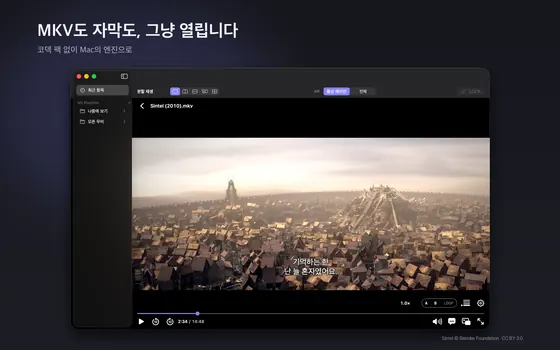
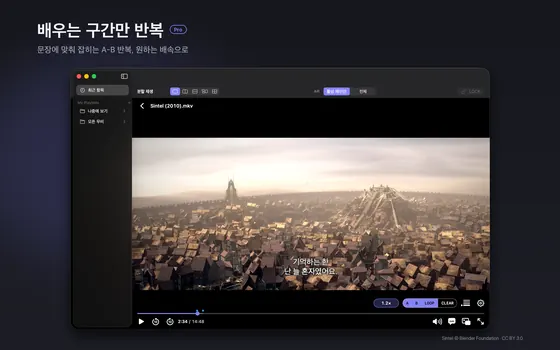
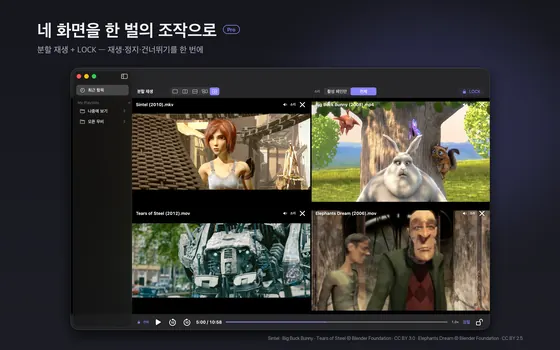
누구에게 맞고 누구에게 맞지 않는가를 솔직히 쓰면 이렇습니다. Mac에서 MKV와 한글 SMI 자막을 가볍게 보려는 사람에게 맞고, ASS 효과 자막, 이미지 자막, Windows·모바일 재생이 필요한 사람에게는 맞지 않습니다. 자세한 사용법은 slplayer 가이드에 있습니다.
출처 및 더 읽을거리
- Microsoft Learn, Understanding SAMI 1.0: learn.microsoft.com (SAMI 1.0)
- MDN Web Docs, Web Video Text Tracks Format (WebVTT): developer.mozilla.org (WebVTT)
- Microsoft Learn, Code Page Identifiers: code-page-identifiers
- Unicode Consortium, UTF-8 BOM FAQ: unicode.org/faq/utf_bom.html
- MediaArea, MediaInfo: mediaarea.net/en/MediaInfo
검증하지 못해 쓰지 않은 항목: 개별 플레이어(VLC, PotPlayer 등)의 메뉴 이름과 단축키 수치, ASS 지원 범위. 이런 부분은 각 플레이어의 도움말을 확인하세요. 깨진 글자 예시와 프레임레이트 계산은 위 출처의 일반 원리에 따라 직접 계산한 값입니다.
자주 묻는 질문
자막이 전부 같은 시간만큼 늦는데 어떻게 하나요?
일정한 오프셋입니다. 플레이어의 자막 지연 조정으로 같은 값만큼 앞당기면 되고, 계속 쓸 자막이면 편집기에서 시간을 옮겨 저장하세요.
처음엔 맞다가 갈수록 벌어지는 이유는 무엇인가요?
프레임레이트 불일치일 가능성이 높습니다. 앞뒤 두 대사로 배율을 계산하거나 자막 편집기에서 프레임레이트를 변환하세요. 계산기로 영상 끝에서 몇 초 벌어지는지 확인할 수 있습니다.
한글이 물음표나 이상한 기호로 나옵니다.
인코딩 문제입니다. 편집기에서 CP949와 UTF-8을 번갈아 열어 정상으로 보이는 쪽을 찾은 뒤 UTF-8로 저장하세요. 저장 전에 원본을 보관해야 합니다.
특정 장면부터 갑자기 어긋납니다.
영상과 자막의 판본이 다른 경우입니다. 같은 판본의 자막을 찾는 것이 가장 확실합니다.
SRT를 VTT로 바꿀 때 주의할 점은 무엇인가요?
VTT는 파일이 WEBVTT 머리글로 시작하고 시간 표기에 쉼표 대신 마침표를 쓰며 UTF-8이어야 합니다. 확장자만 바꾸면 웹 플레이어가 읽지 못할 수 있습니다.
더 도움이 필요하면 어디로 문의하나요?
지원 페이지를 이용하세요.
Symptom matrix
Subtitle trouble nearly always comes from one of two places: timing is off while the text reads fine (sync), or the text shows as question marks and strange symbols (encoding). The causes and fixes differ, so deciding which one you have saves the most time. Find your symptom below and jump to that part.
| Symptom | Likely cause | Fix |
|---|---|---|
| Constantly early or late by the same amount | Constant offset (intro logo or ad present or absent, a different release's start point) | Adjust the player's subtitle delay once; save it into the file if you will reuse it |
| Correct at first, drifting later | Frame-rate mismatch (for example 23.976 vs 25) or a speed difference | Measure two points to get scale and offset; convert the frame rate in a subtitle editor |
| Suddenly off from a certain scene | Different cut (theatrical vs extended, broadcast vs disc) | Replace with subtitles for the same cut; patching segments is laborious and limited |
Korean shows as ¾È³ç or 안녕 | The wrong character encoding was guessed | Reopen with another encoding, then save as UTF-8 |
Korean shows as ? or � with some text lost | A CP949 file was read as UTF-8, and unreadable bytes were replaced | Reopen the original as CP949 and convert (if already saved with replacement characters, re-download the original) |
| Odd character only on the first line | A player reading the BOM as a visible character | Save as UTF-8 without BOM |
| No subtitles at all | Image-based subtitles, unsupported format, or file name mismatch | Check the format; use the video's name in the same folder |
| Languages mixed in an SMI | Several language classes in one file | Pick the subtitle track (language) in the player |
Part 1. Sync: offset or drift?
Measure first
Before nudging the subtitle around, measure the error at two points: the first line of dialogue near the start, and a line in the last half hour. Equal errors mean a constant offset; a larger error at the end means a scale problem such as frame rate. If the errors differ in sign, suspect a different cut.
- First line: compare when the sound starts with when the subtitle appears (use the sound, not lip movement).
- Late line: do the same and note both values.
- Equal means one offset fixes it. Different means go to the frame-rate section.
- If the error jumps around from scene to scene, the cut differs or the subtitle itself is inaccurate.
Constant offset
Most players have a subtitle delay control you can change during playback. Do not jump by a large value: move about half a second on one sentence, then refine in 0.1-second steps. Check the end of the film again afterwards. If it fits at the start but not at the end, you have drift, not an offset. A player's delay usually applies only to the current session, so for a subtitle you will keep, shift the times in a subtitle editor and save.
Different cuts
Theatrical and extended cuts, or broadcast and disc versions, differ in editing, so scenes are added or removed midway and the error changes abruptly at some point. Fixing that needs different offsets per segment, which amounts to rebuilding the subtitle. Finding subtitles for the same cut is almost always faster.
Spotting and calculating a frame-rate mismatch
When the frame rate of the video the subtitle was made for differs from yours, the error grows with time. Films are typically 24 or 23.976 fps, European broadcast 25 fps, and North American and Korean broadcast 29.97 (30000/1001) or 30 fps. The same film can have different rates depending on the release.
Finding your video's frame rate
Use a media-info tool. MediaInfo is an open-source tool that shows technical data such as frame rate for video files, on Windows, macOS, Linux and more [5]. Many players also have an Information or Media Info panel. You also need to know the rate the subtitle assumes, and files rarely state it, which is why the two-point measurement below matters.
How far does it drift?
The drift is simple multiplication. A subtitle built for 23.976 fps on a 25 fps video needs its times multiplied by 23.976/25, about 0.959. On a 110-minute (6,600-second) film that is roughly 270 seconds, four and a half minutes, by the end. 24 versus 23.976 differs by 0.1%, about 6.6 seconds over 110 minutes, and 29.97 versus 30 likewise. That is easy to miss early and obvious late, the classic "fine at first, slowly slipping" pattern.
Scale and offset from two points
If you do not know the frame rates, derive the correction from two lines. Measure the subtitle time (s1) and actual sound time (a1) of an early line, and s2 and a2 of a late line. Then new time = scale × old time + offset, with scale = (a2−a1)/(s2−s1) and offset = a1 − scale×s1. A scale near 1 (say 0.9995 to 1.0005) means an offset alone suffices; a value far from 1 such as 0.959 or 1.0427 means a frame-rate conversion. Let the tool below do the arithmetic.
Sync calculator
The interactive tool in the Korean section above (Korean UI) does three calculations: converting milliseconds to frames, showing how many seconds a frame-rate mismatch adds by the end of the film, and finding scale and offset from an early and a late line. Choose the frame rate in the dropdown, type values in the boxes, and the results update at once. Everything runs in your browser. Apply the result in a subtitle editor such as Subtitle Edit or Aegisub, looking for items like time adjustment, change frame rate or stretch; menu names vary.
Part 2. Garbled text: CP949, UTF-8, BOM
Why Korean breaks
A subtitle file stores characters as bytes under some encoding, and when the file does not say which, the player guesses. Korean subtitles were long saved in CP949 (Microsoft identifier 949, the EUC-KR family) on Korean Windows [3], while recent files are mostly UTF-8. Microsoft itself notes that code pages differ between computers and can corrupt data, and advises Unicode such as UTF-8 where possible [3]. The content is fine; only the reading method is wrong, so the file can be fixed.
Reading the garbage
- Looks like
안녕: a UTF-8 file read as a Western European character set. Switch the player's encoding to UTF-8. - Looks like
¾È³ç: a CP949 (EUC-KR) file read as Western European. Set the encoding to Korean (CP949). - Mixed
�or?: a CP949 file read as UTF-8, with unreadable bytes replaced. Often it is display only, but if you saved in that state the original information is gone. Keep the original first.
What a BOM is
A BOM (byte order mark) is the three bytes EF BB BF at the start of a file. According to the Unicode FAQ, a UTF-8 BOM is not about byte order but "only a signature" marking otherwise unmarked text as UTF-8, and it can interfere with formats that expect specific characters at the start [4]. For subtitles it cuts both ways. A BOM helps players recognize UTF-8, but a player that treats it as a visible character adds junk to the first line, while some older players guess BOM-less UTF-8 as CP949 and garble it. If one does not work, try saving with the opposite choice.
Steps when text is garbled
- Copy the original subtitle file.
- In a text editor, open it as CP949 (or EUC-KR) and as UTF-8 in turn and find the one where Korean reads correctly.
- With the correct encoding active, use "save with encoding" and choose UTF-8.
- Open it in the player. If the first line looks odd, save again as UTF-8 without BOM.
- A player with automatic detection often lets you skip all this; see the slplayer section.
Formats: SRT, SMI, VTT, ASS
| Format | Traits | Encoding and cautions |
|---|---|---|
| SRT (.srt) | Number, time and text; the simplest and most widely compatible. Times are h:m:s,ms | Loosely specified encoding, so CP949 and UTF-8 files circulate mixed |
| SMI (.smi) | HTML-like SAMI format. <Sync Start=milliseconds> sets timing and language classes allow several languages in one file [1] | Often saved in CP949 in Korea. Times are in milliseconds, so frame-rate conversion needs separate arithmetic |
| VTT (.vtt) | For web video. The file must start with WEBVTT and times use a period: h:m:s.ms [2] | UTF-8 is required by the spec [2]. Renaming an SRT is not enough: replace commas with periods and add the header |
| ASS/SSA | Rich styling for fonts, colors and positions | Support differs by player. This article and the slplayer docs confirm only SRT, VTT and SMI |
When converting SMI to SRT, decide first which language class to extract if there are several, and open the result because some converters leave style tags behind. Image-based subtitles, such as the picture subtitles on Blu-ray discs, are pictures rather than text and cannot be fixed by these methods; they need OCR conversion. Embedded subtitles always match the video's cut, while external ones are easy to swap but may not match. For external subtitles, the simplest habit is the same file name as the video in the same folder, with a language code such as movie.ko.srt and movie.en.srt.
Steps in a typical player
Menus differ, the order does not.
- Confirm subtitles are on and the right track (language) is chosen.
- If text is garbled, change the player's subtitle encoding setting; turn on automatic detection first if there is one.
- Fix sync near the start and verify near the end. If the two disagree it is drift, so do the two-point calculation above.
- For a permanent fix, shift times or convert the frame rate in a subtitle editor and save as UTF-8.
- Note the correction in the file name or a memo so the same release takes seconds next time.
Use only subtitles and videos you have the right to use. This article is general guidance, not legal advice.
With slplayer
slplayer is a Mac video player I build and run. This is the only section about it; the methods above work in any player. Only features confirmed in the app documentation and store description are listed.
- Subtitle formats: SRT, VTT and SMI. Korean SMI files saved in EUC-KR are detected automatically.
- Subtitle sync can be shifted in 0.1-second steps, and dual subtitles show two at once.
- Playback speed from 0.5x to 2.0x in 0.1 steps. A-B loop is a Pro feature.
- It plays only formats macOS supports, and image subtitles are not shown. ASS support is not guaranteed. It is a macOS app, so no Windows or iPhone version.
The screenshots in the Korean section show the playback window with Korean subtitles on an MKV video, the A-B loop controls (Pro) and the 2x2 split playback (Pro), which can also be used to compare two cuts side by side. Honest fit: it suits people who want a light Mac player for MKV with Korean SMI subtitles, and it does not suit those who need ASS effects, image subtitles, or Windows and mobile playback. Details are in the slplayer guide.
Sources
Same URLs as the Korean list above: Microsoft Learn on SAMI 1.0 [1], MDN on WebVTT [2], Microsoft Learn code page identifiers [3], Unicode UTF-8 BOM FAQ [4], MediaInfo [5]. Not verified, so left out: menu names and shortcut values of individual players such as VLC or PotPlayer, and ASS support ranges; check each player's help. The garbled-text examples and frame-rate figures are my own calculations from the general principles in these sources.
FAQ
All subtitles are late by the same amount. What do I do?
That is a constant offset. Use the player's subtitle delay to move them earlier by the same value, and for a subtitle you will keep, shift the times in an editor and save.
Why is it right at first but slips later?
A frame-rate mismatch is the likely cause. Calculate the scale from an early and a late line, or convert the frame rate in a subtitle editor. The calculator shows how many seconds the error reaches by the end.
Korean text shows as question marks or odd symbols.
It is an encoding problem. In an editor, open the file as CP949 and as UTF-8 in turn, find the one that reads correctly and save as UTF-8, keeping the original first.
It goes out of sync from one particular scene.
The video and subtitle are for different cuts. Finding a subtitle for the same cut is the surest fix.
What should I watch for when converting SRT to VTT?
VTT must start with a WEBVTT header, use periods instead of commas in times, and be UTF-8. Merely renaming the extension may leave a web player unable to read it.
Where do I get more help?
Use the support page.