여러 기기를 동시에 맞추는 타이머·스톱워치 활용법
Using synchronized timers and stopwatches for groups
언제 여러 기기를 동시에 맞춰야 하나
타이머 한 대면 충분한 일이 대부분입니다. 하지만 "모두가 같은 순간에 시작하고 끝나야" 의미가 있는 일에서는 사람마다 따로 누른 타이머가 문제를 만듭니다.
- 수업과 모둠 활동. 교사의 화면과 학생 화면이 같은 시간을 가리키면 "시간 됐어요?" 같은 질문이 사라집니다.
- 그룹 운동 수업. 인터벌 수업에서 강사와 참가자가 같은 작업·휴식 신호를 보면 동작 전환이 맞습니다.
- 발표와 회의. 발표자, 진행자, 방청석의 시간 감각을 맞추고 단계가 바뀔 때 함께 전환합니다.
- 릴레이와 구간 측정. 출발점, 중간 전환점, 도착점에서 같은 시작 시각을 기준으로 기록해야 구간 시간이 정확합니다.
- 스터디·원격 근무. 집중과 휴식을 모두 같은 리듬으로 반복하는 그룹 뽀모도로.
왜 기기마다 시간이 어긋나는가
한 가지 원인이 아니라 세 가지가 겹칩니다.
1. 사람의 조작 시간차
"하나, 둘, 셋, 시작!" 구호에 맞춰 각자 눌러도 반응 속도는 사람마다 다르고, 한 사람이 여러 기기를 동시에 누를 수도 없습니다. 먼저 누른 사람이 유리하거나 손해를 보게 되어 기록 비교의 공정성이 흔들립니다.
2. 기기 시계의 오프셋
기기의 시계는 서로 완전히 같지 않습니다. 자동 시간 설정이 꺼져 있거나 오래 보정되지 않으면 초 단위로 어긋나기도 합니다. 그래서 "정각에 울려라"를 기기 자기 시계에 맡기면 서로 다른 순간에 울립니다. 이 문제를 줄이려고 기기가 시간 서버와 주기적으로 시각을 맞추는 방식이 널리 쓰입니다.
3. 네트워크 지연
호스트가 "지금 시작"을 보내면 그 메시지가 다른 기기에 도착하기까지 시간이 걸립니다. 근처 연결은 짧고 인터넷 중계는 더 길며, 그 값도 매번 달라집니다. 메시지를 받은 순간에 시작하면 기기마다 다른 순간에 시작합니다.
시계 오프셋은 어떻게 측정하나
널리 쓰는 NTP(Network Time Protocol)는 네 개의 시각을 이용합니다. 클라이언트가 요청을 보낸 시각 T1(클라이언트 시계), 서버가 받은 시각 T2(서버 시계), 서버가 응답을 보낸 시각 T3(서버 시계), 클라이언트가 응답을 받은 시각 T4(클라이언트 시계)입니다. RFC 5905에 정의된 공식은 다음과 같습니다.
- 시계 오프셋 θ = ½ × [(T2 − T1) + (T3 − T4)]
- 왕복 지연 δ = (T4 − T1) − (T3 − T2)
숫자로 보면 쉽습니다. 클라이언트가 100.000초에 요청을 보내고, 서버 시계로 100.130초에 받아 100.131초에 응답했고, 클라이언트는 자기 시계로 100.061초에 응답을 받았다고 합시다. 왕복 지연은 (100.061 − 100.000) − (100.131 − 100.130) = 0.060초, 오프셋은 ½ × [0.130 + 0.070] = 0.100초입니다. 즉 이 클라이언트의 시계는 서버보다 약 0.1초 느립니다. 이 계산은 갈 때와 올 때의 지연이 같다는 가정에 기대므로, 경로가 비대칭이면 오차가 남습니다. 그래서 실제 시스템은 여러 번 측정해서 가장 지연이 짧은 값을 신뢰합니다.
이렇게 각 기기가 자기 시계의 오프셋을 알아내면 "서버 시간 기준 몇 시 몇 분 몇 초에 시작" 같은 절대 시각을 모두가 같은 의미로 해석할 수 있습니다.
호스트 권한 방식의 동기화 설계
동기화 설계에서 가장 중요한 선택은 "무엇을 전송하는가"입니다.
- 남은 시간을 계속 전송하는 방식. 메시지가 늦거나 끊기면 화면이 흔들립니다.
- 종료 시각 하나를 공유하는 방식. "언제 끝나는가"를 한 번 알려 주면 각 기기는 자기 보정 시계로 그 시각까지 스스로 셉니다. 중간에 연결이 끊겨도 숫자가 흔들리지 않고, 일시정지나 시간 추가 같은 이벤트가 있을 때만 다시 맞추면 됩니다.
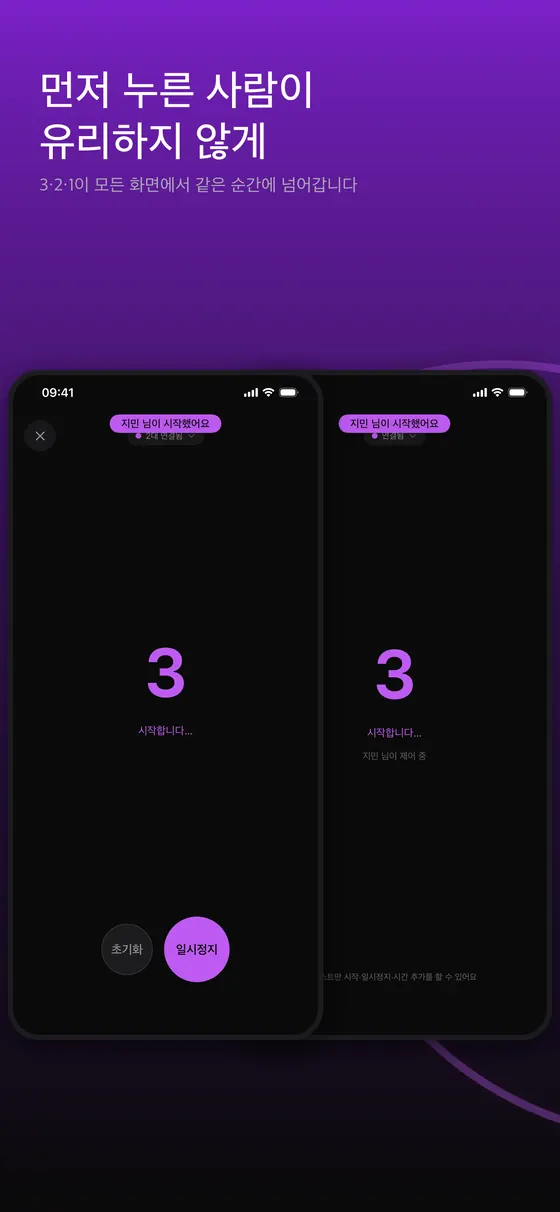
- 시작도 같은 원리. "지금 시작"이라는 명령 대신 "정확한 시각 X에 시작"을 공유하면 도착이 늦은 기기도 같은 순간에 맞출 수 있습니다. 반대로 받은 즉시 로컬 3초 타이머를 돌리면 전파 지연만큼 어긋납니다.
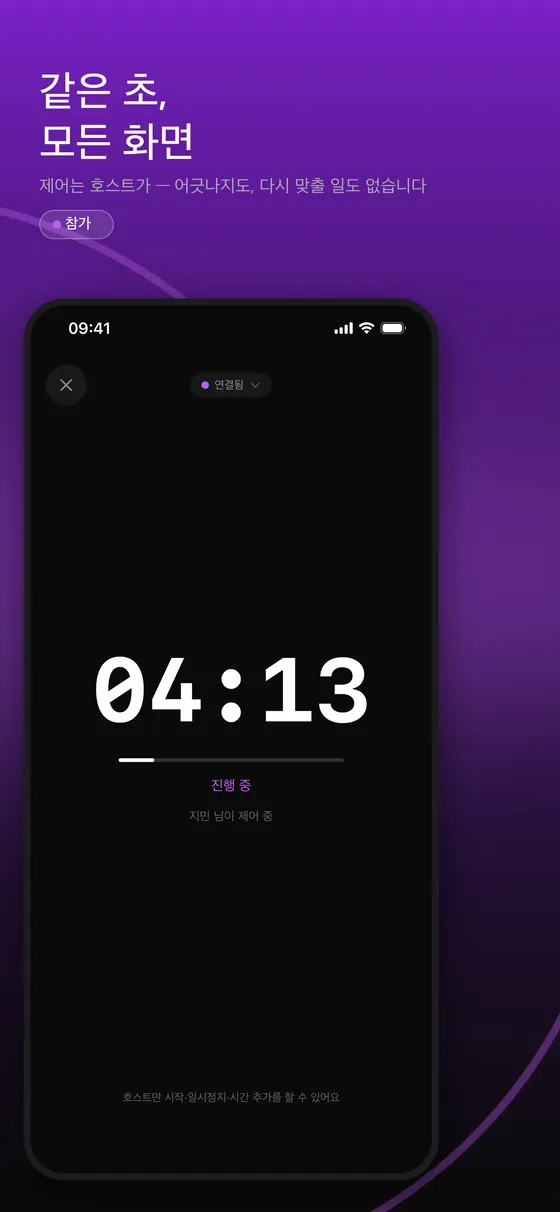
- 호스트 권한. 제어 권한을 한 기기(호스트)가 갖고 나머지는 따르는 구조라 두 사람이 동시에 일시정지와 재개를 눌러 상태가 엇갈리는 문제를 막습니다. 호스트를 다른 사람에게 넘기거나 공동 호스트를 두는 확장이 가능한 설계도 있습니다.
현장 대비책
동기화 앱도 현장의 모든 변수를 막아 주지는 못합니다. 중요한 일정이라면 다음을 준비하세요.
- 리허설. 실제 기기와 실제 장소에서 한 번 돌려 봅니다. 강의실처럼 Wi-Fi가 격리된 곳은 근처 탐색이 안 될 수 있습니다.
- 설정 점검. 모든 기기의 날짜·시간이 자동 설정인지, 알림 권한과 방해 금지·집중 모드, 무음 스위치, 충전 상태를 확인합니다.
- 대체 경로 한 가지. 근처 연결이 안 되면 룸 코드를 입력해 인터넷 중계로 참가합니다.
- 사람 백업. 호스트가 아닌 사람 한 명이 별도 타이머를 같이 돌려 두면 앱 문제가 생겨도 행사가 이어집니다.
- 음향 신호. 소음이 있는 곳에서는 화면만 믿지 말고 호루라기나 큰 소리로 전환을 알립니다.
- 종료 알람의 이중화. 연결이 끊겨도 종료 시각에 울리도록 로컬 알림을 미리 예약하는 구조인지 확인합니다.
참가자에게 미리 알릴 것
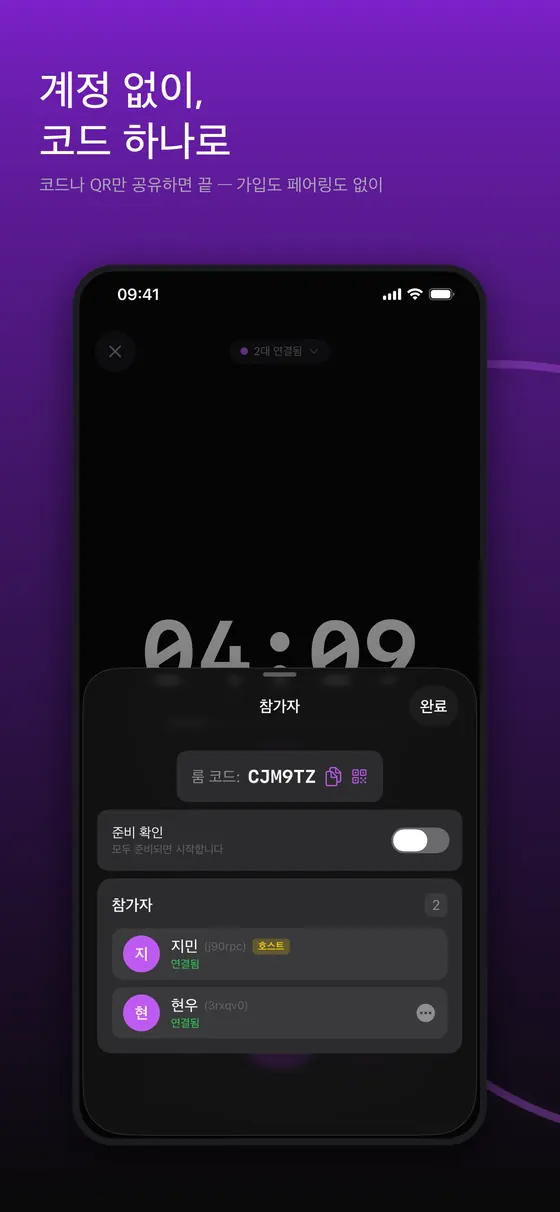
도구가 아무리 좋아도 입장 단계에서 막히면 행사 시간이 줄어듭니다. 행사 하루 전이나 시작 10분 전에 다음 내용을 짧게 공지해 두세요. 첫째, 어떤 앱을 설치해야 하는지와 설치 링크. 둘째, 입장 방법(QR을 스캔하거나 6자리 코드 입력) 그리고 로컬 네트워크·카메라·알림 권한 요청이 뜨면 허용해야 한다는 점. 셋째, 화면을 계속 켜 두는 것이 좋은지, 화면이 꺼져도 알람이 울리는지. 넷째, 연결이 안 될 때 연락할 사람. 참가자가 많다면 모두를 앱에 연결하기보다, 호스트 기기와 대형 화면·태블릿 한 대만 연결하고 나머지는 큰 소리 신호로 따르게 하는 방법도 현실적입니다. 정원 제한이 있는 도구일수록 이런 단순화가 오히려 안정적입니다.
현장 시나리오 두 가지
HIIT 그룹 수업 (40분)
- 수업 10분 전 강사가 호스트로 룸을 만들고 QR을 화면에 띄웁니다. 참가자는 스캔해서 입장하고 준비 확인을 누릅니다.
- 시퀀스로 구성합니다. 예를 들어 작업 40초와 휴식 20초 두 단계를 만들고 반복 설정으로 8라운드를 돌립니다(편집 화면에 반복 항목이 있습니다. 워밍업과 쿨다운 단계를 앞뒤에 따로 붙일 수 있는지는 앱 버전에서 확인하세요). 단계가 바뀔 때마다 모든 화면이 같이 전환됩니다.
- 강사는 3-2-1 리드인 후 시작을 누르고 라운드 중에는 동작 설명에만 집중합니다.
- 참가자 수가 기본 정원(2대)을 넘으면 호스트 기기에서 Pro가 필요하다는 점을 미리 확인합니다. 모든 사람의 기기를 연결하지 않고, 강사 기기와 큰 화면 한 대만 연결하는 편이 현실적일 수 있습니다.
- 수업 후 세션 기록을 확인합니다.
발표와 질의응답 (15분)
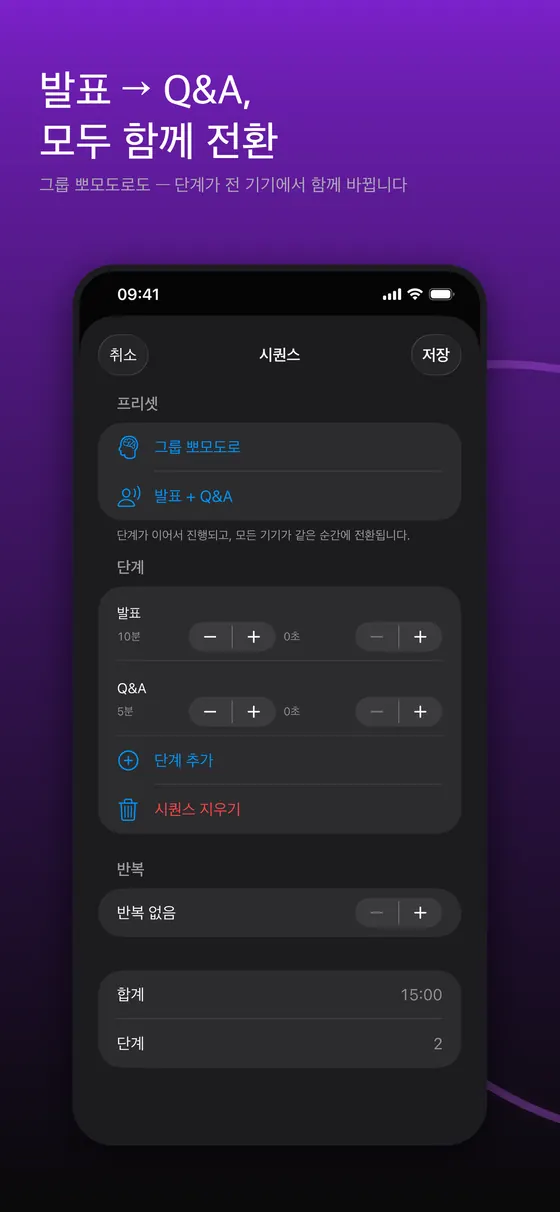
- 발표자와 진행자가 룸에 들어가 "발표 10분 + Q&A 5분" 시퀀스를 만듭니다. 합계가 15:00으로 표시됩니다.
- 진행자를 호스트로 두면 발표자는 말하는 데만 집중하고, 시간 연장은 호스트가 +1:00으로 처리합니다.
- 발표 종료 1분 전 경고 단계가 표시되도록 설정해 두면 마무리 시점을 알려 줍니다.
- 시퀀스가 Q&A 단계로 넘어가는 순간 모든 화면이 동시에 바뀌므로 청중에게도 구분이 분명합니다.
TimerLync로 같은 카운트다운 공유하기
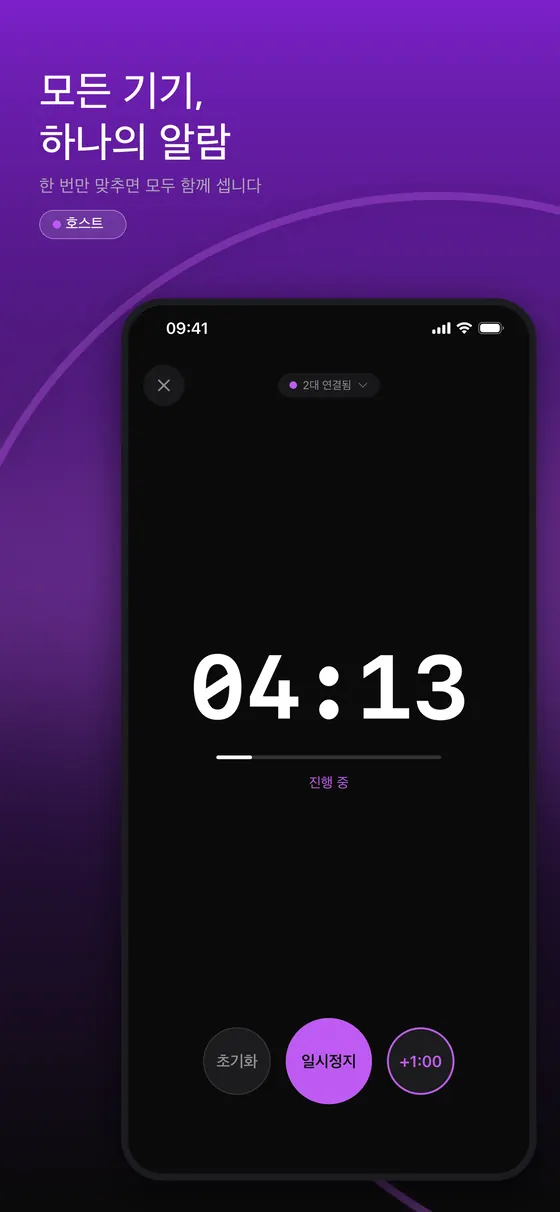
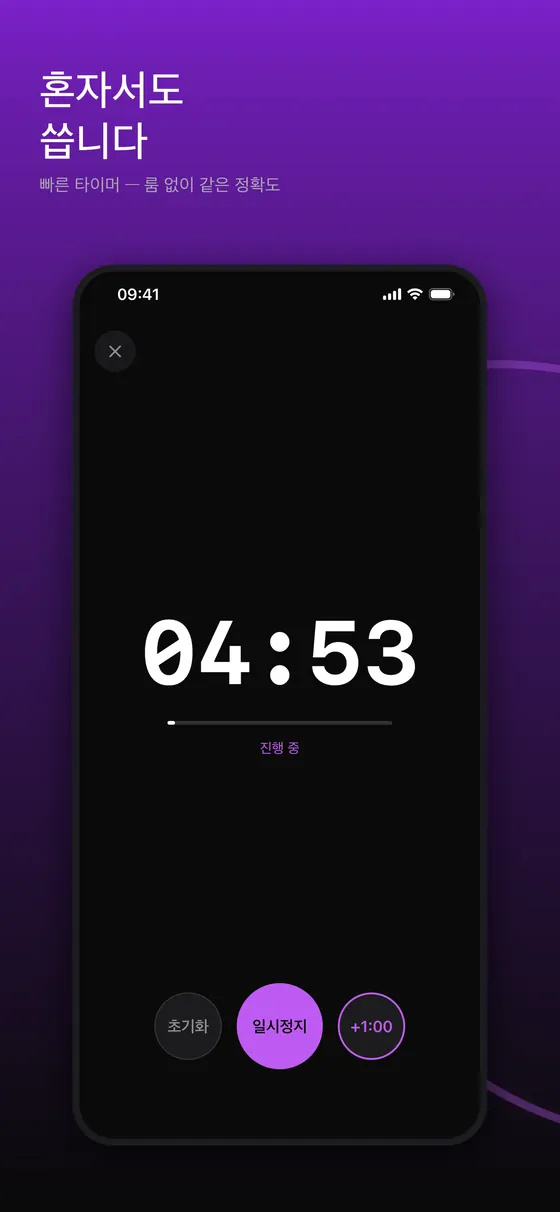
TimerLync는 SETLOG가 만든 iPhone·iPad·Apple Watch용 동기화 타이머입니다. 호스트가 카운트다운 시간을 정하고 룸을 만들면 코드나 QR로 참가자가 들어오고, 호스트가 시작·일시정지·1분 추가를 조작합니다. 종료 시각 하나를 공유하는 방식이어서 연결이 잠시 불안정해도 화면은 크게 흔들리지 않는다고 문서에 설명되어 있습니다. 기본 정원은 호스트 기준 2대이고, 일회성 Pro 언락을 열면 8대까지 늘어납니다. 참가자는 결제가 필요 없습니다.
한계: Android는 지원 대상이 아닙니다(iPhone, iPad, Apple Watch용). 기본 정원이 2대라서 교실 전체를 한 룸에 연결하려면 Pro가 필요하며 그래도 8대가 상한입니다. 워치 알림 같은 일부 동작은 실기기에서 확인이 필요하니 중요한 행사 전에는 본인 기기로 한 번 시험하세요. 사용법은 TimerLync 가이드에 단계별로 정리했습니다.
LapLync로 같은 시작점에서 기록하기
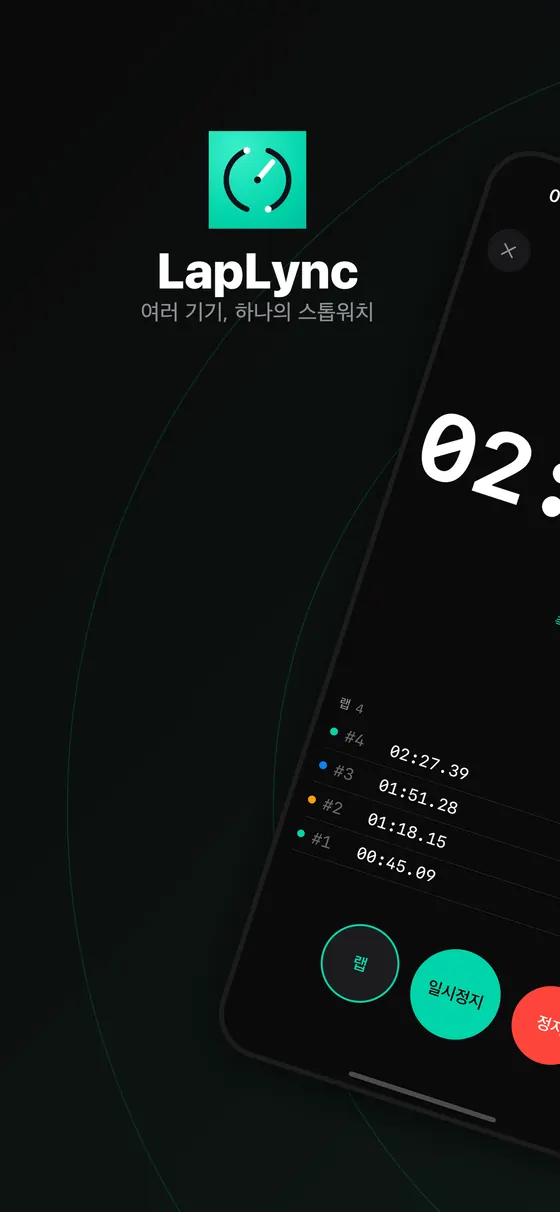
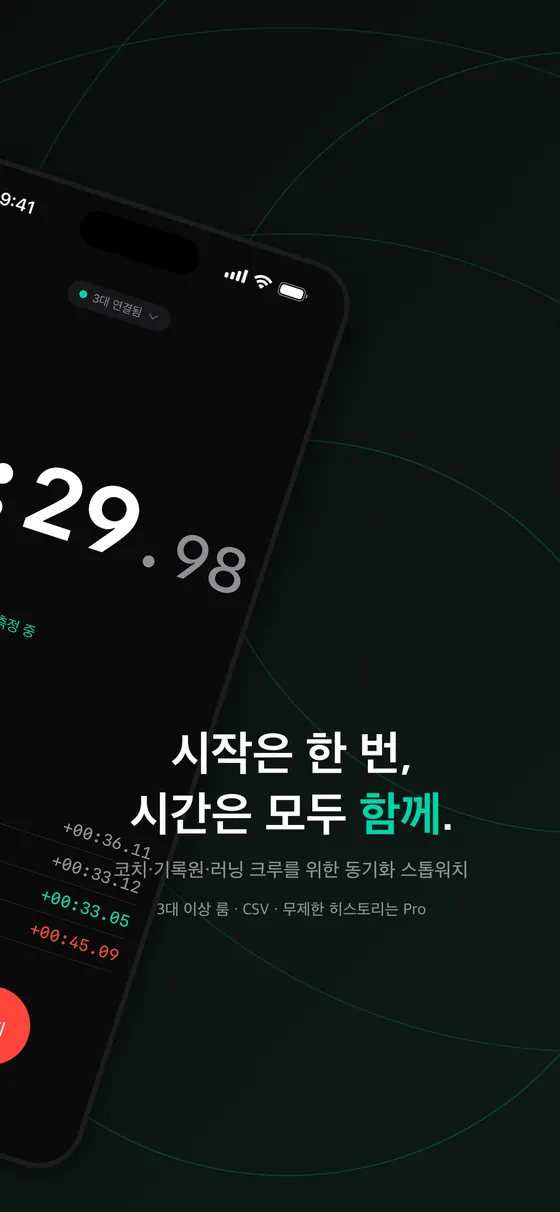
LapLync는 같은 회사가 만든 동기화 스톱워치로, 방향이 반대입니다. 0에서 올라가며 시작 순간을 기기가 공유하고, 호스트가 찍은 랩이 참가자 화면에도 바로 나타납니다. 6자리 코드나 QR로 참가하며, 근처 기기는 직접 연결을, 먼 기기는 인터넷 중계를 씁니다. 무료로는 2대 룸을 만들 수 있고 Pro에서 최대 8대 룸, CSV 내보내기, 무제한 기록을 씁니다. 릴레이, 구간 측정, 팀 훈련처럼 같은 시작점을 기준으로 여러 사람의 시간을 비교하는 일에 맞습니다.
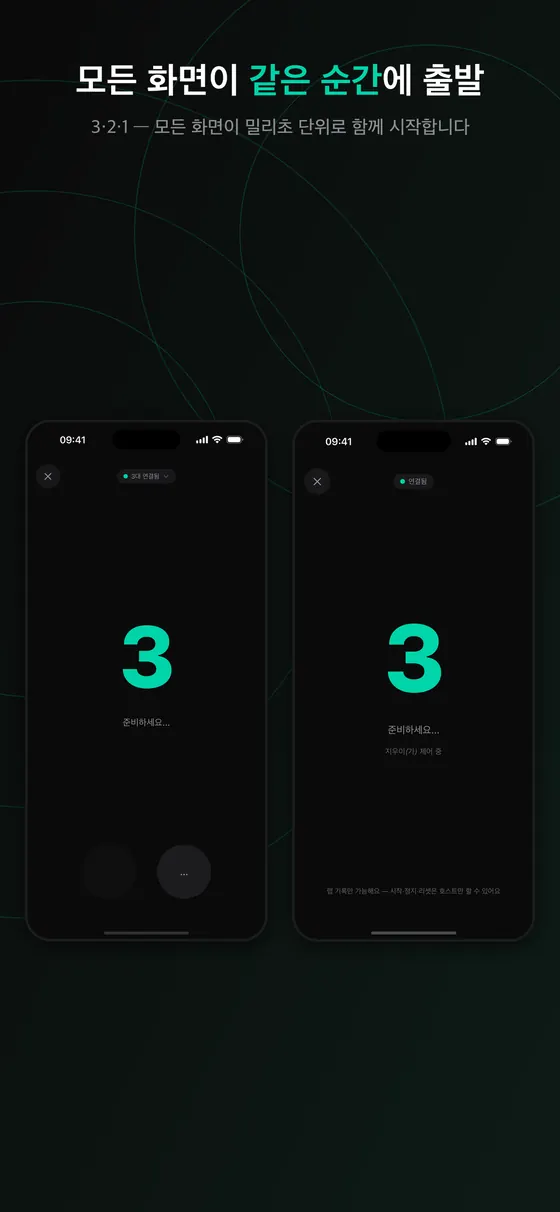
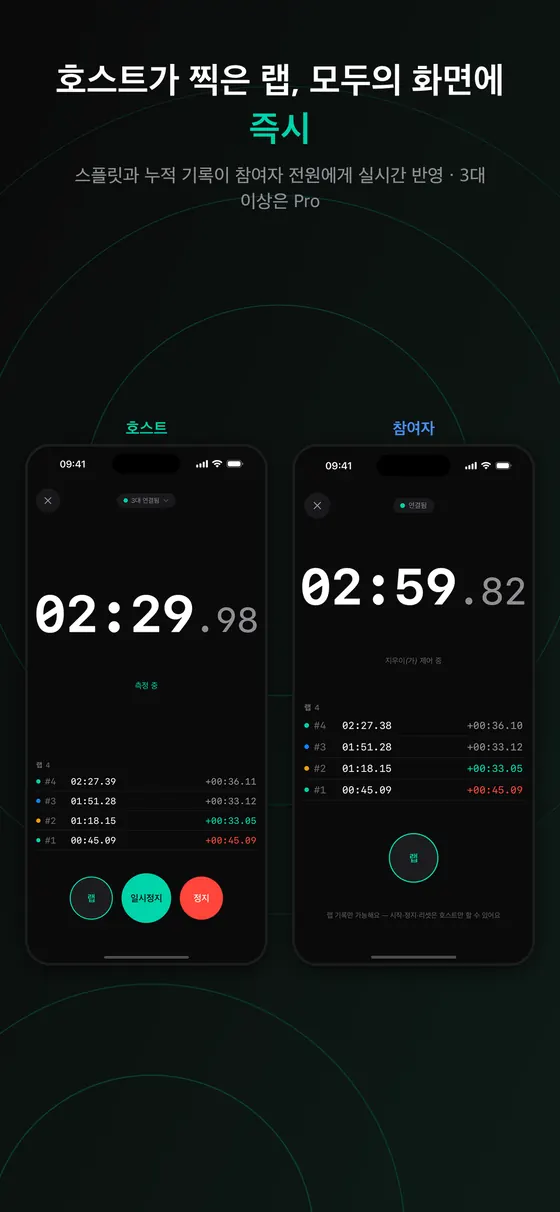
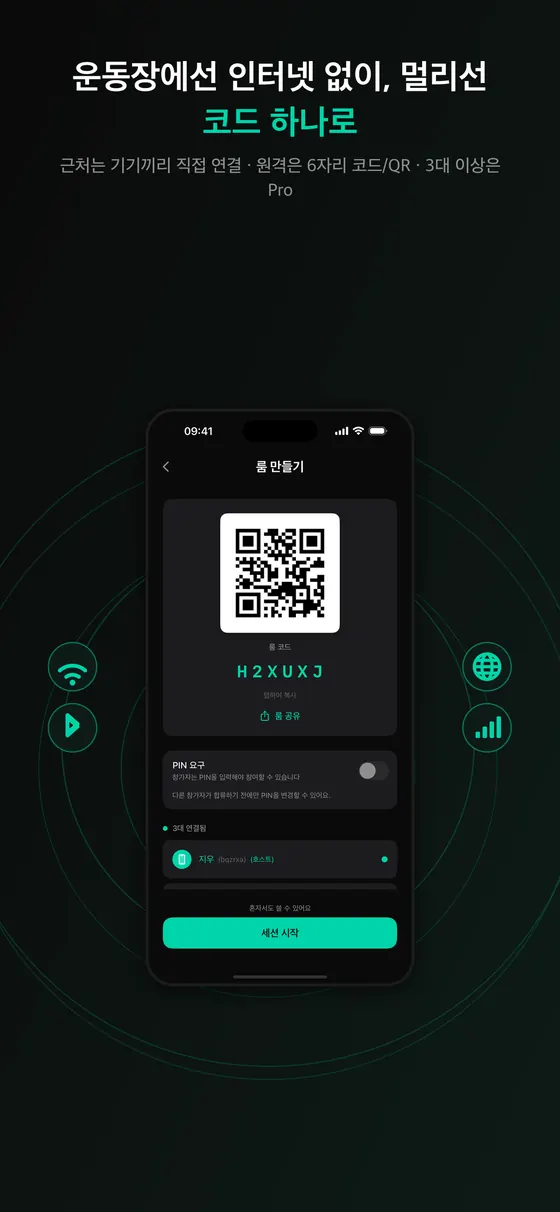
한계: 앱은 iPhone·iPad용이고, 모든 환경에서 완벽하다고 장담할 수 없어 중요한 대회는 리허설이 필요합니다. 기록 보관과 룸 정원은 무료/Pro에 따라 다릅니다. 자세한 내용은 LapLync 가이드를 보세요.
이런 경우에 맞습니다
- 여러 기기가 같은 순간에 끝나야 하는 수업·발표·운동
- 같은 시작점 기준으로 구간 기록을 비교해야 하는 경우
- 계정 없이 코드로 바로 참가시키고 싶은 경우
이런 경우에는 맞지 않습니다
- Android·Windows 기기를 함께 써야 하는 경우
- 무료 기본 정원(2대)을 넘는 대형 그룹을 비용 없이 연결해야 하는 경우
- 소리·화면 없이 백그라운드에서만 정확해야 하는 의료·안전 용도
출처 및 더 읽을거리
- IETF RFC 5905, Network Time Protocol Version 4 (오프셋·지연 공식) (https://datatracker.ietf.org/doc/html/rfc5905)
- TimerLync 사용 가이드 · LapLync 사용 가이드 (앱 기능과 정원은 프로젝트 문서·앱 설명 기준)
자주 묻는 질문
여러 기기의 타이머가 어긋나는 가장 큰 이유는?
사람의 조작 시간차, 기기 시계의 오프셋, 네트워크 지연이 겹치기 때문입니다. 종료 시각 하나를 공유하고 각 기기가 보정한 시계로 세는 방식이 이를 줄입니다.
NTP는 시계 오차를 어떻게 구하나요?
요청과 응답의 네 시각으로 오프셋 θ = ½[(T2−T1)+(T3−T4)]와 왕복 지연 δ = (T4−T1)−(T3−T2)를 계산합니다(RFC 5905).
TimerLync와 LapLync는 몇 대까지 연결되나요?
둘 다 호스트 기준으로 기본 2대이고 Pro를 열면 최대 8대입니다. 참가자는 결제가 필요 없습니다.
Android 기기도 함께 쓸 수 있나요?
TimerLync와 LapLync는 iPhone·iPad(TimerLync는 Apple Watch 포함) 앱입니다. Android는 지원 대상이 아닙니다.
현장에서 동기화가 실패하면 어떻게 하나요?
근처 연결 대신 룸 코드로 인터넷 중계에 참가하고, 호스트가 아닌 사람이 별도 타이머를 병행하며, 소리 신호를 준비하세요. 중요한 행사 전에는 리허설이 필요합니다.
When several devices must agree
One timer is enough for most things. But when the point is that everyone starts and ends at the same moment, separately pressed timers cause trouble.
- Classes and group work. When the teacher's screen and the students' screens show the same time, the "is time up?" questions stop.
- Group fitness. In an interval class, instructor and participants see the same work and rest signal so transitions line up.
- Presentations and meetings. Presenter, chair and audience share a sense of time and switch together when a stage changes.
- Relays and split timing. Start, handoff and finish points must record against the same start instant for splits to be meaningful.
- Study and remote work. Group Pomodoro: everyone focuses and rests on the same rhythm.
Why clocks disagree between devices
It is three effects stacked together.
1. Human timing differences
Even with "ready, set, go", reaction speed varies and one person cannot tap several devices at once. Whoever presses first gains or loses, which undermines fair comparison.
2. Clock offset
Device clocks are not identical. With automatic time off or long without correction, they can be seconds apart. Leaving "ring at 10:00:00" to each device's own clock makes them ring at different moments. Devices commonly reduce this by periodically syncing with a time server.
3. Network latency
When the host sends "start now", the message takes time to arrive: short on a local link, longer through an internet relay, and different each time. Starting on receipt makes each device start at a different instant.
How a clock offset is measured
NTP, the Network Time Protocol, uses four timestamps: T1, when the client sent its request (client clock); T2, when the server received it (server clock); T3, when the server replied (server clock); and T4, when the client received the reply (client clock). RFC 5905 defines:
- Clock offset: theta = 1/2 x [(T2 - T1) + (T3 - T4)]
- Round-trip delay: delta = (T4 - T1) - (T3 - T2)
A worked example. The client sends at 100.000 s; the server receives at 100.130 s on its clock and replies at 100.131 s; the client receives at 100.061 s on its own clock. Delay = (100.061 - 100.000) - (100.131 - 100.130) = 0.060 s and offset = 1/2 x [0.130 + 0.070] = 0.100 s. This client's clock is about 0.1 s behind the server. The calculation assumes the outbound and return delays are equal, so an asymmetric path leaves some error; real systems therefore measure several times and trust the sample with the shortest delay.
Once each device knows its own offset, an absolute instant such as "start at server time X" means the same thing to everyone.
Host-authoritative sync design
The key design choice is what you transmit.
- Streaming remaining time. If messages are late or lost, the display jitters.
- Sharing one end time. Tell everyone when it ends once; each device counts down to that instant on its corrected clock. A brief disconnection does not make the digits jump, and you resync only on events such as pause or added time.
- Start works the same way. Share "start at instant X" instead of "start now" so even a late arrival lines up. Running a local 3-second timer on receipt leaves you off by the propagation delay.
- Host authority. One device holds control and the others follow, which prevents two people pausing and resuming at once and leaving states inconsistent. Some designs let the host role be handed over or shared.
On-site fallbacks
No sync app removes every variable on site. For anything important:
- Rehearse on the real devices in the real place. A classroom with isolated Wi-Fi may not allow nearby discovery.
- Check settings: automatic date and time on every device, notification permission, Do Not Disturb or Focus, the silent switch and battery.
- Know a second path. If nearby connection fails, join by room code through the internet relay.
- Keep a human backup. A non-host with a separate timer lets the event continue if the app misbehaves.
- Use sound. In a noisy room do not rely on the screen; use a whistle or a loud call for transitions.
- Double the end alarm. Confirm the end alert is scheduled locally ahead of time so it fires even if the connection drops.
What to tell participants beforehand
However good the tool, trouble at entry eats into your event time. A day before, or ten minutes before the start, send a short notice covering: which app to install and the link; how to join (scan the QR or type the 6-character code) and that local-network, camera and notification prompts should be allowed; whether to keep the screen on and whether the alarm sounds with the screen off; and who to contact if connection fails. With a large group, connecting only the host device and one big display or tablet, and letting everyone else follow a loud signal, is often more practical than connecting every phone. The tighter the capacity limit, the more this simplification helps stability.
Two sample sessions
HIIT group class (40 minutes)
- Ten minutes before class the instructor creates a room as host and shows the QR. Participants scan, join and tap ready.
- Build a sequence: for example two steps, 40 s work and 20 s rest, run for 8 rounds with the repeat setting (the editor has a repeat field; check in your app version whether you can attach separate warm-up and cool-down steps). All screens switch together at every step.
- After a 3-2-1 lead-in the instructor taps start and focuses on coaching during rounds.
- If participants exceed the default capacity (2 devices) the host's device needs Pro. It may be more practical to connect only the instructor's device and one large display than every phone.
- Review the session history afterwards.
Presentation plus Q&A (15 minutes)
- Presenter and moderator join a room and create a "10 min presentation + 5 min Q&A" sequence; the total reads 15:00.
- Make the moderator host so the presenter can just talk, and the host handles an extension with +1:00.
- Enable a one-minute warning step so the wrap-up point is signalled.
- When the sequence moves to Q&A every screen changes at the same moment, so the audience sees the boundary clearly.
Sharing one countdown with TimerLync
TimerLync, made by SETLOG, is a synchronized timer for iPhone, iPad and Apple Watch. The host sets the countdown and creates a room; participants join by code or QR, and the host controls start, pause and add one minute. Because it shares a single end time, the documentation says the display stays steady through brief connection trouble. Default capacity is 2 devices based on the host, rising to 8 with the one-time Pro unlock. Participants never need to pay.
Limits: Android is not supported (iPhone, iPad and Apple Watch only). With a default capacity of 2, connecting a whole classroom to one room needs Pro, and 8 is still the ceiling. Some behavior, such as watch alerts, must be verified on real devices, so test on your own hardware before a big event. Step-by-step usage is in the TimerLync guide.
Recording from one start with LapLync
LapLync, by the same developer, is a synchronized stopwatch, the opposite direction. It counts up from zero, devices share the start instant and a lap marked by the host appears on participants' screens at once. Join with a 6-character code or QR; nearby devices connect directly and distant ones through an internet relay. Free use allows a 2-device room; Pro adds rooms of up to 8, CSV export and unlimited history. It suits relays, split timing and team training, where several people's times are compared from one start point.
Limits: the app is for iPhone and iPad, and since nobody can promise perfection in every environment, an important race deserves a rehearsal. History retention and room size differ between free and Pro. See the LapLync guide for details.
A good fit
- Classes, talks or workouts where devices must finish together
- Split times compared against one start point
- Joining by code with no accounts
Not a fit
- You need Android or Windows devices in the same room
- A large group beyond the free capacity of 2 devices at no cost
- Medical or safety uses where it must be accurate with no sound or screen
Sources and further reading
- IETF RFC 5905, Network Time Protocol Version 4 (offset and delay formulas) (https://datatracker.ietf.org/doc/html/rfc5905)
- TimerLync guide · LapLync guide (app features and capacity per project documentation and app descriptions)
FAQ
Why do timers on several devices drift apart?
Human timing differences, clock offsets and network latency stack up. Sharing one end time that each device counts to on a corrected clock reduces this.
How does NTP find the clock error?
From four timestamps it computes offset theta = 1/2[(T2-T1)+(T3-T4)] and round-trip delay delta = (T4-T1)-(T3-T2) (RFC 5905).
How many devices can TimerLync and LapLync connect?
Both default to 2 based on the host and reach 8 with Pro. Participants never pay.
Can Android devices join?
TimerLync and LapLync are iPhone and iPad apps (TimerLync also has Apple Watch). Android is not supported.
What if sync fails on site?
Join by room code through the internet relay instead of nearby discovery, keep a non-host timer in parallel and prepare an audible signal. Rehearse before an important event.