
TimerLync 사용 가이드
TimerLync Guide: one countdown, every device, one alarm
TimerLync는 여러 기기에서 같은 카운트다운을 함께 보고, 0이 되는 순간 모든 기기에서 동시에 알람이 울리도록 만든 타이머 앱입니다. iPhone, iPad, Apple Watch에서 쓸 수 있고 계정을 만들거나 로그인할 필요가 없습니다. 이 글은 앱이 어떤 문제를 풀려고 만들어졌는지, 처음 쓰는 사람이 어떤 순서로 시작하면 되는지, 그리고 자주 막히는 지점을 어떻게 풀면 되는지 정리한 안내서입니다.
어떤 문제를 해결하나요
여러 사람이 각자 휴대폰 타이머를 맞춰 놓고 "하나, 둘, 셋, 시작" 하면 생각보다 자주 어긋납니다. 누가 먼저 눌렀는지, 누구의 화면이 꺼졌는지에 따라 몇 초씩 차이가 나고, 알람 소리도 제각각 울립니다. 수업의 모둠 활동, 회의 발표 시간 관리, 팀 단위 운동처럼 "모두가 같은 순간에 끝나야 하는" 상황에서는 이 작은 차이가 계속 신경 쓰입니다.
TimerLync는 남은 시간을 서로 전송하는 대신 "언제 끝나는가"라는 종료 시각 하나를 공유합니다. 각 기기는 네트워크 시간을 기준으로 자기 시계를 보정한 뒤, 그 종료 시각까지 스스로 카운트다운합니다. 일시정지나 시간 추가처럼 상태가 바뀔 때만 다시 맞추면 되기 때문에 연결이 잠시 불안정해도 화면의 숫자는 크게 흔들리지 않습니다.
누구에게 맞나요
- 모둠 활동과 발표 시간을 학생 전원에게 같은 화면으로 보여 주고 싶은 교사와 강사
- 회의나 발표에서 발표자와 진행자의 시간 감각을 맞추고 싶은 팀
- 여러 명이 같은 시간에 휴식과 집중을 반복하는 그룹 뽀모도로를 해 보고 싶은 스터디 그룹과 원격 근무 팀
- 운동 세트나 요리 단계를 함께 맞춰야 하는 코치, 가족, 룸메이트
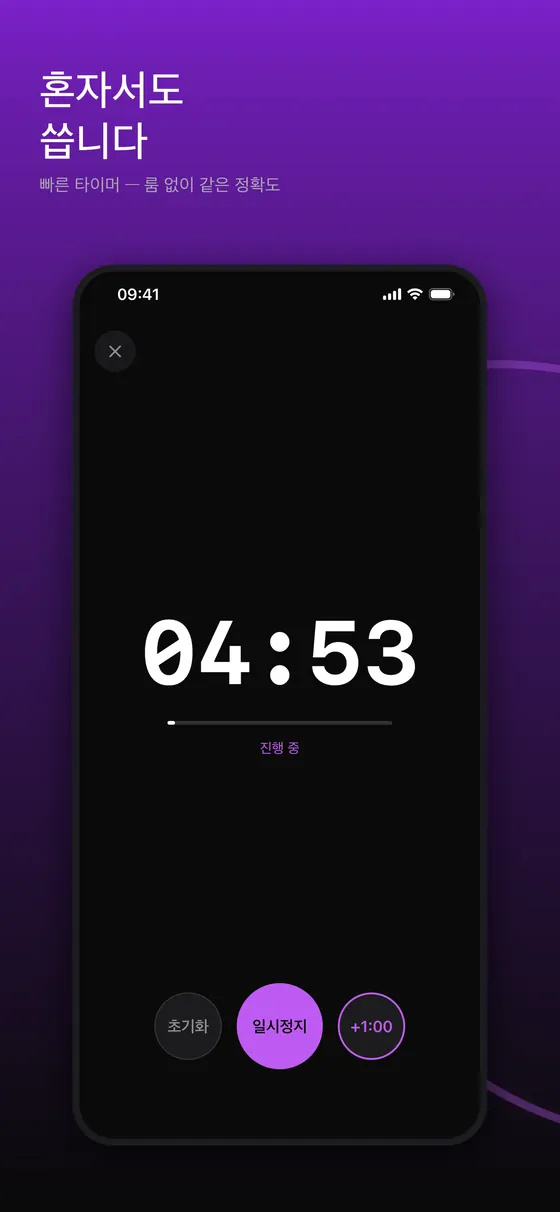
- 혼자 쓰는 카운트다운에도 믿을 만한 알람이 필요한 사람. 룸 없이 쓰는 빠른 타이머가 따로 있습니다.
화면으로 미리 보기
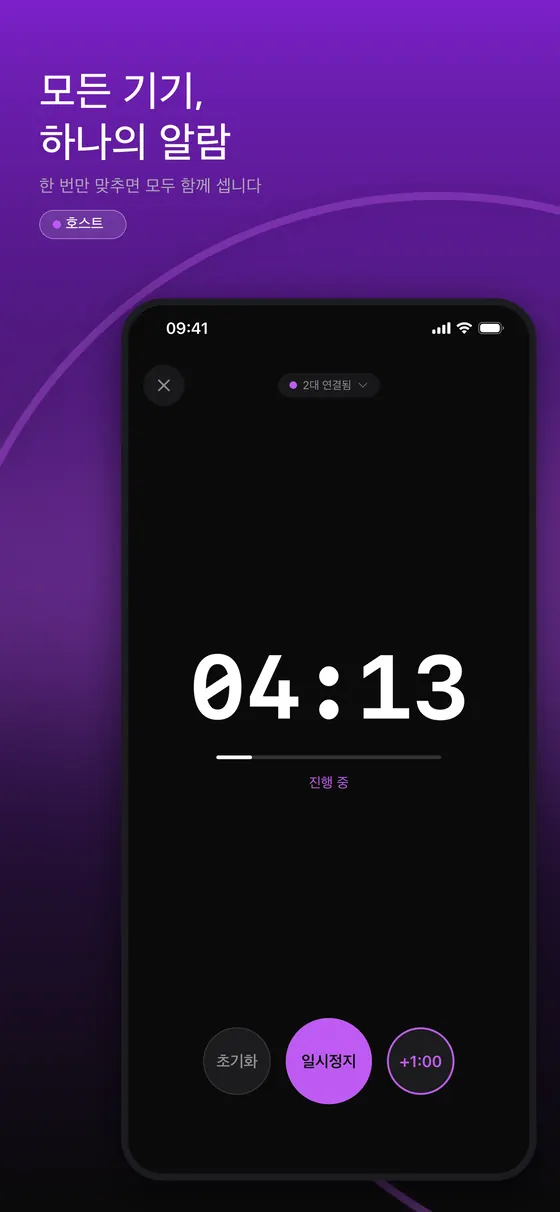
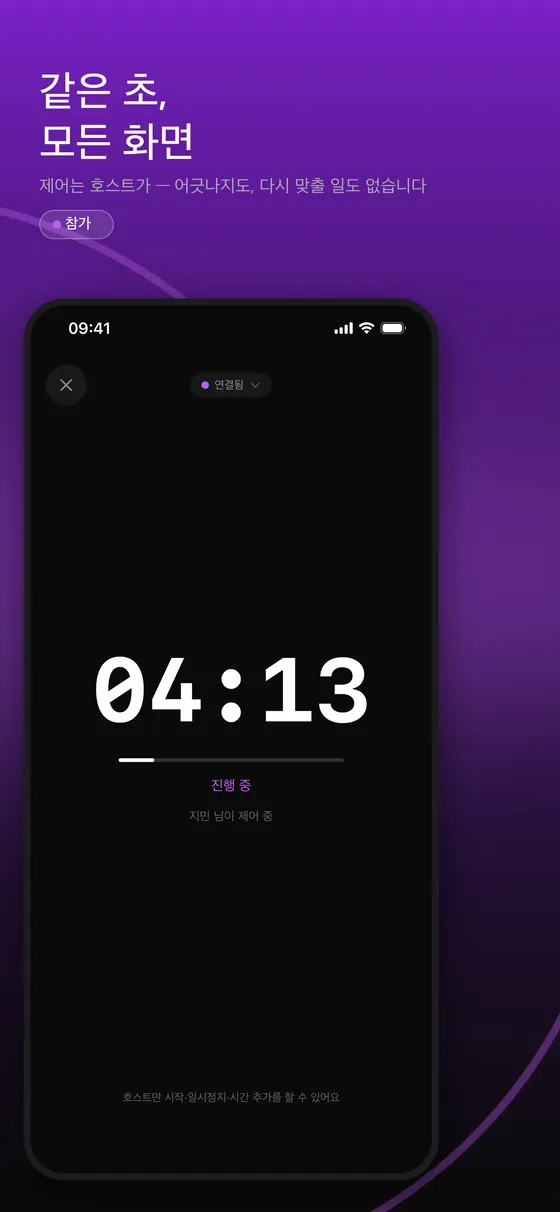
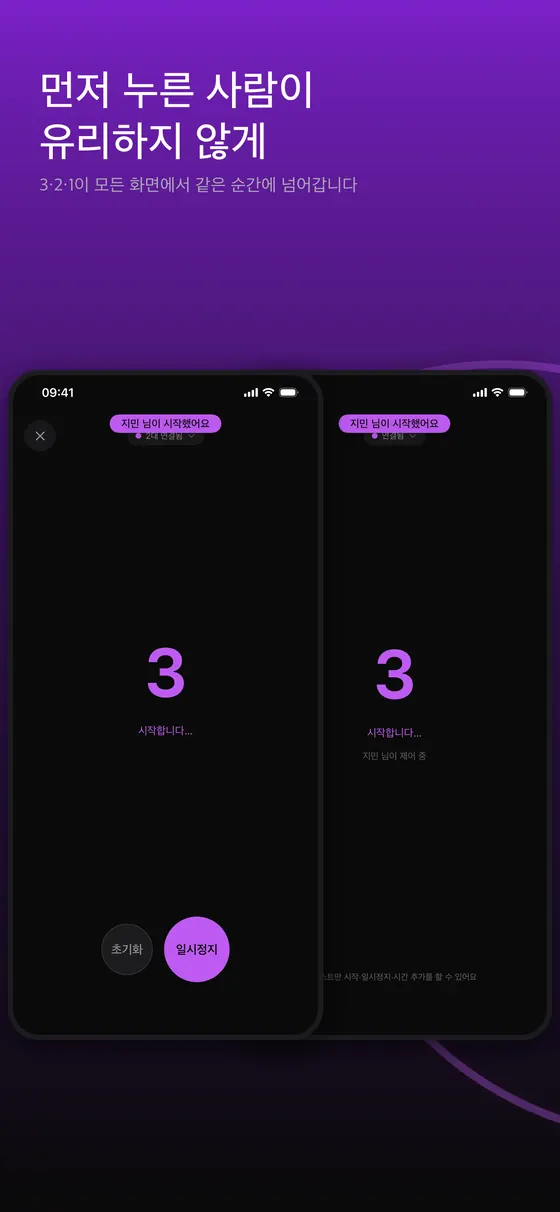
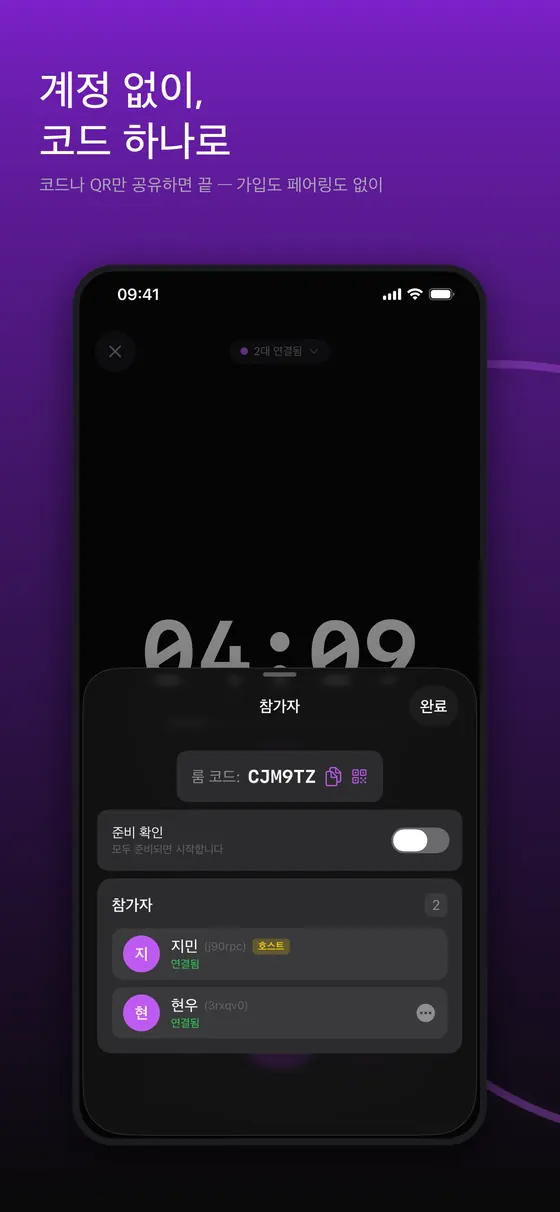
아래 여섯 장은 스토어 스크린샷이라 위쪽에 홍보 문구가 있고, 화면은 iPhone 앱입니다. 호스트와 참가자 화면이 어떻게 다른지, 시작 순간과 시퀀스 편집 화면을 순서대로 보여 줍니다.
처음 시작하기
1. 설치와 기본 요건
앱은 App Store에서 받을 수 있으며 iOS 17 이상을 기준으로 만들어졌습니다. 가까이 있는 기기를 찾을 때는 로컬 네트워크 권한이 필요합니다. 권한을 허용하지 않아도 룸 코드를 직접 입력해 인터넷 중계 방식으로 참가할 수 있습니다.
2. 룸 만들기
- 홈 화면에서 룸 만들기를 누르고 카운트다운 시간을 정합니다.
- 세션을 시작하면 룸이 열리고 참가용 코드와 QR이 표시됩니다.
- 다른 기기의 사용자에게 코드를 말로 알려 주거나 메신저로 보내거나, QR을 스캔하게 합니다.
3. 룸 참가하기
참가하는 기기에서는 룸 참가를 누르면 근처에 열린 룸이 목록에 나타납니다. 목록에서 고르거나 코드를 입력하면 같은 카운트다운 화면이 열립니다. 참가자는 결제나 계정 없이 언제든 들어올 수 있습니다.
4. 시작하고 제어하기
기본적으로 호스트가 시작, 일시정지, 1분 추가를 조작합니다. 호스트는 공동 호스트를 지정하거나 호스트 역할을 다른 사람에게 넘길 수 있고, 모두가 같은 화면을 조작하게 열어 둘 수도 있습니다. 룸에 두 대 이상이 있을 때 시작하면 3, 2, 1 리드인이 모든 화면에 같은 시각 기준으로 표시된 뒤 카운트다운이 시작됩니다. 준비 확인 기능을 쓰면 참가자 전원이 확인을 누를 때까지 시작을 미룰 수 있습니다.
알아 두면 좋은 기능
시퀀스와 그룹 뽀모도로
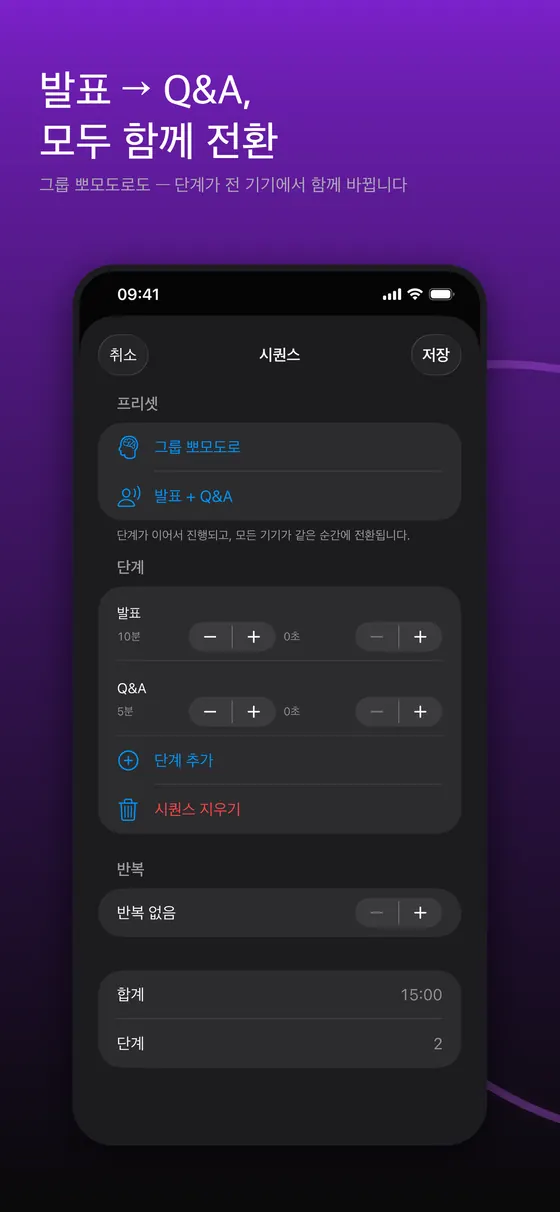
시퀀스는 여러 단계를 이어 붙인 타이머입니다. 예를 들어 발표 10분 다음에 질의응답 5분을 넣어 두면 단계가 바뀌는 순간 모든 기기가 함께 전환됩니다. 같은 방식으로 집중과 휴식을 반복하는 그룹 뽀모도로를 만들 수 있어서, 팀 전체가 같은 리듬으로 일하고 쉴 수 있습니다.
오버타임
세션이 길어질 때 00:00을 넘겨도 계속 세어 주는 오버타임 기능이 있습니다. 버전에 따라 기본값이 다를 수 있으며, 최신 개발 문서 기준으로는 기본이 꺼져 있고 설정에서 켭니다.
Apple Watch, 잠금화면, 위젯
Apple Watch 컴패니언 앱이 자체 종료 알림을 갖고 있어 아이폰과 떨어져 있어도 손목에서 알림을 받을 수 있습니다. 잠금 해제 없이 남은 시간을 확인할 수 있는 라이브 현황 표시와 다이내믹 아일랜드, 잠금화면 위젯, Siri 단축 동작도 지원합니다. 다만 워치 알림 같은 일부 동작은 실기기에서의 확인이 필요한 영역이므로, 중요한 행사 전에는 반드시 본인 기기로 한 번 시험해 보시기 바랍니다.
세션 기록
끝난 세션은 기록으로 남습니다. 기록을 CSV 파일로 내보내는 기능은 유료 Pro 기능에 포함됩니다.
무료와 Pro의 차이
앱은 한 번 결제하는 Pro 언락을 제공하며 구독이 아닙니다. 룸을 만드는 호스트의 기기를 기준으로, 기본 상태에서는 한 룸에 두 대까지 참가할 수 있고 Pro를 열면 최대 여덟 대까지 늘어납니다. 룸 정원 확대와 CSV 내보내기가 Pro의 범위이고, 룸 참가, 빠른 타이머, 시퀀스, 워치 앱은 제한이 없습니다. 참가자는 구매가 필요 없습니다. 가격은 스토어 화면에서 확인해 주세요.
행사 전 5분 점검표
동기화 타이머는 한 대라도 알림이 꺼져 있으면 "그 기기만 조용한" 상황이 생깁니다. 행사 직전에 아래 순서로 한 번 훑어 두면 대부분의 사고를 막을 수 있습니다.
- 호스트가 룸을 만들고 코드와 QR을 띄웁니다. 큰 화면에 QR을 보여 주면 참가가 빠릅니다.
- 참가자 시트에서 모든 기기가 "연결됨"인지 봅니다. 정원을 넘으면 입장되지 않으니 필요 대수를 미리 세어 두세요(기본 두 대, Pro 열면 여덟 대).
- 준비 확인을 켭니다. 한 명이 화면을 보고 있지 않을 때 시작해 버리는 일을 막아 줍니다.
- 짧은 시험 카운트다운을 한 번 돌립니다. 모든 기기에서 알람이 같은 순간에 울리는지, 무음·집중 모드에 막히지 않는지 확인합니다.
- 종료 알림을 믿는 기기는 충전 상태로 둡니다. 화면이 꺼져도 알림은 예약되어 있지만 배터리가 방전되면 울리지 않습니다.
수업이라면 학생 기기에서 앱을 미리 설치·권한 허용해 두는 것이 가장 큰 시간 절약입니다. 교실 Wi-Fi가 기기 간 통신을 막는 경우가 있으므로, 시험 때 근처 룸이 안 보이면 코드를 입력하는 경로를 안내해 두세요.
잘 쓰는 요령
- 행사 전에 호스트 기기와 참가 기기 각각에서 알림 권한과 로컬 네트워크 권한을 한 번 확인하세요.
- 방해 금지 모드나 집중 모드가 켜져 있으면 알림이 조용해질 수 있으니 필요하면 예외를 설정하세요.
- 강의실처럼 Wi-Fi가 격리된 곳에서는 근처 탐색이 안 될 수 있습니다. 이때는 코드를 입력해 참가하면 인터넷 중계로 연결됩니다.
- 시간을 연장할 가능성이 있다면 처음부터 오버타임을 켜 두는 쪽이 편합니다.
- 발표처럼 단계가 정해진 일정은 단순 타이머 여러 개보다 시퀀스 하나로 만드는 편이 실수가 적습니다.
규모별 사용 예시와 한계
두 대 기본 정원과 여덟 대 Pro 정원은 "룸을 만든 호스트 기기" 기준입니다. 이 범위에 맞는 장면과 맞지 않는 장면을 구분해 두면 도입 판단이 쉽습니다.
- 2대(기본): 발표자와 진행자, 코치와 선수처럼 둘이 같은 시계를 보는 경우. 결제 없이 시작할 수 있습니다.
- 3~8대(호스트가 Pro): 소규모 스터디 그룹, 실습실의 모둠 대표 기기, 팀 뽀모도로. 참가자는 결제가 필요 없고 호스트만 Pro를 열면 됩니다.
- 9대 이상: 한 룸의 최대는 여덟 대이므로 학급 전체 30명이 각자 폰으로 참가하는 방식에는 맞지 않습니다. 이럴 때는 모둠 대표 기기만 참가시키거나, 프로젝터에 호스트 화면 하나를 띄우는 편이 낫습니다.
문제가 생겼을 때
- 근처 룸이 목록에 보이지 않을 때: 두 기기가 같은 네트워크에 있는지, 로컬 네트워크 권한이 허용되어 있는지 확인하고, 그래도 안 되면 코드를 직접 입력하세요.
- 세 번째 기기가 들어가지 못할 때: 호스트가 Pro를 열지 않은 상태라면 룸 정원이 두 대입니다. 참가 기기가 아니라 호스트의 설정이 기준입니다.
- 화면 숫자가 한두 기기에서만 어긋나 보일 때: 기기의 날짜와 시간을 자동으로 설정해 두었는지 확인하세요. 앱은 네트워크 시간으로 보정하지만 인터넷에 전혀 닿지 않는 환경에서는 보정 정확도가 떨어질 수 있습니다.
- 알람이 울리지 않을 때: 알림 권한, 무음 모드, 집중 모드를 차례로 점검하세요.
개인정보
계정이나 로그인은 없고 광고도 없습니다. 룸에서 참가자를 구분하기 위해 기기 식별자가 룸이 유지되는 동안 중계 서버에 보관되며, 룸이 사라지면 삭제됩니다. 위치 정보나 연락처는 수집하지 않습니다. 자세한 내용은 개인정보처리방침을 참고하세요.
한계와 알려진 이슈
- iPhone·iPad·Apple Watch 전용입니다. iOS 17 이상이 필요하고 안드로이드·윈도우 앱은 없습니다. 안드로이드 사용자는 룸에 참가할 수 없습니다.
- 시간 보정은 네트워크 시간에 의존합니다. 인터넷에 한 번도 닿지 못한 기기는 보정 정확도가 떨어질 수 있고, "수십 밀리초"는 목표치이지 보증값이 아닙니다.
- 알림은 OS 설정이 이깁니다. 앱이 종료 알림을 미리 예약해 두지만, 알림 권한이 꺼져 있거나 집중 모드가 가로막으면 울리지 않습니다.
- 워치 알림, 호스트 위임처럼 실기기 확인이 꼭 필요한 영역이 있습니다. 개발 문서에서도 시뮬레이터로 검증할 수 없는 항목으로 분류되어 있으니, 중요한 행사 전에는 본인 기기로 한 번 시험하세요.
- 룸 정원은 호스트 기준입니다. 호스트가 Pro가 아니면 두 대까지이고, 참가 기기가 결제한다고 늘어나지 않습니다. 모임 도중에 구매해도 원격 연결의 정원이 곧바로 늘어난다고 장담할 수 없으니(개발 문서의 미결 항목), Pro는 룸을 만들기 전에 열어 두세요.
- 참가자 식별 정보는 룸이 유지되는 동안만 중계 서버에 있습니다. 룸이 사라지면 삭제됩니다. 끝난 세션의 기록은 기기에 남고, 파일로 내보내는 CSV는 Pro 기능입니다.
다른 방법과 비교
| 방법 | 강점 | 약점 |
|---|---|---|
| TimerLync 룸 | 모든 기기에서 같은 순간에 시작과 알람, 단계 전환 동기화, 계정 불필요 | 참가자 모두 앱 설치 필요, 한 룸 최대 여덟 대, iOS 계열만 |
| 각자 휴대폰 타이머 + 구호 | 추가 설치 없음 | 누른 순간과 알람 소리가 제각각이라 몇 초씩 어긋남 |
| 프로젝터·TV에 타이머 하나 띄우기 | 인원 제한 없음, 가장 단순 | 화면이 안 보이는 사람은 알 수 없고 개인 기기 알람이 없음 |
| 화상회의 공유 타이머 | 원격 참가자에게도 보임 | 영상 지연이 있어 정확한 동시 종료에는 부적합 |
모두가 같은 화면을 볼 수 있는 자리라면 큰 화면 하나가 가장 쉽습니다. 각자 개인 기기에서 시간을 봐야 하거나(발표자 모니터, 이동 중인 실습) 소리·진동으로 동시에 알려야 할 때 룸 방식이 의미를 갖습니다. 동기화 원리는 여러 기기를 동시에 맞추는 타이머 활용법에서 더 자세히 설명합니다.
출처 및 더 읽을거리
- IETF RFC 5905: Network Time Protocol Version 4
- Apple Developer: Multipeer Connectivity
- Apple Developer: TN3179 로컬 네트워크 개인정보 보호 이해
자주 묻는 질문
인터넷이 없어도 쓸 수 있나요?
가까이 있는 기기끼리는 블루투스와 Wi-Fi 기반의 근거리 연결을 쓸 수 있습니다. 서로 멀리 떨어져 있으면 인터넷 연결이 필요합니다. 혼자 쓰는 빠른 타이머는 룸이 필요 없습니다.
안드로이드에서도 되나요?
현재 TimerLync는 iPhone, iPad, Apple Watch용입니다. 안드로이드 기기는 지원 대상이 아닙니다.
참가자도 결제해야 하나요?
아니요. 결제 확인은 룸을 만든 호스트 기기만 대상입니다.
중간에 연결이 끊기면 알람은 어떻게 되나요?
종료 알림은 종료 시각을 기준으로 미리 예약되므로, 연결이 끊겨도 정해진 시각에 울리도록 설계되어 있습니다. 다만 기기 설정에서 알림이 꺼져 있으면 울리지 않습니다.
시간이 얼마나 정확하게 맞나요?
네트워크 시간 서버로 보정하며 보통 수십 밀리초 수준을 목표로 합니다. 실제 오차는 네트워크 상태에 따라 달라질 수 있습니다.
문의는 어디로 하나요?
지원 페이지에서 접수할 수 있습니다.
참가자가 중간에 들어오거나 나가도 되나요?
참가자는 결제나 계정 없이 언제든 들어올 수 있습니다. 정원은 룸을 만든 호스트 기준이라, 이미 가득 찬 룸에는 자리가 날 때까지 입장되지 않습니다.
호스트 말고 참가자가 시작·정지를 누를 수 있나요?
기본은 호스트만 조작합니다. 호스트가 공동 호스트를 지정하거나 모두가 조작하도록 열어 둘 수 있습니다.
TimerLync is a countdown timer that shows the same time on several devices and sounds the alarm on all of them at the same moment. It runs on iPhone, iPad and Apple Watch, and it does not ask you to create an account or sign in. This guide explains what problem the app is meant to solve, how a first-time user can get started, and how to deal with the places where people most often get stuck.
What problem does it solve?
When several people each set a countdown on their own phone and say "three, two, one, go", the timers drift apart more often than you would expect. Who pressed first, whose screen went to sleep and which phone has a different alarm sound all add up to a few seconds of difference. For classroom group work, meeting time-boxes or team workouts, where everyone should finish at the same instant, that small gap is a constant annoyance.
Instead of sending remaining seconds back and forth, TimerLync shares a single value: the moment the timer ends. Each device corrects its own clock against network time and then counts down to that end time by itself. Devices only need to resynchronize when something changes, such as a pause or added time, so a brief connection wobble does not make the numbers jump around.
Who is it for?
- Teachers and trainers who want every student to see the same clock during group work or presentations.
- Teams that want the presenter and the facilitator to share one sense of time in a meeting.
- Study groups and remote teams who want to try a group pomodoro, where everyone focuses and rests together.
- Coaches, families and housemates who need to line up workout sets or cooking steps.
- Anyone who simply wants a dependable alarm for a solo countdown. A quick timer that needs no room is included.
Screens at a glance
The six images below are store screenshots with a promo headline on top; the screens are the iPhone app. They show how the host and participant screens differ, the start moment and the sequence editor, in that order.
Getting started
1. Install and requirements
Download the app from the App Store. It is built for iOS 17 or later. Finding nearby devices uses the Local Network permission. If you decline it, you can still join a room by typing the room code, which connects through an internet relay.
2. Create a room
- On the home screen, choose Create Room and pick a countdown duration.
- Start the session. The room opens and shows a join code and a QR code.
- Tell the others the code, send it in a chat message, or let them scan the QR code.
3. Join a room
On the joining device, tap Join Room. Rooms opened nearby appear in a list. Pick one, or type the code, and the same countdown screen opens. Participants can join at any time without paying or signing up.
4. Start and control
By default the host controls start, pause and adding a minute. The host can name co-hosts, hand the host role to someone else, or open control to everyone. When two or more devices are in the room, starting shows a 3-2-1 lead-in on every screen, timed against the same shared moment, before the countdown begins. A ready check can hold the start until every participant confirms.
Features worth knowing
Sequences and group pomodoro
A sequence chains several steps into one timer. For example, a ten-minute talk followed by five minutes of Q&A switches on every device at the moment the step changes. The same idea powers a group pomodoro, so a whole team can follow one rhythm of focus and break.
Overtime
If a session runs long, overtime keeps counting past 00:00. The default can differ by version; per the latest development notes it is off by default and you turn it on in settings.
Apple Watch, Lock Screen and widgets
The Apple Watch companion has its own end-of-timer alert, so you can be notified on your wrist even when the phone is elsewhere. The app also offers a live status on the Lock Screen and Dynamic Island, a Lock Screen widget and Siri shortcuts. Some behavior, such as the Watch alert, can only be confirmed on real hardware, so test with your own devices before an important event.
Session history
Finished sessions are kept in a history. Exporting that history as a CSV file is part of the paid Pro unlock.
Free versus Pro
The app offers a one-time Pro unlock, not a subscription. Counted on the host's device, a room holds two devices by default, and Pro raises that to eight. Larger rooms and CSV export are what Pro covers. Joining rooms, the quick timer, sequences and the Watch app have no such limits, and participants never need to buy anything. Check the store page for the current price.
A five-minute pre-event checklist
With a synced timer, one device with notifications off means one device that stays silent. A quick pass in this order just before the event prevents most mishaps.
- The host creates the room and shows the code and QR. Putting the QR on a big screen makes joining fast.
- On the participants sheet, check that every device reads "connected". Devices beyond capacity cannot enter, so count how many you need in advance (two by default, eight once Pro is unlocked).
- Turn on the ready check. It stops the start from happening while someone is not looking at the screen.
- Run one short test countdown. Confirm the alarm sounds at the same moment on every device and is not blocked by silent or Focus mode.
- Keep devices that must ring plugged in or charged. The alert is scheduled even if the screen turns off, but a dead battery will not ring.
For a class, the biggest time saver is installing the app and granting permissions on student devices beforehand. Some classroom Wi-Fi blocks device-to-device traffic, so if the test shows no nearby room, tell people to type the code instead.
Practical tips
- Before an event, check notification and Local Network permissions on both the host and the participant devices.
- Do Not Disturb and Focus modes can silence alerts, so set exceptions if needed.
- On networks that isolate devices, such as some classroom Wi-Fi, nearby discovery may fail. Entering the code connects through the internet relay instead.
- If a session might run over, turn overtime on from the start.
- For a fixed agenda like a presentation, one sequence is less error-prone than several separate timers.
Usage by group size, and where it stops fitting
The two-device default and the eight-device Pro capacity are counted from the host device that created the room. Knowing which scenes fit and which do not makes the adoption decision easy.
- 2 devices (default): a presenter and a facilitator, or a coach and an athlete, sharing one clock. You can start without paying.
- 3 to 8 devices (host has Pro): a small study group, one device per group in a lab, a team pomodoro. Participants never pay; only the host unlocks Pro.
- 9 or more devices: a room tops out at eight, so it does not suit a class of 30 each joining on their own phone. Join one representative device per group, or put the host screen on a projector instead.
Troubleshooting
- A nearby room does not show up: confirm both devices are on the same network and the Local Network permission is allowed. If it still fails, type the code.
- A third device cannot join: if the host has not unlocked Pro, the room holds two devices. The host's setting decides, not the joining device's.
- Numbers look off on one or two devices: make sure the date and time are set automatically. The app corrects with network time, but accuracy can suffer where the internet is unreachable.
- The alarm does not sound: check notification permission, silent mode and Focus mode in that order.
Privacy
There are no accounts, no sign-in and no ads. To tell participants apart, a device identifier is kept on the relay server only while the room exists and is deleted when the room goes away. The app does not collect location or contacts. See the privacy policy for details.
Limits and known issues
- It is for iPhone, iPad and Apple Watch only. It needs iOS 17 or later, and there is no Android or Windows app, so Android users cannot join a room.
- Time correction depends on network time. A device that has never reached the internet may be less accurate, and "tens of milliseconds" is a target, not a guarantee.
- OS settings win over the app. The app schedules the end alert ahead of time, but it will not ring if notification permission is off or Focus mode blocks it.
- Some areas need real-device checks, such as the Watch alert and handing the host role to someone else. The development notes also classify them as things a simulator cannot verify, so test with your own devices before an important event.
- Room capacity follows the host. If the host does not have Pro, the limit is two devices, and a joining device paying does not raise it. Buying mid-session cannot be assumed to raise the capacity of remote connections right away (an open item in the development notes), so unlock Pro before creating the room.
- Participant identifiers live on the relay server only while the room exists. They are deleted when the room goes away. Finished sessions stay in the on-device history, and exporting them as CSV is a Pro feature.
How it compares
| Method | Strengths | Weaknesses |
|---|---|---|
| A TimerLync room | Start, alarm and step changes at the same moment on every device, no account | Everyone needs the app, eight devices per room, Apple platforms only |
| Everyone sets a phone timer and counts down aloud | Nothing to install | Press timing and alarm sounds differ, drifting by seconds |
| One timer on a projector or TV | No participant limit, the simplest option | People who cannot see the screen miss it, and there is no personal-device alarm |
| A shared timer in a video call | Visible to remote attendees | Video latency makes a precisely simultaneous end unrealistic |
If everyone can look at one screen, a single big display is easiest. A room makes sense when each person needs to read the time on a personal device (a presenter's monitor, hands-on work while moving around) or when a sound or vibration should land at the same instant. The synchronization idea is explained further in our article on synchronized timers for groups.
Sources and further reading
- IETF RFC 5905: Network Time Protocol Version 4
- Apple Developer: Multipeer Connectivity
- Apple Developer: TN3179 Understanding local network privacy
FAQ
Does it work without internet?
Devices that are close together can use a Bluetooth and Wi-Fi based local connection. When devices are far apart, an internet connection is needed. The solo quick timer needs no room at all.
Is there an Android version?
Not at present. TimerLync is for iPhone, iPad and Apple Watch.
Do participants have to pay?
No. The purchase check applies only to the host who creates the room.
What happens to the alarm if the connection drops?
The end alert is scheduled ahead of time from the end timestamp, so it is designed to ring on time even if the connection drops. It will not sound if notifications are turned off on the device.
How accurate is the sync?
It corrects against a network time server and aims for tens of milliseconds. Real-world error depends on network conditions.
Where can I ask for help?
Use the support page.
Can people join or leave partway through?
Participants can join at any time without payment or an account. Capacity follows the host that created the room, so a full room admits no one until a seat frees up.
Can a participant, not just the host, press start or pause?
By default only the host controls it. The host can name co-hosts or open control to everyone.